Welcome aboard! This guide will help you install, set up, and start customizing Surge for your Shopify store. Think of it as your quick-start checklist. By the end, you’ll be ready to build a store that reflects your brand, all without touching a single line of code.
Overview
Surge is a flexible Shopify theme designed for easy setup and full customization. In this guide, we’ll cover:
- Installing Surge
- Adding & managing your license key
- Navigating the Online Store Editor
- Working with templates, sections & blocks
- Saving, publishing & creating backups
Let’s dive in!
1️⃣ Installing Surge
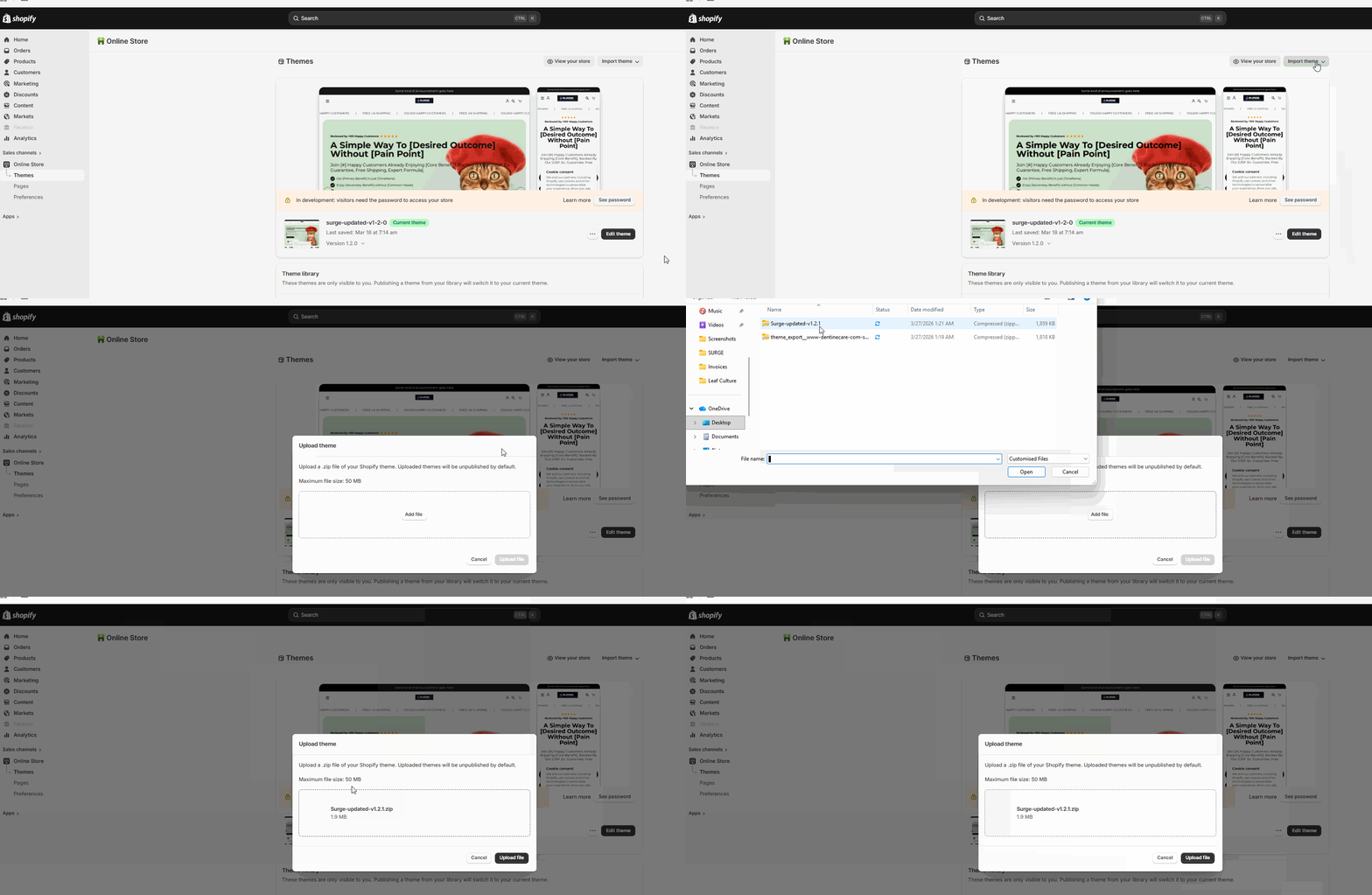
You’ll get Surge as a .zip file after purchase. Installing it is quick:
- Go to Online Store > Themes in Shopify Admin
- Click Upload Theme and select your
.zipfile - Surge will appear in your Theme Library
Pro Tip: Keep multiple themes in your library so you can test changes safely without affecting your live store.
2️⃣ Add Your License Key
Your license unlocks updates and premium features.
- Find your key via email or your account dashboard
- In Shopify Admin, go to Theme Settings > License Key
- Paste the key (Example format: XXXX-XXXX-XXXX-XXXX)
Note: don't enter anything under the Shopify store URL field yet and let the screen autopopulates the assigned URL as shown below.
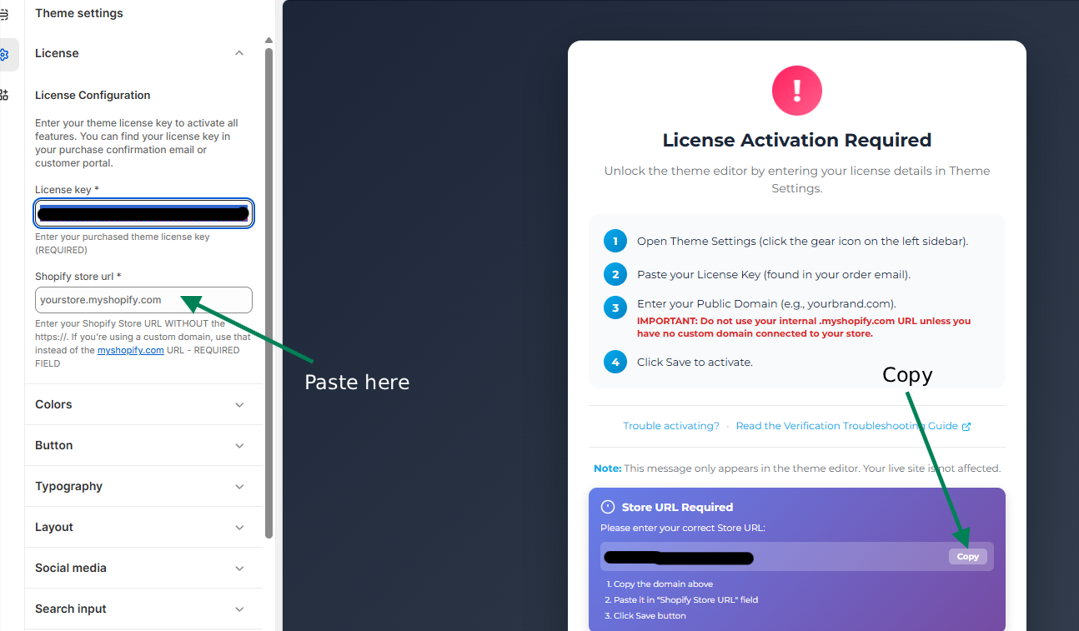
Click HERE for the complete Surge license activation guide.
⚠️ Tip: Having trouble? Visit our License Verification Troubleshooting Guide.
3️⃣ Manage Multiple Licenses
If you operate multiple stores, you can:
- View active licenses
- Reassign licenses to other stores
- Get more licenses HERE.
All from your customer account dashboard, keeping everything organized.
4️⃣ Open the Online Store Editor
The editor is where your store comes to life!
- Click Edit Theme next to Surge in your Themes page
- The live editor opens with your storefront & editing sidebar
- Adjust layouts, colors, fonts, images, and more
Pro Tip: You can preview your store on desktop, tablet, and mobile from the editor.
5️⃣ Working with Templates
Surge includes ready-made templates for every part of your store:
- Home Page: Landing hub for shoppers
- Product Pages: Showcase items with images, descriptions, and add-to-cart buttons
- Collection Pages: Group products together
- Cart: Manage what customers are buying before checkout
- Custom Pages: “About Us,” “FAQ,” or anything unique
Tip: You can create multiple template versions (e.g., different product layouts) and assign them as needed.
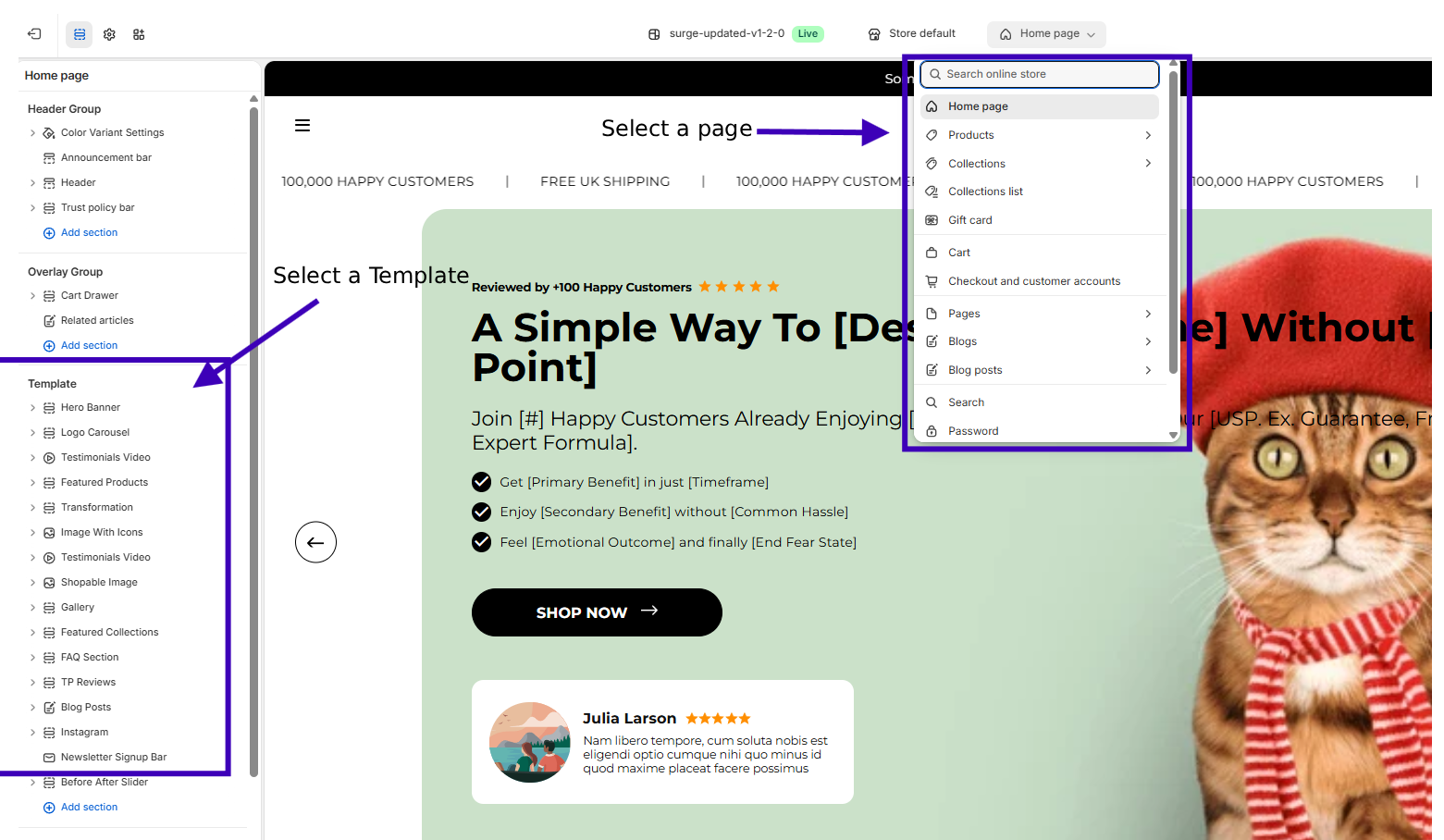
See about Creating Custom Product Templates
6️⃣ Editor Basics: Sections & Blocks
Everything in Surge is drag-and-drop friendly.
- Sections: Large building blocks (header, footer, product grid)
- Blocks: Smaller elements inside sections (buttons, text, images)
- Drag & drop to reorder elements
- Customize each Section and Block
✨ Tip: Preview layouts across desktop, tablet, and mobile to make sure your store looks perfect everywhere.
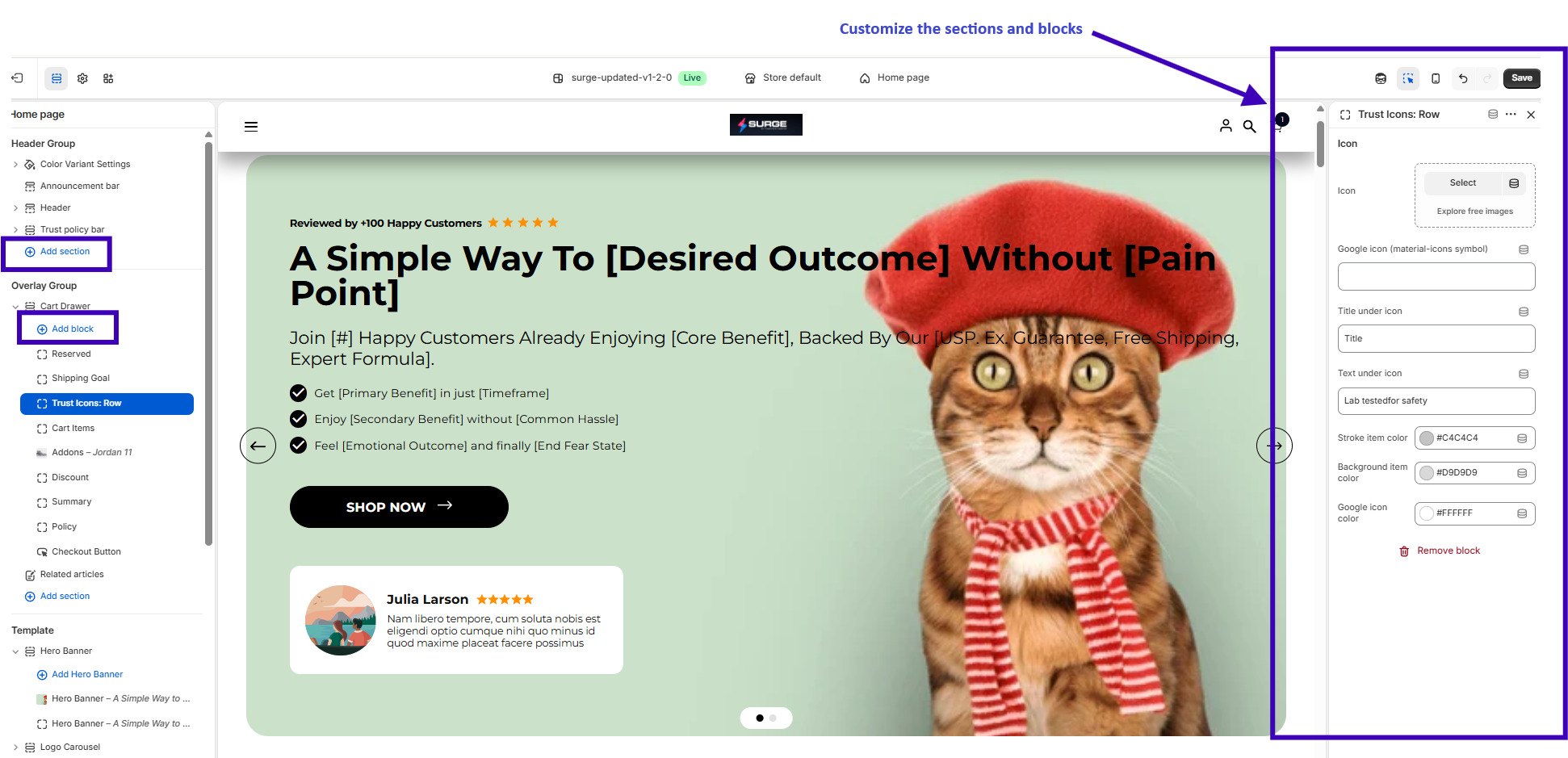
See more about Sections & Blocks
7️⃣ Saving, Publishing & Backups
Keep your progress safe and your store live:
- Save often to avoid losing work
- Publish changes when ready for customers
- Duplicate your theme before big updates—this creates a backup copy
Safety Tip: This lets you experiment freely without fear of losing your work.
You’re Ready to Go!
Congratulations! Your Surge theme is installed, licensed, and ready to customize. Dive into sections and blocks to bring your brand to life.
Need help? We’re here for you:
- Create a Support Ticket
- Or email us at [email protected]
We make it easy to get answers fast and keep your store running smoothly.
Was this article helpful?
That’s Great!
Thank you for your feedback
Sorry! We couldn't be helpful
Thank you for your feedback
Feedback sent
We appreciate your effort and will try to fix the article