Overview
To unlock all features of the Surge Theme, you’ll need to activate your theme license within the Theme Settings.
Activating your license ensures:
Full access to all premium features
Removal of any limitations
Proper validation for your Shopify store
Your license key can be found in your purchase confirmation email or inside your customer portal.
Step-by-Step Guide to Activate Your License
Follow the steps below to activate your Surge theme license:
1. Open the Theme Editor
In Shopify Admin, go to Online Store → Themes
Click Edit Theme on the Surge theme
2. Navigate to License Settings
Click on the Theme settings (gear icon)
Open the License section
Click License Configuration
3. Enter Your License Key
Locate the License key field
Paste your purchased license key exactly as provided
(Example format: XXXX-XXXX-XXXX-XXXX)
4. Copy your store URL
The Store URL linked to the license will autopopuplate on the right screen, you will copy it and paste it to the Shopify store URL field on the left side
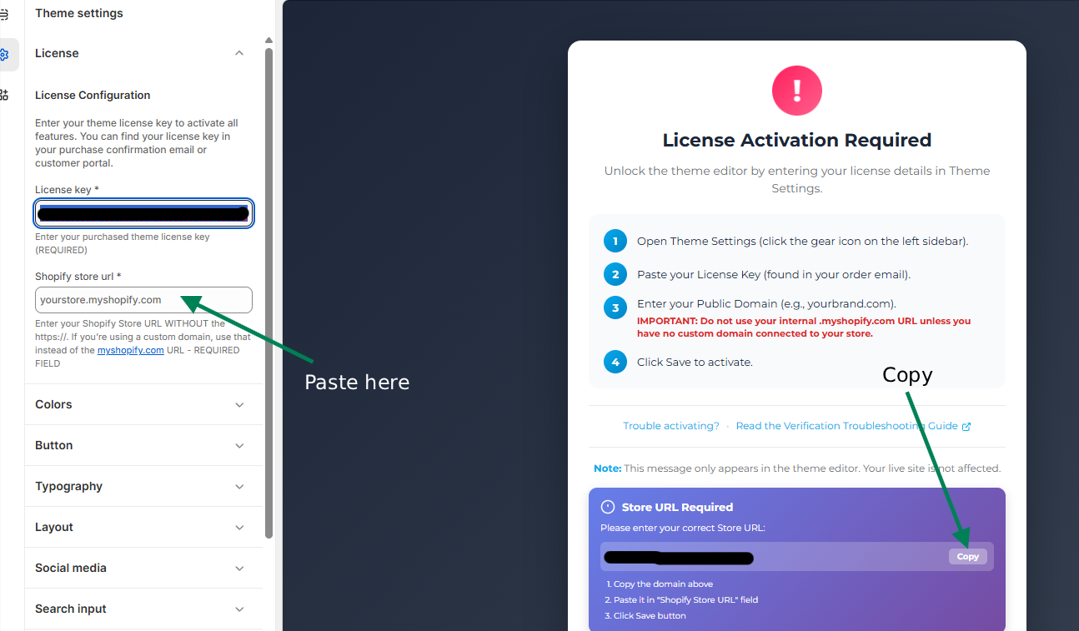
It will autosave and wait for the License Activated Successfully confirmation popup.
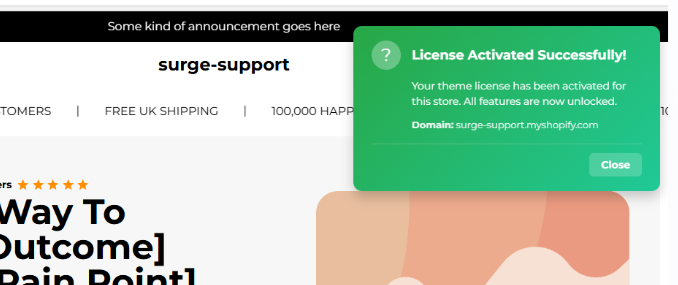
Final Step
- Close the green popup and hit Save
Important: When You Need to Reactivate
You will need to activate your license again in the following situations:
After updating the Surge theme to a newer version
When downloading a fresh copy of the theme
When publishing a newly installed version of the theme
Each theme installation is treated separately in Shopify, so the license must be re-entered and saved for every new or updated version before publishing.
Troubleshooting Tips
If your license does not activate:
Double-check that the key was copied correctly (no extra spaces)
Follow this guide on Licence Verification Troubleshooting
Need Help?
If you experience any issues activating your license, we're here to help.
Please click “Create a support ticket” in your portal or email us directly at [email protected] and our team will assist you as quickly as possible.
Was this article helpful?
That’s Great!
Thank you for your feedback
Sorry! We couldn't be helpful
Thank you for your feedback
Feedback sent
We appreciate your effort and will try to fix the article