Overview
Surge allows you to use custom CSS gradient code in supported color settings, giving you more flexibility than using a single HEX color.
If you're currently seeing a solid color and aren't sure how to enter a gradient, the key is to remove the existing gradient setting first, then switch the color type from CSS to Gradient.
Once the Gradient option is selected, you can enter CSS gradient code such as a linear-gradient() directly into the CSS Code field.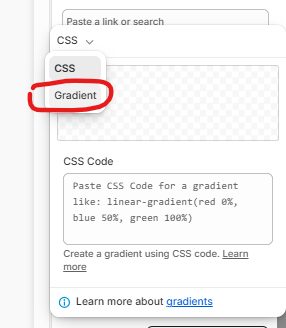
Step-by-Step Guide
Step 1: Open the Color Setting
In the Surge Theme Editor, navigate to the section or block where you want to customize the color.
Open the relevant Colors settings "Custom".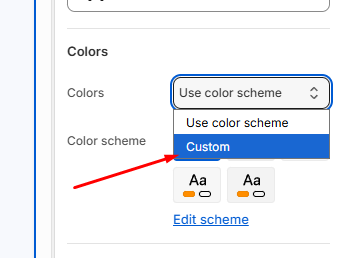
Under the section that you'd like to update e.g., background image, click on "Custom CSS".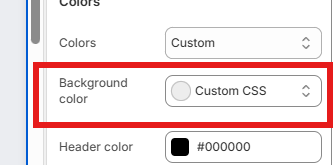
Step 2: Remove the Existing Gradient.
by default, this "Remove gradient" is ,on so click on it first.
This will return the color control to its standard color-selection state.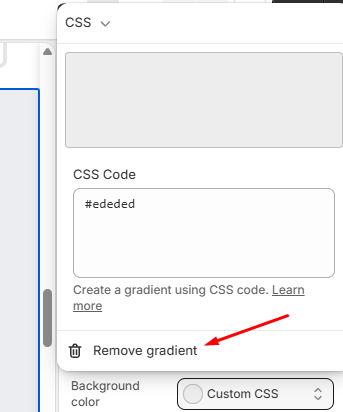
Step 3: In the CSS code field, enter a simple css code e.g linear-gradient(beige, grey)
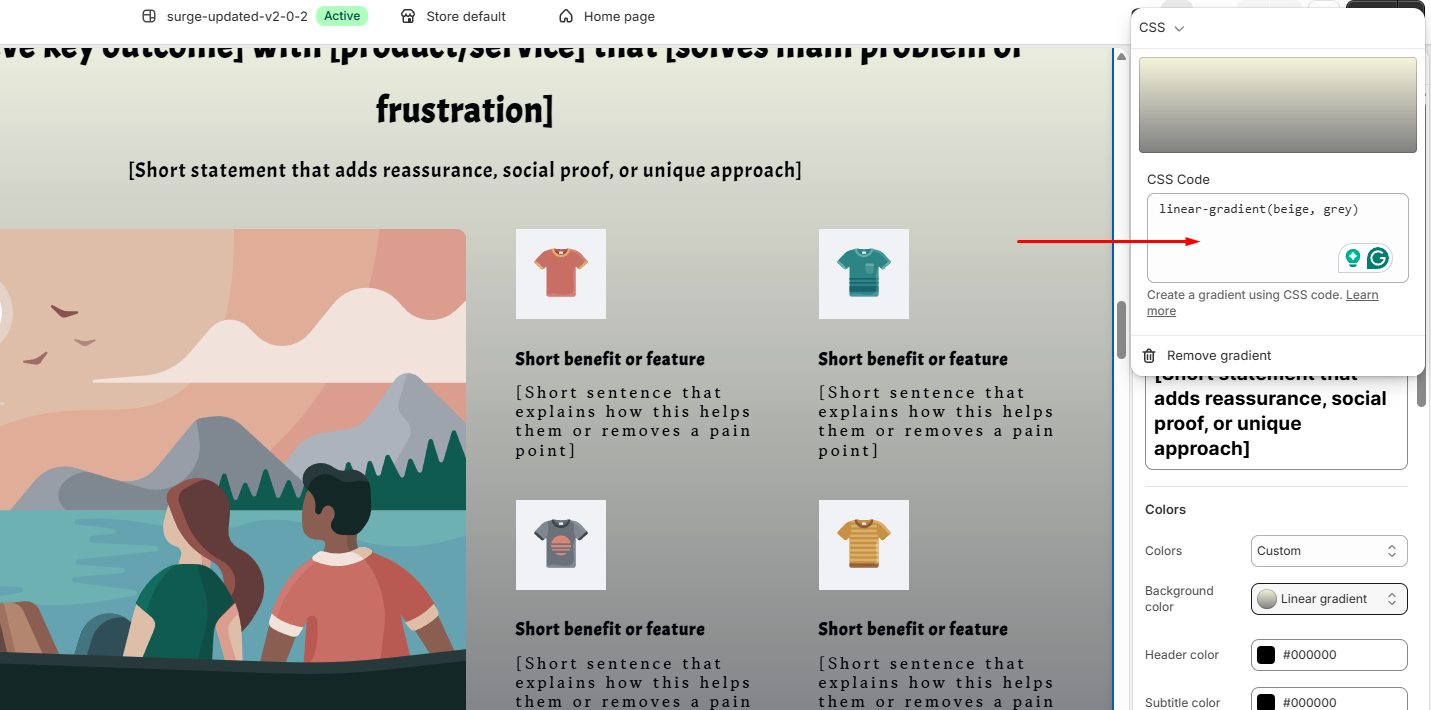
For example:
linear-gradient(red, blue)
Or, for more control over the direction and color stops:
linear-gradient(90deg, #000000 0%, #333333 50%, #666666 100%)
You can use any valid CSS gradient syntax supported by the theme's color control.
Step 4 : Save Your Changes
After entering the gradient CSS, save the changes in the Shopify Theme Editor and preview your store to confirm the gradient appears as expected.
Pro Tip
If the CSS Code field is only showing a single HEX value such as #000000, you're currently working with the CSS color option rather than the Gradient option.
Remove the existing gradient first, then select Gradient from the dropdown. This will expose the correct CSS Code field for entering a gradient such as linear-gradient(...).
Closing
Using custom CSS gradients gives you more control over the appearance of supported Surge theme elements without needing to add custom code directly to your theme files.
If you're having trouble getting a particular gradient to display correctly, make sure you're using valid CSS gradient syntax and that you've selected Gradient rather than the standard CSS color option.
Need Help?
If you have any further questions or need help setting up a gradient in Surge, please submit a support ticket at [email protected] and our team will be happy to take a closer look.
Was this article helpful?
That’s Great!
Thank you for your feedback
Sorry! We couldn't be helpful
Thank you for your feedback
Feedback sent
We appreciate your effort and will try to fix the article