Overview
If you’re new to Surge Theme or Shopify, getting familiar with the theme editor is the first step to customizing your store with confidence.
This guide walks you through the basics of navigating Surge Theme, finding different pages, editing sections, and updating your content—from your homepage hero banner to product page accordions and beyond.
Step-by-Step Guide
Step 1: Access Your Shopify Theme Editor
- In your Shopify admin, go to Online Store.
- Under Online Store, you’ll see several sections like:
- Click Themes.
Step 2: Locate Your Active Surge Theme
- Under Current Theme, you’ll see your published Surge Theme.
- If Surge is installed but not live yet, it may appear under Theme Library or Draft Themes.
- Click Customize (or Edit Theme) on your active Surge Theme.
Step 3: Understand the Theme Editor Layout
Once inside the editor:
Inspector Tool (Top Right)
- The Inspector helps you click directly on elements in the preview window.
- If the Inspector icon is blue, it’s active.
- When active, clicking any section on your storefront preview will automatically open that section’s settings in the editor panel.
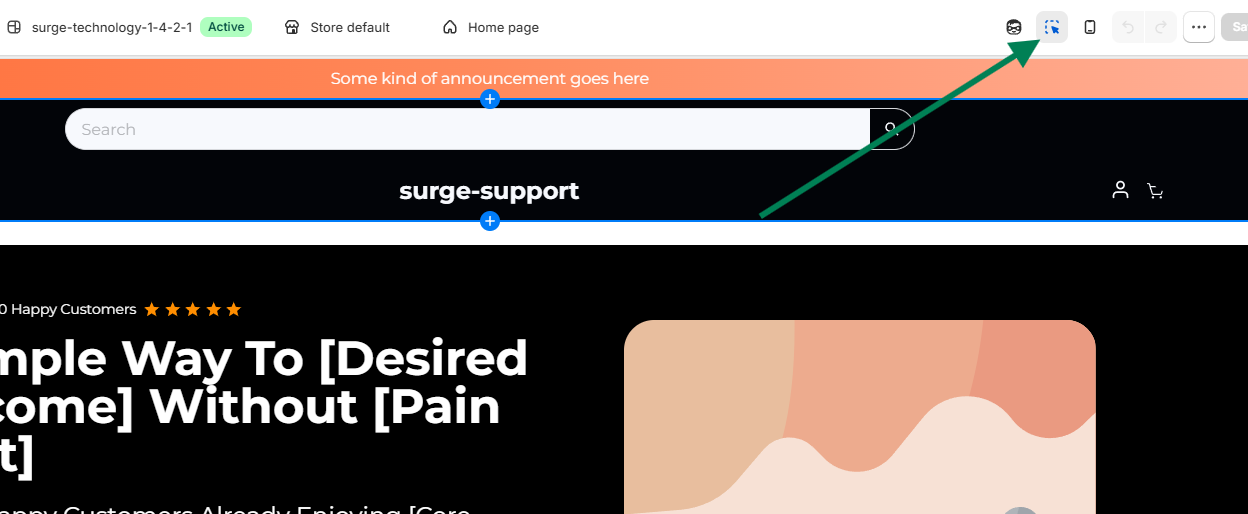
Example:
Clicking your Hero Banner in the preview instantly opens the Hero Banner settings so you can edit headlines, buttons, images, and more.
Step 4: Navigate Between Different Pages
At the top of the editor, you’ll see a page selector dropdown (usually showing Homepage by default).
Click this dropdown to switch between:
- Homepage
- Product Pages
- Collection Pages
- Collection Lists
- Cart
- Checkout
- Blog Posts
- Custom Pages
This allows you to customize every part of your store individually.
Step 5: Edit Product Pages
- Select Products from the page dropdown.
- Use the product preview selector (top left) to choose a specific product.
- Click directly on sections like:
- Product Title
- Description
- Accordion
- Transformation Sections
- Image with Text
Whichever block you click will automatically highlight on the left sidebar, where you can update content, images, layout, and settings.
Step 6: Use the Left Sidebar for Quick Navigation
You can also click sections directly from the left sidebar instead of the preview window.
For example:
- Hero Banner
- Accordion
- Transformations
- Image with Text
This is especially useful for quickly jumping between sections without scrolling through the page preview.
Pro Tips
- Use the preview panel to visually select sections faster.
- Use the sidebar for precise control and faster navigation.
- Switch pages often to ensure every part of your store matches your branding.
- Remember to save your changes after editing.
Need More Help?
If you have any questions or need assistance customizing your Surge Theme, we’re here to help.
Please click Submit a support ticket in our Help Center or email [email protected] and our team will be happy to assist.