Overview
Advertorials are an effective way to engage readers with pre-sell storytelling, editorial content, and targeted promotions. The Surge theme features a dedicated Advertorial Page template equipped with custom headers, announcement bars, body sections, and footers to help build trust and drive high-converting traffic seamlessly.
This guide takes you step-by-step through creating, assigning, and customizing your Advertorial Page template.
Step-by-Step Guide
Step 1: Create a Page
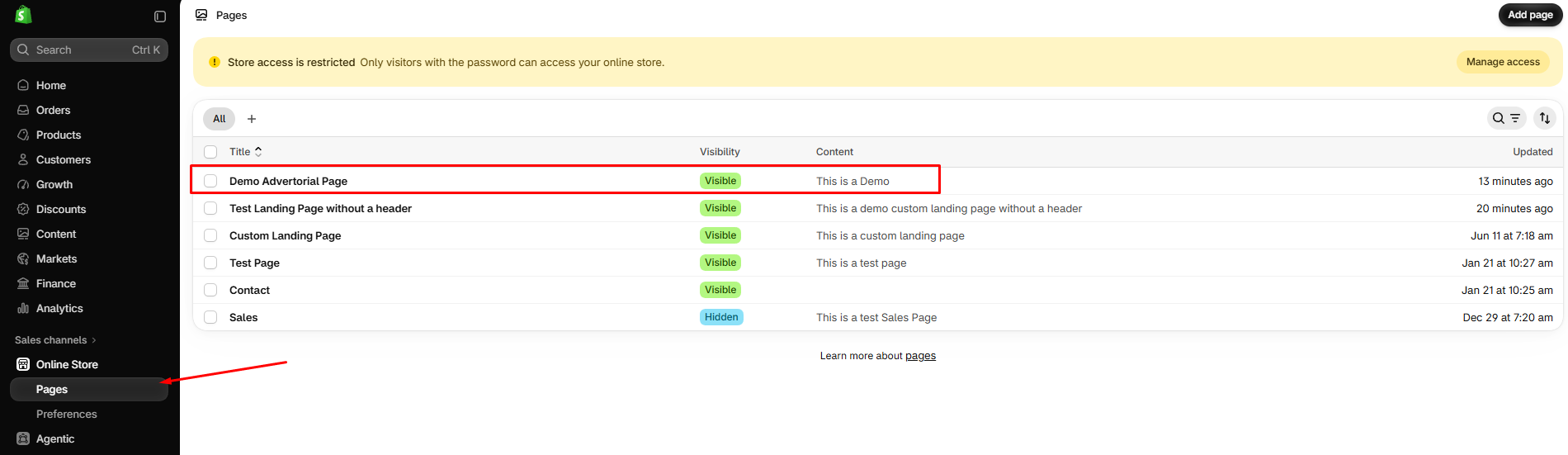
In your Shopify admin menu, navigate to Online Store > Pages.
Click Add page in the top-right corner (or select an existing page to edit).
Enter your page Title (e.g., Demo Advertorial Page) and brief content
Step 2: Assign the Template & Set Visibility
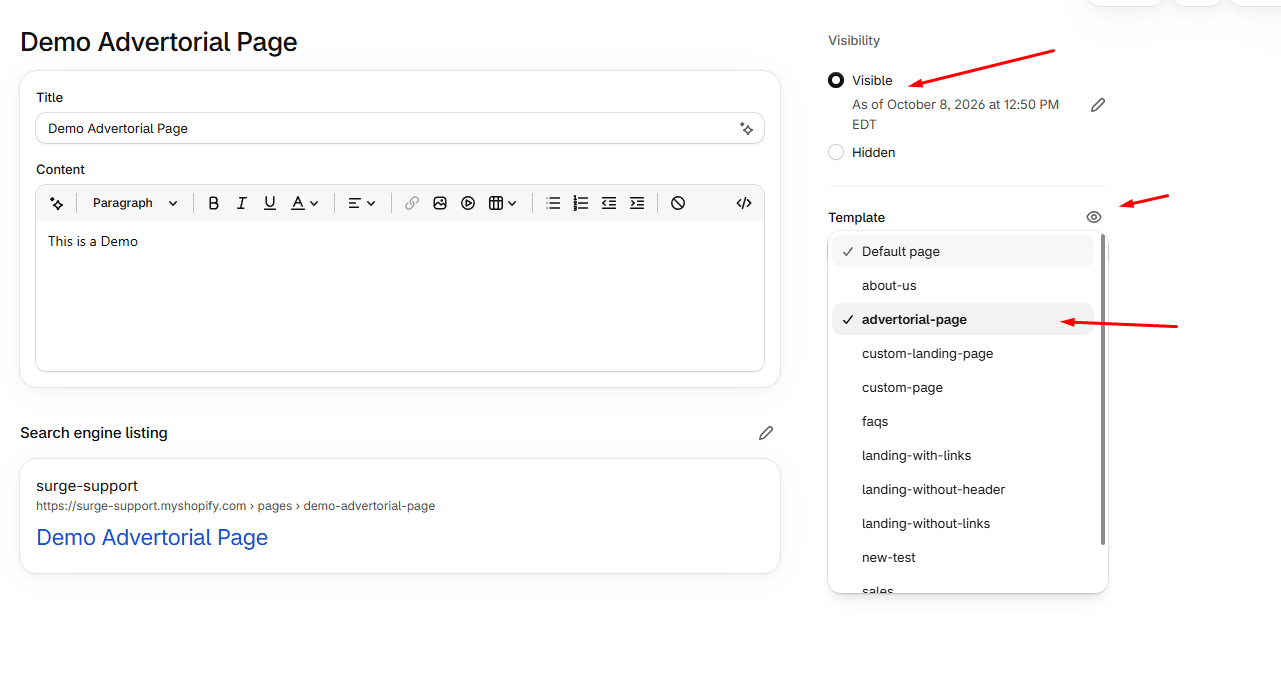
Locate the Template section on the lower-right side of the page settings
Select
advertorial-pagefrom the dropdown menuIn the Visibility section near the top right, ensure it is set to Visible
Click Save
Step 3: Open the Theme Customizer
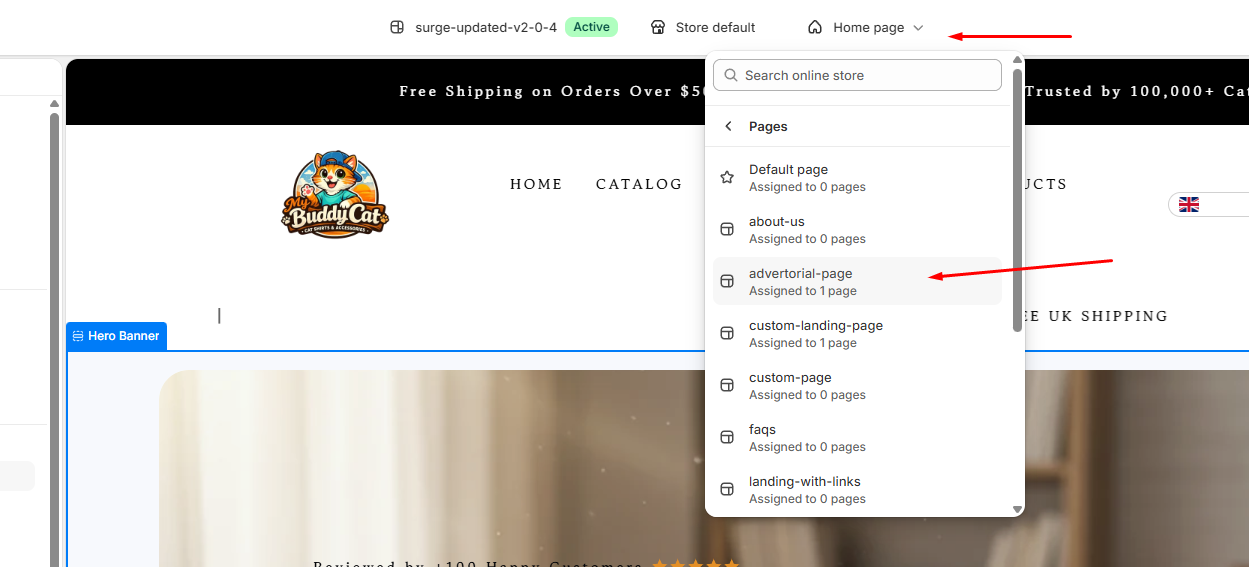
Go to Online Store > Themes and click Customize next to your active Surge theme
Click the top page selector dropdown (where it displays Home page)
Choose Pages, then select
advertorial-pageto open the editor
Step 4: Customize the Advertorial Layout & Header Settings
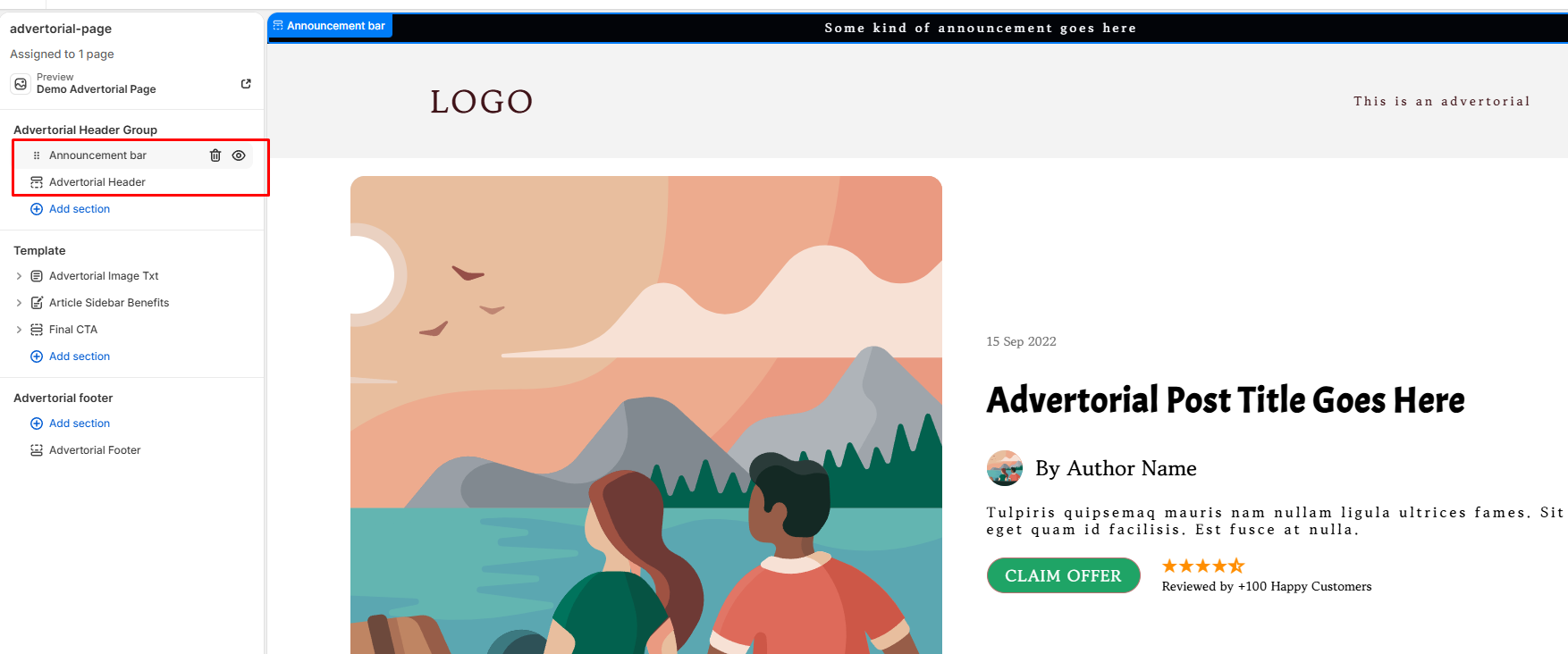
On the left sidebar menu, you will see the Advertorial Header Group containing the Announcement bar and Advertorial Header. You can click the eye icon next to either item to toggle visibility on or off.
Add content sections under Template (such as Advertorial Image Txt, Article Sidebar Benefits, or Final CTA) to structure your story.
Customize your Advertorial footer section at the bottom.
Click Save in the top right corner when you are done publishing your adjustments.
Pro Tip
? Editorial Formatting: Use native elements like real publication dates, author blocks, and clear narrative structures to keep the page feeling genuinely editorial. Hiding standard website header navigation helps keep readers immersed in your content without navigating away early
Closing
By using the Advertorial Page template in Surge, you can effortlessly launch story-driven presell campaigns tailored to turn content readers into buyers.
Need Further Help?
If you have questions or need assistance setting up your templates, please don't hesitate to submit a ticket to [email protected]. Our support team is always glad to help!
Was this article helpful?
That’s Great!
Thank you for your feedback
Sorry! We couldn't be helpful
Thank you for your feedback
Feedback sent
We appreciate your effort and will try to fix the article