Overview
The Advertorial Sidebar Benefits section allows you to display a list of key benefits, value propositions, or trust-building points alongside your advertorial content. This section is designed to help reinforce your offer, highlight important product advantages, and improve reader engagement without interrupting the main article flow.
Common uses for this section include:
- Highlighting product benefits
- Displaying key selling points
- Reinforcing trust and credibility
- Showcasing guarantees, features, or outcomes
- Improving advertorial conversion rates
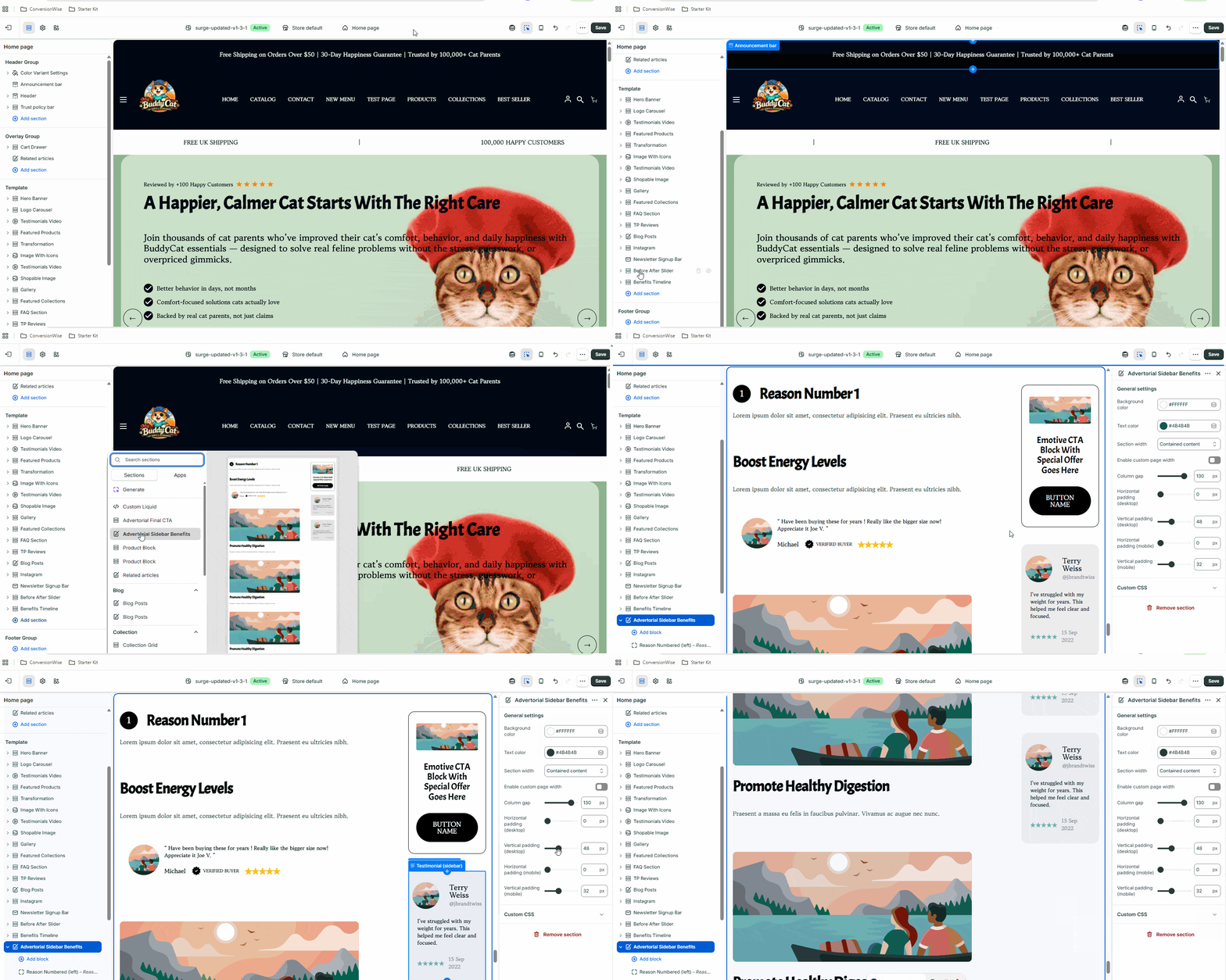
How to Configure the Advertorial Sidebar Benefits Section
Step 1: Open the Theme Customizer
- From your Shopify Admin, navigate to Online Store → Themes.
- Locate your active Surge Theme.
- Click Customize.
Step 2: Open Your Advertorial Template
- In the template selector at the top of the Theme Editor, choose the Advertorial page you want to edit.
- Locate the Advertorial Sidebar Benefits section within the template structure.
Step 3: Edit the Section Content
- Click on Advertorial Sidebar Benefits.
- Update the section settings as needed, including:
- Benefit titles
- Benefit descriptions
- Icons or visual indicators (if enabled)
- Layout and display options
As you make changes, the preview will update in real time.
Step 4: Add, Remove, or Reorder Benefit Items
- Within the section settings, locate the individual benefit blocks.
- To add a new benefit:
- Click Add Block.
- Select the appropriate benefit block type.
- Enter your content.
- To remove a benefit:
- Open the block settings.
- Click Remove Block.
- To reorder benefits:
- Drag and drop the blocks into your preferred order.
Step 5: Customize Styling
Depending on your theme version, you may also have options to customize:
- Text alignment
- Colors
- Typography
- Spacing
- Icons
- Desktop and mobile visibility
Adjust these settings to match your brand and advertorial design.
Step 6: Save Your Changes
Once you're happy with the configuration:
- Click Save in the upper-right corner of the Theme Editor.
- Preview your advertorial page on both desktop and mobile devices to ensure the sidebar displays as expected.
Pro Tip
Keep your sidebar benefits concise and outcome-focused. Instead of listing generic features, highlight the specific results or value customers can expect. This typically creates a stronger impact and improves engagement with your advertorial content.
Need Help?
If you have any questions or run into any issues while configuring the Advertorial Sidebar Benefits section, we're here to help.
Click Submit a Support Ticket from your ConversionWise account, or contact our team directly at [email protected] and we'll be happy to assist.
Was this article helpful?
That’s Great!
Thank you for your feedback
Sorry! We couldn't be helpful
Thank you for your feedback
Feedback sent
We appreciate your effort and will try to fix the article