Overview
The Advertorial Image Txt section is built for editorial-style storytelling on a product page or landing page. It pairs a large lifestyle image with an article-style write-up, complete with a heading, byline (date and author), descriptive copy, a call-to-action button paired with a review summary, and a review card, to make a product pitch feel like a trusted recommendation rather than a standard ad.
Like the Advertorial Final CTA section, it's built from customizable blocks (Heading, Date, Author, Description, Button & review summary, Review card) and a set of section-level settings that control the image, colors, and layout.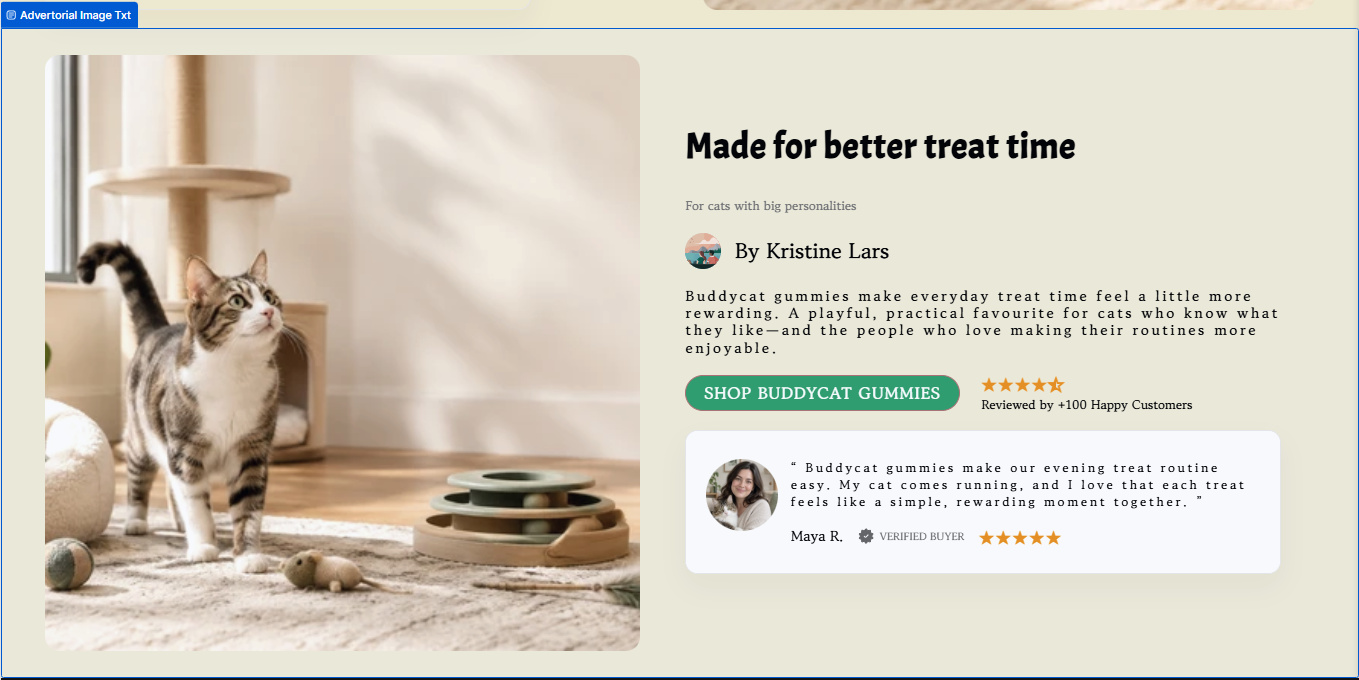
Step-by-Step Guide
- Add the section to your templateIn the Theme Editor, select the template you want to edit, clickAdd section, and chooseAdvertorial Image Txt. If you need to target this section with custom code or an anchor link, you can set aCustom Anchor IDat the top of the section settings.
- Add and arrange your content blocksInside the section, clickAdd blockto include any of the following, then drag to reorder them:
- Heading– your main headline (e.g., "Made for better treat time")
- Date– an optional publish date for the editorial feel
- Author– the byline, shown with an avatar (e.g., "By Kristine Lars")
- Description– the main body copy introducing the product
- Button & review summary– your call-to-action paired with a star rating and review count
- Review card– a customer quote with name, verified buyer badge, and star rating
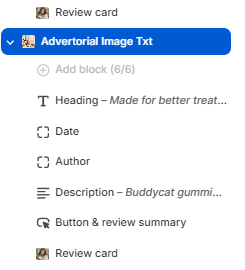
The blocks list for the Advertorial Image Txt section in the Theme Editor sidebar. - Upload your image and set its positionUnderMedia, upload anImage(recommended size 586 x 586px). Then choose whether it appears on theLeftorRightfor desktop usingDesktop image position, and onToporBottomfor mobile usingMobile image position.
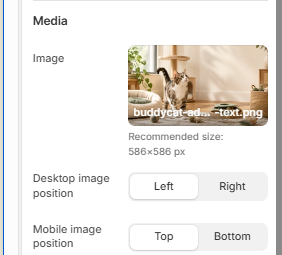
Media settings: uploading the image and setting its desktop/mobile position. - Customize the colorsUnderGeneral settings → Colors -Section Background color-Heading color-Body text color-Subtitle / date color-Star colorto match your brand. Overall color schemes are managed underTheme settings → Colors.
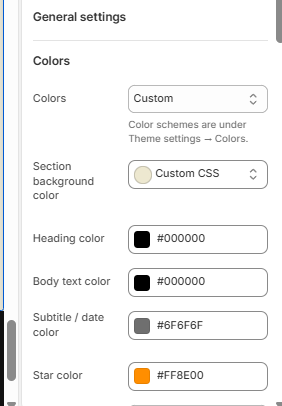
Color settings for the section, including heading, body, subtitle, and star colors. - Adjust layout and spacing
- ToggleEnable custom page widthif you want this section to break from your theme's default width, then set theCustom page widthwith the slider.
- SetSection paddingtoCustomto reveal separateHorizontal paddingandVertical paddingcontrols for both desktop and mobile, or leave it on the theme default, managed underTheme settings → Layout → Section padding.
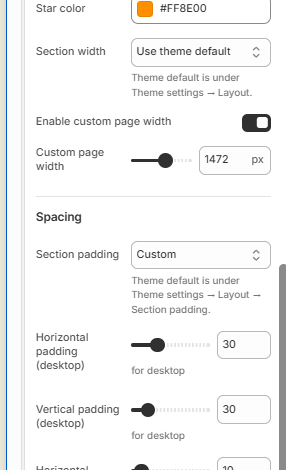
Layout and spacing controls, including custom page width and desktop padding. - Preview and publishUse the preview pane to check how the section looks on both desktop and mobile before saving and publishing your changes.
Pro Tip
Closing
The Advertorial Image Txt section is a great way to build a product page that reads like a story instead of a sales pitch, use it to introduce your product through a genuine-feeling write-up, back it up with social proof, and guide the reader straight to your CTA.
If you run into any issues setting up this section or have further questions, our support team is happy to help, just reach out to [email protected] and we'll get you sorted.
Was this article helpful?
That’s Great!
Thank you for your feedback
Sorry! We couldn't be helpful
Thank you for your feedback
Feedback sent
We appreciate your effort and will try to fix the article