Overview
If you're using the Tabs block on your Surge product page and want the Description tab to automatically display each product's description, you can connect it to Shopify's built-in Product Description using a dynamic source.
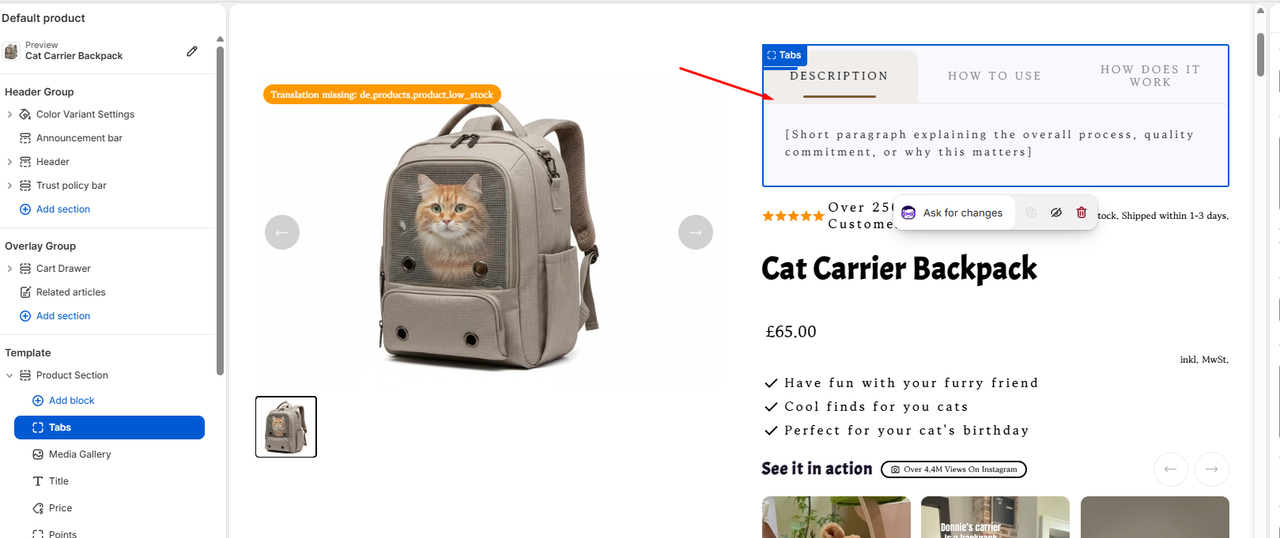
This is especially useful if you have multiple products with different descriptions. Once connected, you can use the same Tabs block across your product template, and Surge will automatically display the correct description for whichever product is being viewed.
You won't need to manually enter or duplicate the description for each product.
Step-by-Step Guide
1. Open the Shopify Theme Editor
From your Shopify admin, go to:
Online Store → Themes → Customize
Open the product template where you have the Tabs block configured.
2. Select the Tabs block
In the theme editor, navigate to the Product Section and select the Tabs block.
Locate the tab you want to use for your product description, such as Tab title 1.
You can keep the tab title as Description.
3. Select the dynamic source
Next to the tab's content field, click the dynamic source icon (database icon).
This will open a list of available dynamic sources that can be connected to the tab.
4. Select Product Description
From the available options, select:
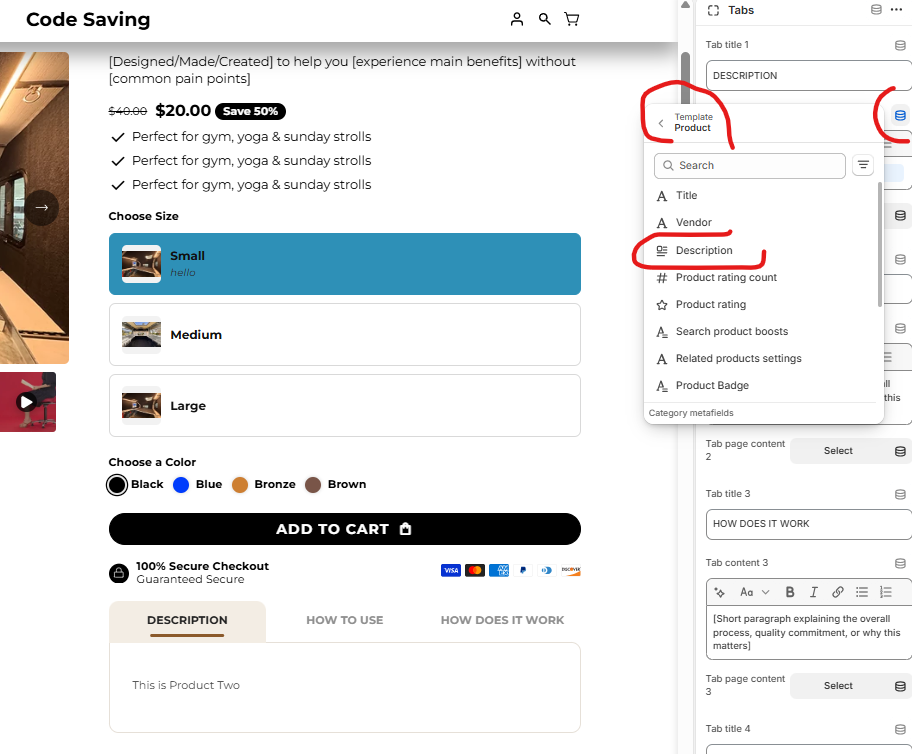
Product → Description
This tells Surge to pull the description directly from the product currently being viewed.
5. Save your changes
Click Save in the Shopify Theme Editor.
Your Description tab is now connected to the Shopify product description.
How It Works
Once the dynamic source is connected, the same Tabs block can be used across your products.
For example:
- Product A → displays Product A's Shopify description
- Product B → displays Product B's Shopify description
- Product C → displays Product C's Shopify description
When you update a product's description in Shopify → Products → [Product] → Description, the content displayed inside the Description tab will automatically reflect that product's description.
This means you don't have to create separate product templates or manually copy and paste descriptions into the Tabs block.
? Pro Tip
For a store with many products, it's best to keep the Tabs block in your shared/default product template and use Shopify's dynamic source for the Description tab.
This allows you to maintain your product descriptions from one central location, the product's Description field in Shopify, while the correct content is automatically displayed on each product page.
You can also use the same approach with other available Shopify dynamic sources where supported, allowing your product template to remain flexible and easier to manage.
Closing
Using a dynamic source for the Description tab is the easiest way to keep your Surge product pages synchronized with your Shopify product data. Once configured, you can manage each product's description directly from Shopify without having to update the Tabs block every time.
If you have any questions about setting this up or need help with your Surge theme, feel free to submit a support ticket at [email protected] and our team will be happy to assist.
Was this article helpful?
That’s Great!
Thank you for your feedback
Sorry! We couldn't be helpful
Thank you for your feedback
Feedback sent
We appreciate your effort and will try to fix the article
