Overview
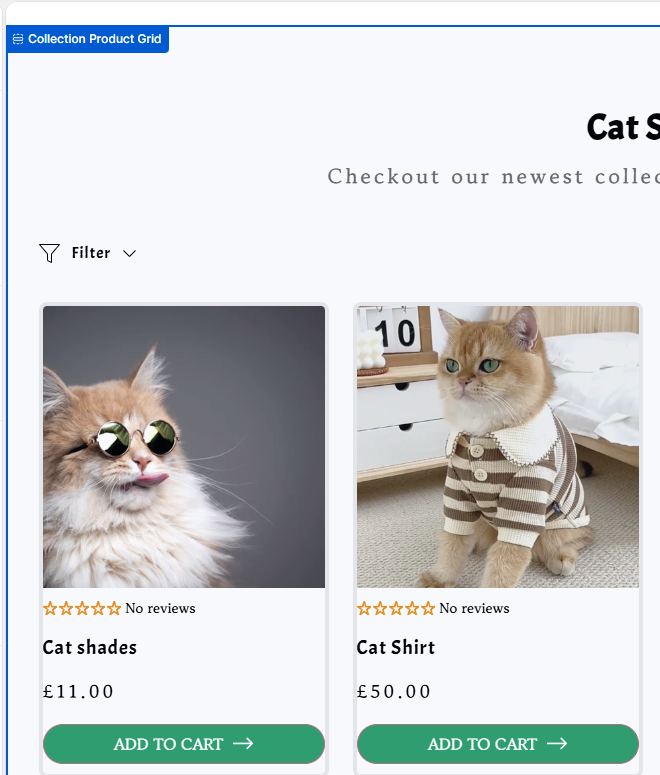
By default, each product card in your Collection Product Grid can show a primary button that links through to the product page. If you'd rather let shoppers add a product straight to their cart from the collection page itself, Surge has a built-in toggle for exactly that: Use Add to cart for primary button.
Once enabled, every product card's main button becomes a working "Add to Cart" button, so shoppers can build their cart while browsing a collection instead of clicking into each product individually.
Step-by-Step Guide
Open your Collection Product Grid section. In the Theme Editor, go to the collection template where you want this to apply, and select the Collection Product Grid section to open its settings panel.
Find the "Use Add to cart for primary button" setting. Scroll down to the Text for card buttons field. Directly below it, you'll see a toggle labeled Use Add to cart for primary button.
Turn the toggle on. Switch it on so each product card's primary button adds the product to the cart directly, instead of linking to the product page.
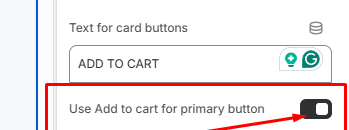
The "Use Add to cart for primary button" toggle, found just below the card button text field. Customize the button text (optional). Use the Text for card buttons field to change the label shown on every card, it defaults to "ADD TO CART," but you can adjust it to match your brand voice.
Preview and publish. Check the collection page preview to confirm the buttons now add products directly to the cart, then save and publish your changes.
Enabling Add to Cart on your collection page product cards is a simple way to reduce friction and speed up the path to purchase, especially for stores with straightforward, single-variant products.
If you run into any issues setting this up or have further questions, our support team is happy to help, just reach out to [email protected] and we'll get you sorted.
Was this article helpful?
That’s Great!
Thank you for your feedback
Sorry! We couldn't be helpful
Thank you for your feedback
Feedback sent
We appreciate your effort and will try to fix the article