Overview
The Product Option Selector block controls how shoppers choose variants on your product page, such as size, color, and material. In the Theme Editor, you can rename the headings, change the display style, add a short description next to each variant name, and adjust colors and spacing, all without code.
The selector sorts your product options into three groups based on the option name in Shopify:
- Size: controlled by the Size option section
- Color: controlled by the Color option section
- Anything else (Material, Style, Length, Power, etc.): controlled by the Other options section
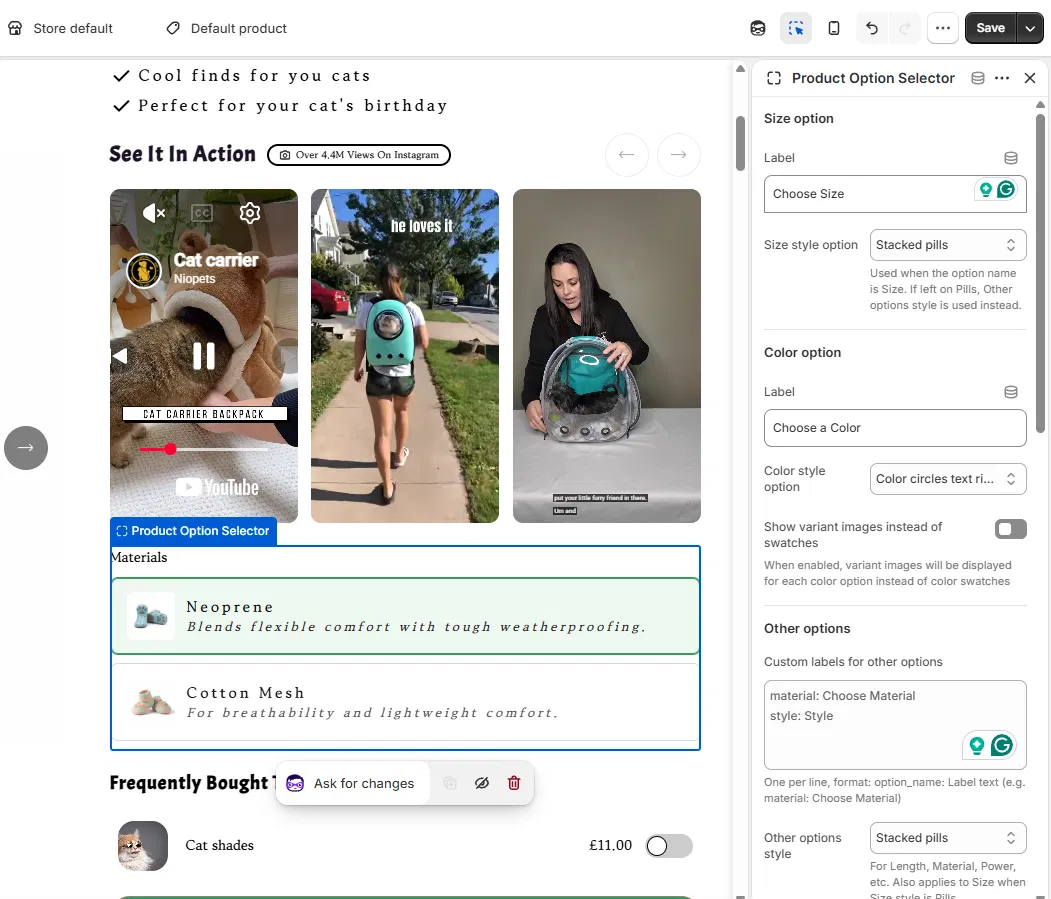
Step-by-Step Guide
Step 1: Open the Product Option Selector
- In Shopify, go to Online Store → Themes → Edit Theme.
- Open a Product template (for example, Default product).
- Click the Product Option Selector block. Its settings appear in the right-hand panel.
Step 2: Customize the Size option
Use this section if your product has an option named Size.
- Label: edit the heading above the size choices (e.g., Choose Size).
- Size style option: choose how sizes display (e.g., Stacked pills). This only applies when the option name is Size. If left on Pills, the Other options style is used instead.
Step 3: Customize the Color option
Use this section if your product has an option named Color.
- Label: edit the heading above the color choices (e.g., Choose a Color).
- Color style option: choose how colors display (e.g., Color circles text right).
- Show variant images instead of swatches: turn this on to display each color's variant image instead of a swatch.
Step 4: Customize Other options (used on the example image provided in this guide)
Use this section for every option that isn't Size or Color, such as Material or Style.
- Rename the option heading. In Custom labels for other options, enter one option per line in this format:
option_name: Label text
material: Choose Material style: Style- Choose a display style. Set Other options style to Stacked pills.
- Add a description next to each variant name. Scroll to Stacked pill descriptions, then type the variant name exactly as it appears in Shopify, followed by a colon and the description. Add one variant per line:
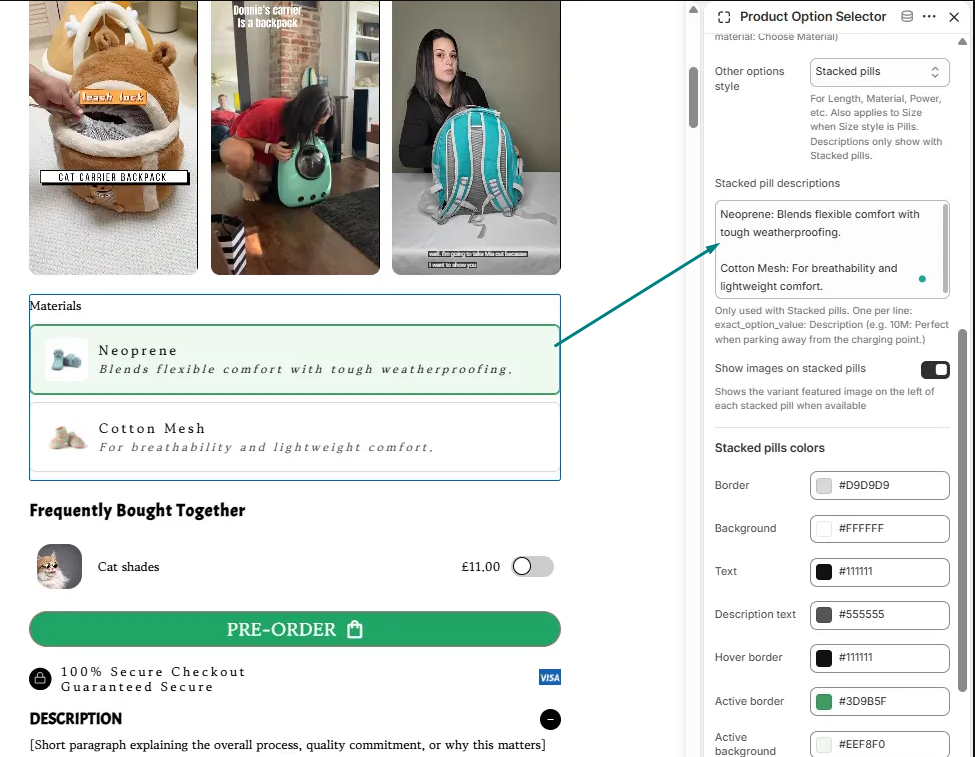
Neoprene: Blends flexible comfort with tough weatherproofing. Cotton Mesh: For breathability and lightweight comfort.Descriptions only show when the style is set to Stacked pills.
- Show variant images (optional). Turn on Show images on stacked pills to display each variant's featured image on the left of its pill.
Step 5: Customize the stacked pill colors
Under Stacked pills colors, click a color box or enter a hex code for each setting:
| Setting | What it controls | Default |
|---|---|---|
| Border | Outline of each pill | #D9D9D9 |
| Background | Pill background | #FFFFFF |
| Text | Variant name | #111111 |
| Description text | Description under the name | #555555 |
| Hover border | Outline when hovering | #111111 |
| Active border | Outline of the selected pill | #3D9B5F |
| Active background | Background of the selected pill | #EEF8F0 |
| Active text | Text of the selected pill | #111111 |
Step 6: Adjust spacing
- Fieldset spacing: sets the space below each option group. Defaults: 20px on desktop and 20px on mobile.
- Block margin: sets the space below the whole selector. Defaults: 15px on desktop and 10px on mobile.
Step 7: Save your changes
Click Save in the top-right corner of the Theme Editor. Use the device preview icon in the toolbar to check how it looks on mobile.
Pro Tip
If a description isn't showing, check that the variant name in Stacked pill descriptions matches your Shopify option value exactly, including spelling and capitalization, and that Other options style is set to Stacked pills. These two things cause most display issues.
Need Help?
If you get stuck or something doesn't look right, our team is happy to help. Submit a ticket to [email protected] and include a screenshot of your Product Option Selector settings so we can get you sorted quickly.
Was this article helpful?
That’s Great!
Thank you for your feedback
Sorry! We couldn't be helpful
Thank you for your feedback
Feedback sent
We appreciate your effort and will try to fix the article