Overview
The Accordion Block in Surge Theme is a powerful section designed to organize important product or brand information into clean, expandable dropdowns. It’s commonly used for FAQs, product benefits, ingredients, shipping details, guarantees, and more, helping keep your page visually clean while still delivering key information.
This guide will walk you through how to locate, edit, add, and customize your Accordion Block inside the Surge Theme editor.
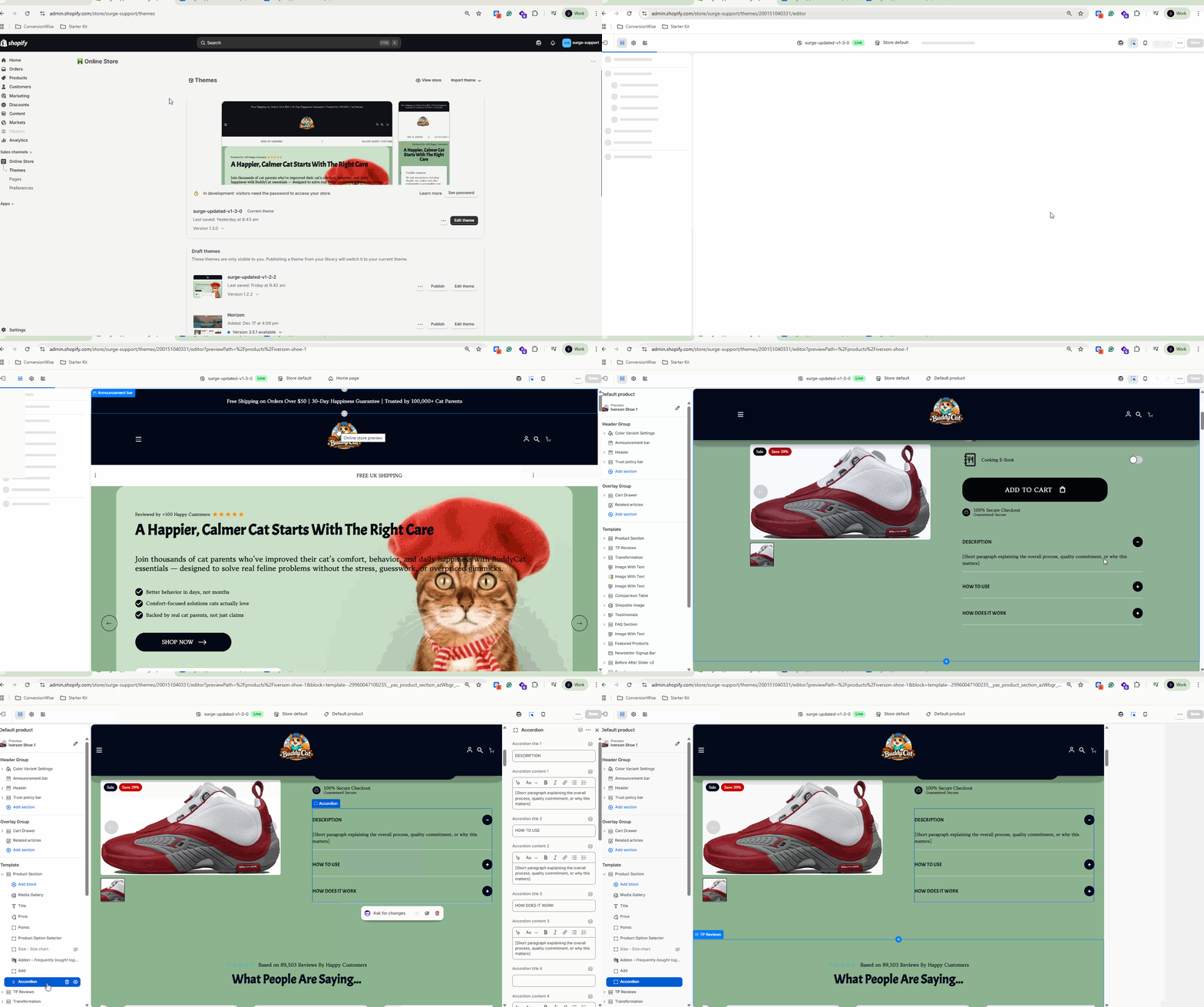
Step-by-Step Guide
Step 1: Open Your Surge Theme Editor
- In your Shopify admin, go to Online Store → Themes.
- Locate your active Surge Theme under Current Theme.
- Click Edit Theme.
Step 2: Navigate to the Page You Want to Edit
- Use the page selector dropdown at the top of the theme editor.
- Choose the page where your Accordion Block is located:
- Homepage
- Product Page
- Collection Page
- Custom Page
Tip: Accordion Blocks are most commonly found on Product Pages.
Step 3: Locate the Accordion Block
You can find the Accordion Block in two ways:
Option A: Click Directly on the Preview
- With the Inspector enabled, click the Accordion section on the page preview.
- The editor sidebar will automatically open that section.
Option B: Use the Left Sidebar
- Scroll through your page sections.
- Click the Accordion section directly from the sidebar list.
Step 4: Edit Accordion Content
Inside the Accordion Block settings, you can update:
- Accordion Heading / Title
- Dropdown Questions or Labels
- Body Text / Content
- Icons (if enabled)
- Section spacing or layout settings
Examples of common accordion uses:
- Shipping & Returns
- Ingredients
- Product Benefits
- FAQs
- Guarantee Information
Step 5: Edit Individual Accordion Items
- Inside the Accordion section, select the specific accordion item you’d like to update.
- Modify the title/question.
- Update the answer or content beneath it.
- Repeat for each dropdown item as needed.
Step 6: Add or Remove Accordion Items
- To add a new item, click Add Block within the Accordion section.
- To remove an item, select the block and choose Remove Block.
This makes it easy to fully customize your accordion based on your product or messaging needs.
Best Practices for Accordion Blocks
Keep Titles Clear
Use short, direct headings like:
- How It Works
- Ingredients
- Shipping Info
Prioritize Important Information
Place your most important accordion items first, such as benefits or FAQs.
Avoid Overloading
Too many accordion items can overwhelm customers—focus on the most helpful details.
Pro Tip
Accordion Blocks are especially effective for improving product page clarity while reducing clutter, making them ideal for conversion-focused layouts.
Need More Help?
If you need assistance customizing your Accordion Block or any other part of Surge Theme, we’re here to help.
Please click Submit a support ticket in our Help Center or email [email protected] and our team will be happy to assist.
Was this article helpful?
That’s Great!
Thank you for your feedback
Sorry! We couldn't be helpful
Thank you for your feedback
Feedback sent
We appreciate your effort and will try to fix the article