Overview
In the Surge theme, landing pages without headers provide a focused, high-converting environment by eliminating top navigation distractions. While the default landing-without-header template allows you to build a headerless page, you can also create multiple unique headerless landing pages, each with its own distinct layout, sections, and content, by using custom template naming rules.
Step-by-Step Guide
Step 1: Open the Theme Editor
From your Shopify Admin, go to Online Store > Themes.
Click Customize next to your active Surge theme.
At the top navigation dropdown menu (where it displays current page selection, e.g., Home page), click on the selector and select Pages.
At the bottom of the dropdown list, click + Create template.
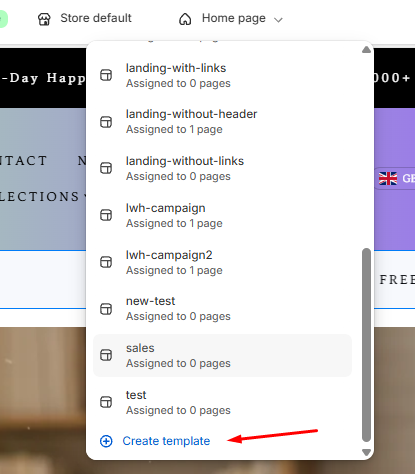
Step 2: Configure and Name Your Custom Template
In the Create a template pop-up window:
Name: Enter a unique name for your new page template.
Important Naming Rule: The template name must start with
lwh-(case-insensitive, e.g.,lwh-campaignorLWH-Campaign) and has a 25-character maximum limit.Based on: Select
landing-without-headerfrom the dropdown menu.
Click Create template.
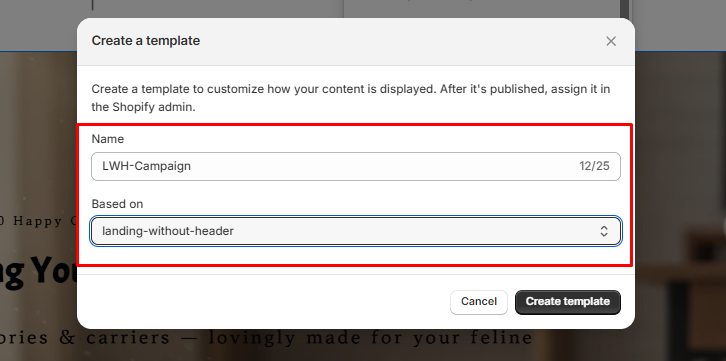
Step 3: Customize Sections and Content
Once created, the Theme Editor will load your new template (e.g.,
lwh-campaign).Add, remove, or rearrange sections and blocks to suit your specific marketing campaign or promotion without affecting any other landing pages.
Click Save in the top right corner.
Step 4: Assign the Template to Your Shopify Page
Go back to your Shopify Admin dashboard and navigate to Online Store > Pages.
Select an existing page or click Add page.
On the right-hand panel under Theme template, click the dropdown menu and choose your newly created template (e.g.,
lwh-campaignorlwh-campaign2).Click Save.
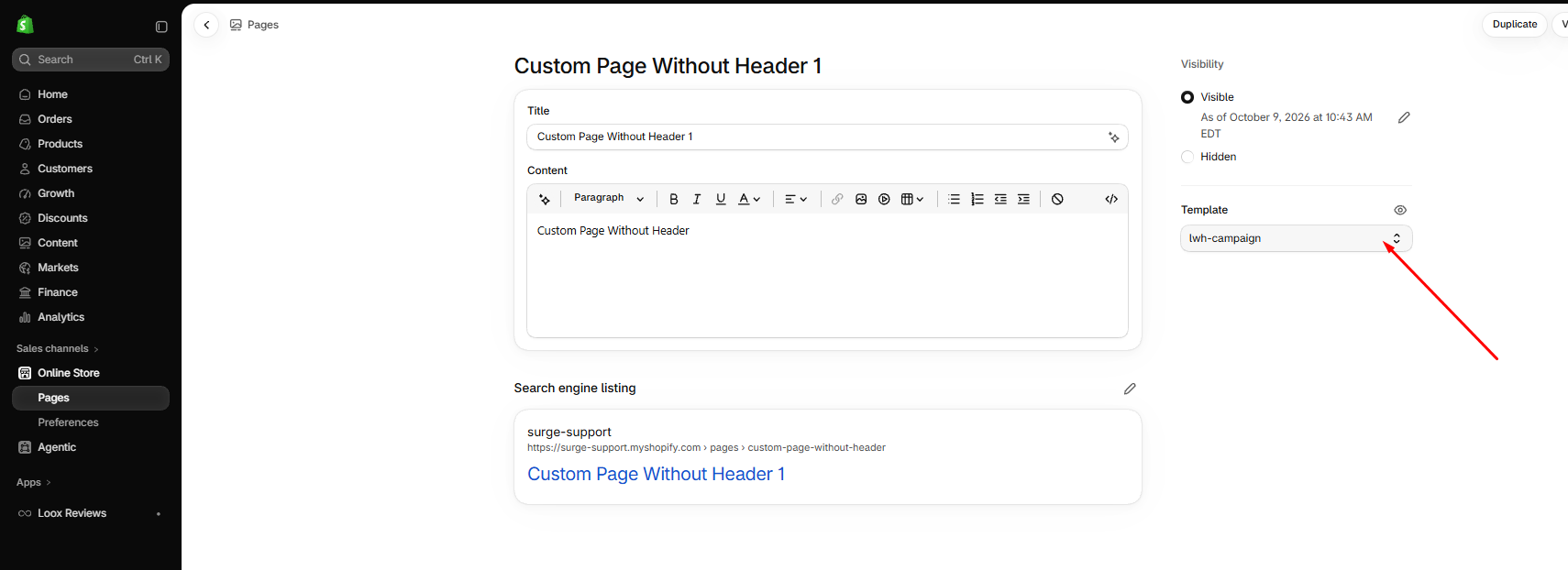
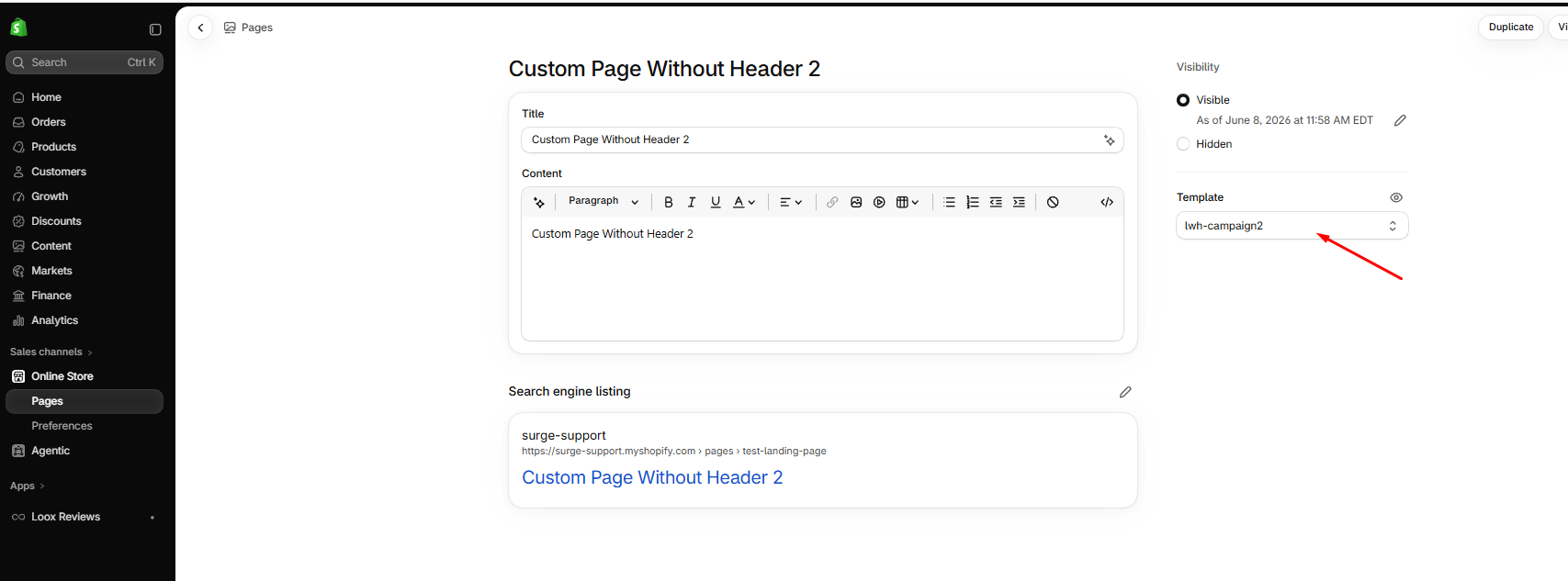
Pro Tip
Naming Key (
lwh-Prefix):Any template name prefixed withlwh-(e.g.,lwh-sale,lwh-promo) automatically inherits the headerless layout behavior while maintaining its own completely distinct sections and settings. The originallanding-without-headertemplate continues to function normally alongside all your customlwh-templates.
Need Further Assistance?
If you have any questions or need assistance setting up custom templates for your store, our team is always happy to help! Please feel free to reach out and submit a support ticket at [email protected].
Was this article helpful?
That’s Great!
Thank you for your feedback
Sorry! We couldn't be helpful
Thank you for your feedback
Feedback sent
We appreciate your effort and will try to fix the article