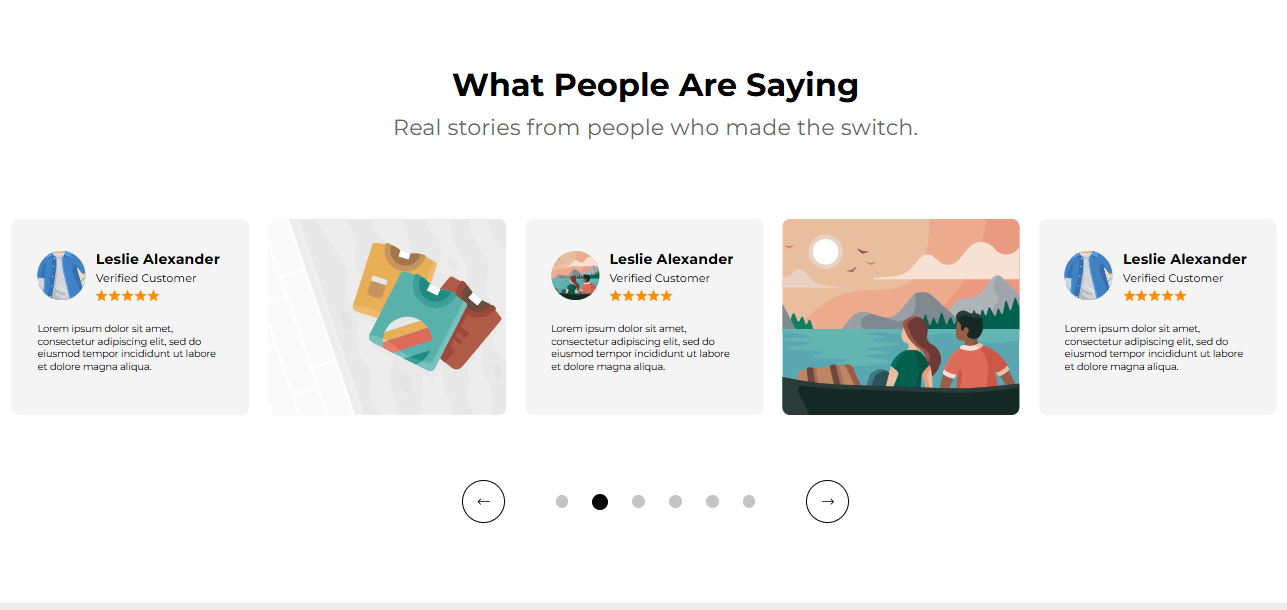
The Gallery Section helps you showcase product photos, lifestyle images, or customer testimonials in a visually appealing way. It supports both photo slides and testimonial slides, giving you flexibility to mix visuals with social proof.
Here’s how to set it up properly:
Adding The Section To Your Store
1. Open your theme editor
2. Click on “Add Section”.
3. Find and add the “Gallery” Section from the block library
Styling The Section
The Gallery block is the perfect way to showcase customer testimonials alongside a mixture of UGC & High Production imagery of your products helping to build trust & establish authority.
Use the settings below to style the block to your preferences and create your desired look.
Step 1 - General Settings
Below is a list of all the general settings found on all sections built inside Surge Theme
Background Color
Set the backdrop of the gallery. Transparent blends with the page background.
Use a subtle solid color if you want images to stand out more.
Heading Size (Small / Medium / Large)
Control the size of your headline choose Small, Medium, or Large depending on how prominent you want your section title to appear.Headline Typography (AA / Aa / aa)
AA = ALL CAPS (bold and strong).
Aa = Title Case (professional).
aa = lowercase (minimal, casual).
Font Family
Default: Use your global theme fonts to style the section.
Custom: Allows you to select an alternative font to style this section
Example: Montserrat is a clean and legible font for modern looking stores.
Title Color
Titles: Sets the colour of the blocks main headline
Subtitles & Body Text: Sets the colour of the subtitle and card copy
Verified Text: sets the colour of the “Verified Customer” tagline.
Heading Alignment
Choose alignment: Sets the position of the headline and supporting copy Left, Center & Right Aligned. The center option is most common for galleries.Section Width
Full Width: Block spans the entire width of the screen.
Contained: Adds side margins for a neat look.
Padding (Desktop & Mobile)
Controls spacing around the gallery elements both horizontal and verticalExample: Desktop Horizontal = 70px (wide margins).
Mobile Horizontal = 15px (compact for small screens).
Display On
Choose where to show the section. Default: All Devices.
Step 2 - Carousel Settings
The below settings control the speed and scroll settings of the carousel.
Scroll Speed (seconds)
Controls how fast slides move. Example: 15 seconds per scroll.
Slower = more time to absorb content. Faster = dynamic feel.Enable Auto Scroll
Automatically rotates through slides. Recommended ON for galleries.
Step 3 - Content Settings
Allows you to customise the content of your headline and subtitle.
Title
A short, attention-grabbing line describing the images.
Example: “Real Results in Action”.Subtitle
Builds curiosity, trust, or emotional connection.
Example: “Trusted by athletes worldwide to fuel performance.”.
? Tip: Keep this section simple, emotional, and benefit-focused.
Step 4 - Review Cards Settings
These are the controls for styling the individual cards.
Container Styling (Card)
You have three options to choose from: Card, No Card, Shadow.
Card: Each image or gallery item is placed inside a boxed card with a defined background. Useful when you want separation between items or to make each image stand out clearly.
No Card: Displays images without any background box or border, they sit directly on the page background. Best for minimalist or lifestyle-style galleries where visuals flow naturally with the page.
Shadow: Adds a soft drop shadow beneath each item, giving the appearance of gentle elevation. Ideal for making images pop off the page while still keeping a sleek layout.Box Shadow (Offset, Blur, Spread, Color)
Adds depth to cards for a modern, layered effect.Card Background
Transparent: Keeps focus on images.
Solid color: Can create a consistent card look.
Card Border & Border Color
Defines card outlines (default is none).Container Corner Radius
Example: 10px, softens card edges.
The Gallery supports two block types to fill your carousel with:
Image
Upload or select an image (e.g., product close-up, lifestyle shot, event photo).
?Best Use: Highlight product use cases, customer lifestyle moments, or behind-the-scenes images.
Customize your testimonial slide using the block settings:
Image
Upload a profile image of the reviewer or related visual.Rating
Display customer rating (★★★★★).Name
Example: Leslie Alexander.Status
Example: Verified Customer. Adds authenticity.Text
Customer review/quote. Example:
“Lorem ipsum dolor sit amet, consectetur adipiscing elit...”
? Best Use: Mix real customer photos with their reviews for powerful social proof.
Best Practices
Use a balanced mix of photos and testimonial slides.
Keep images high-quality but optimized for load speed.
Choose short, authentic testimonials (2–3 sentences).
Use consistent styling for all cards (shadows, corners).
Avoid overloading with too many slides (6–8 max is ideal).
FAQs
Q1. Can I use only photos without testimonials?
Yes, you can use just Photo Slides. The testimonial block is optional.
Q2. How many slides should I add?
Aim for 4–8 total slides. More than 10 may reduce impact.
Q3. Can I change the star color in testimonials?
Yes, it inherits from the General Settings Star Color if applicable.
Troubleshooting
Images stretched or blurry?
Re-upload images with correct aspect ratio (recommended 1:1 or 4:5).Text not readable on cards?
Ensure you use a contrasting text colour between font and card background.Carousel not auto-scrolling?
Make sure Enable Auto Scroll is switched ON.
Testing Checklist
Title and subtitles clearly explain what’s shown in the gallery.
At least one Photo Slide and one Testimonial Slide added.
All images are high-quality and load fast.
Testimonials include name, status, rating, and text.
The section looks good on both desktop and mobile.
Carousel auto-scrolls smoothly at the set speed.
Was this article helpful?
That’s Great!
Thank you for your feedback
Sorry! We couldn't be helpful
Thank you for your feedback
Feedback sent
We appreciate your effort and will try to fix the article