Overview
This section allows you to create multiple horizontal tabs that users can toggle between to reveal specific content blocks. It is an ideal solution for:
Product Specifications: Separating materials, dimensions, and care instructions.
Shipping & Returns: Organizing policy details.
Enhanced Storytelling: Sharing different chapters of your brand story in one place.
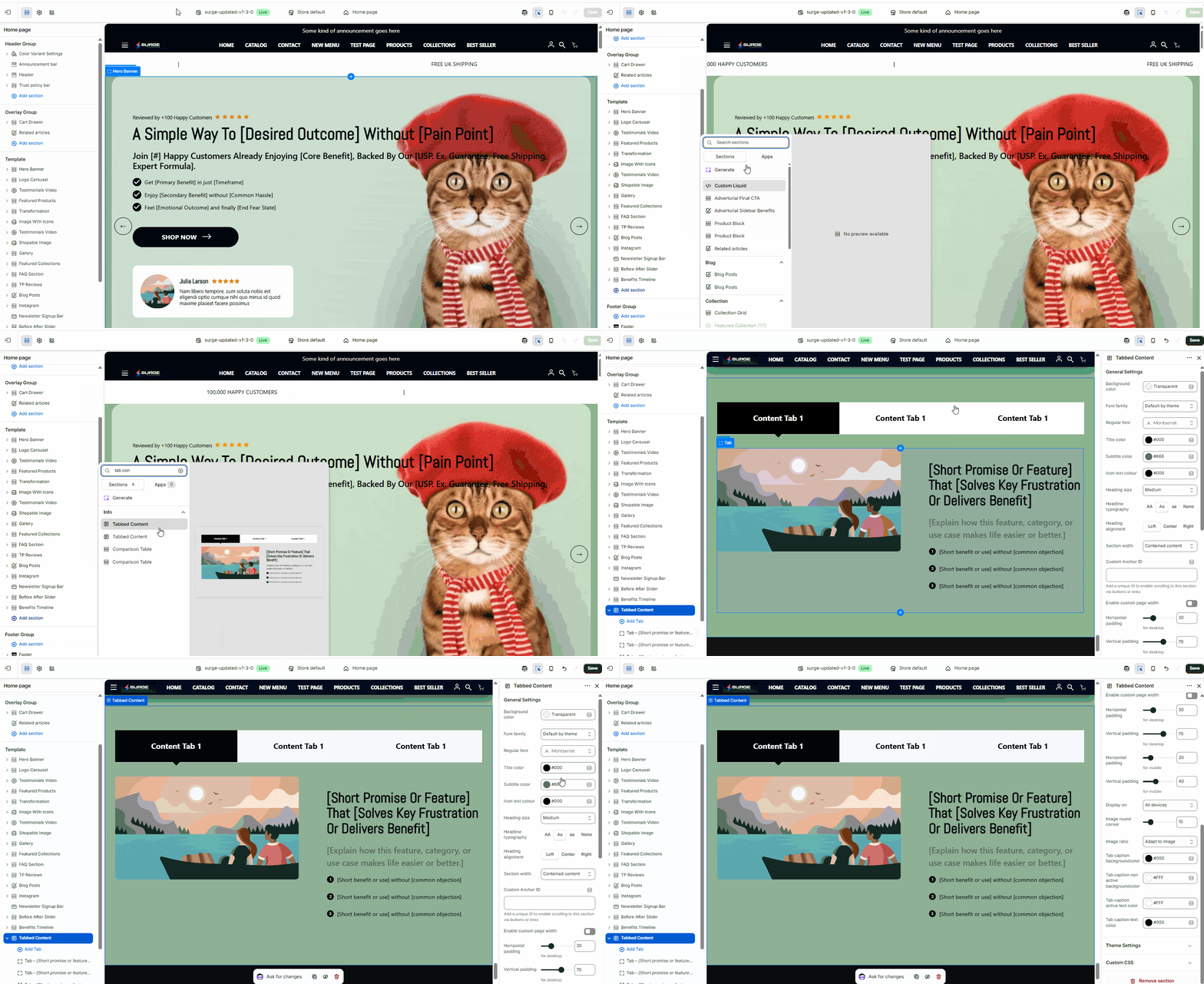
Step-by-Step Setup Guide
Follow these steps to add and customize the Tab Content section within your Surge theme:
1. Add the Section
Open your Shopify Theme Editor.
In the side panel, scroll down to the Template or Footer Group where you wish to add the section.
Click Add Section and search for Tab Content.
Select it to add the section to your live preview.
2. Configure Section Settings
Click on the main Tab Content header to adjust the global section settings:
Heading: Enter the main title for this area of the page.
Subheading: Provide additional context or a brief description.
Color Scheme: Select your preferred background and text color palette to match your branding.
Section Padding: Adjust the top and bottom spacing to ensure the section flows well with the rest of your page.
3. Add Individual Tabs
Each tab acts as a separate block within the section:
Click Add Tab (or select an existing block).
Tab Label: Enter the text that will appear on the button users click (e.g., "Description," "Sizing," or "Reviews").
Content: Use the rich text editor to add your information, images, or links that will appear when that specific tab is active.
4. Arrange and Save
You can reorder your tabs by clicking and dragging the blocks in the side panel.
Once you are satisfied with the layout and information, click Save in the top right corner of the editor.
Need Further Assistance?
If you run into any issues while configuring your Tab Content section, our team is here to help! Please feel free to submit a support ticket through our portal or reach out directly via email at [email protected].
Was this article helpful?
That’s Great!
Thank you for your feedback
Sorry! We couldn't be helpful
Thank you for your feedback
Feedback sent
We appreciate your effort and will try to fix the article