Gemini said
The Gift Card section allows you to customize the digital gift card experience. This ensures that when a customer receives a gift card from your store, it feels like a premium, branded experience rather than a generic notification.
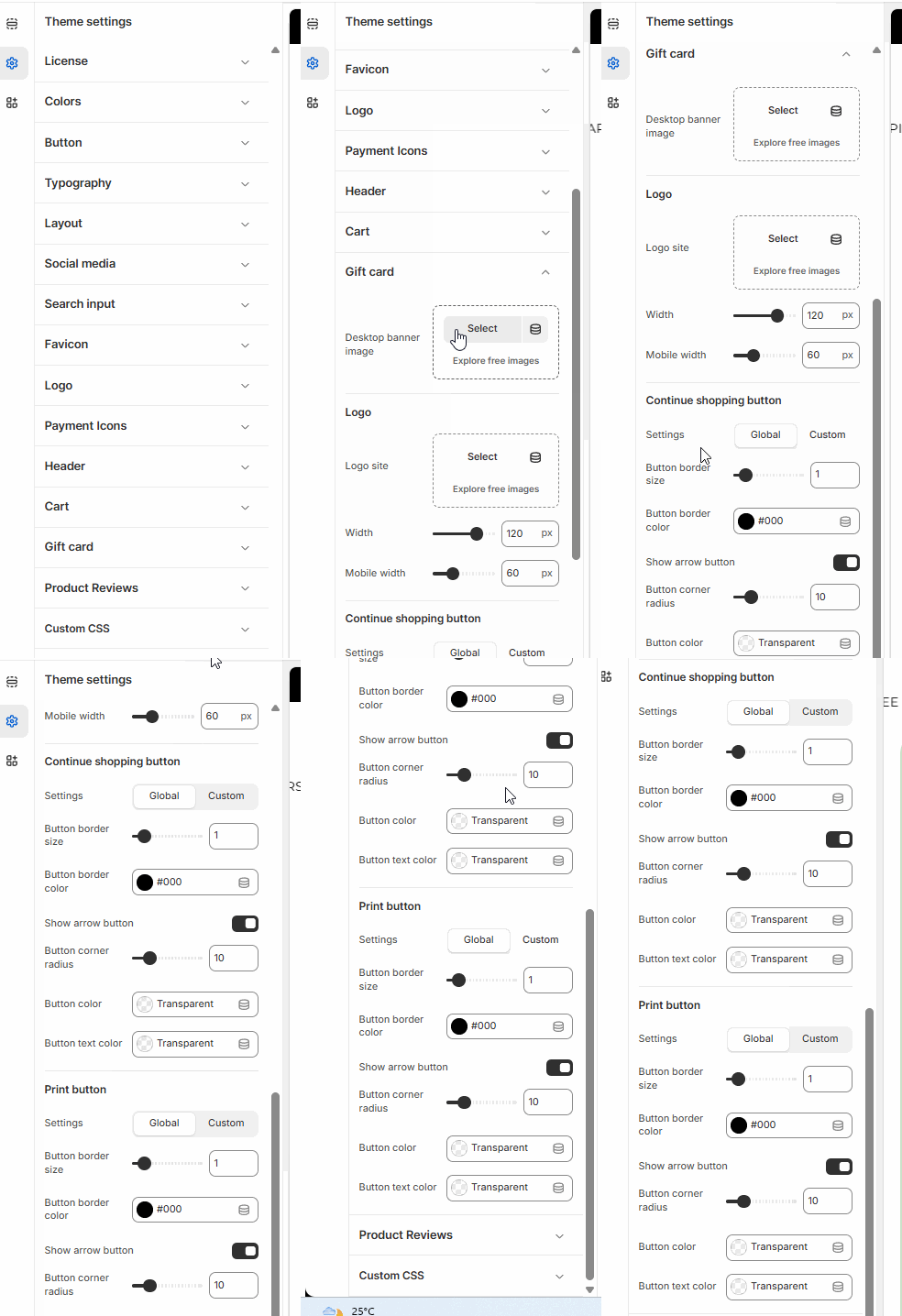
In this section, you can upload a custom Gift card image. This graphic will be displayed on the gift card page that customers see after they make a purchase or receive a gift. It is the primary visual representation of your store's "digital currency."
Design Tip: Use a landscape-oriented image (e.g., 1200 x 800px) that features your logo or a "Thank You" message. High-contrast, clean designs usually look best on the digital card layout.
How to Customize Your Gift Card
Follow these steps to update your gift card design:
Open the Theme Editor: From your Shopify Admin, go to Online Store > Themes.
Customize: Click the Customize button on your Surge theme.
Open Theme Settings: Click the Gear icon (⚙️) in the left-hand sidebar.
Select Gift Card: Scroll down the list of settings and click the Gift card accordion.
Upload Your Artwork: Click the Select image button to upload your custom design or choose a file from your existing library.
If you don't have a custom design yet, you can use Explore free images to find a high-quality placeholder.
Preview the Look: You can view your changes by using the page selector at the top of the editor and navigating to Others > Gift card.
Save: Click Save in the top right corner.
Was this article helpful?
That’s Great!
Thank you for your feedback
Sorry! We couldn't be helpful
Thank you for your feedback
Feedback sent
We appreciate your effort and will try to fix the article