Adding The Section To Your Store
1. Open your theme editor
2. Click on “Add Section”
3. Find and add the “Featured Collections” Section from the block library
Styling The Section
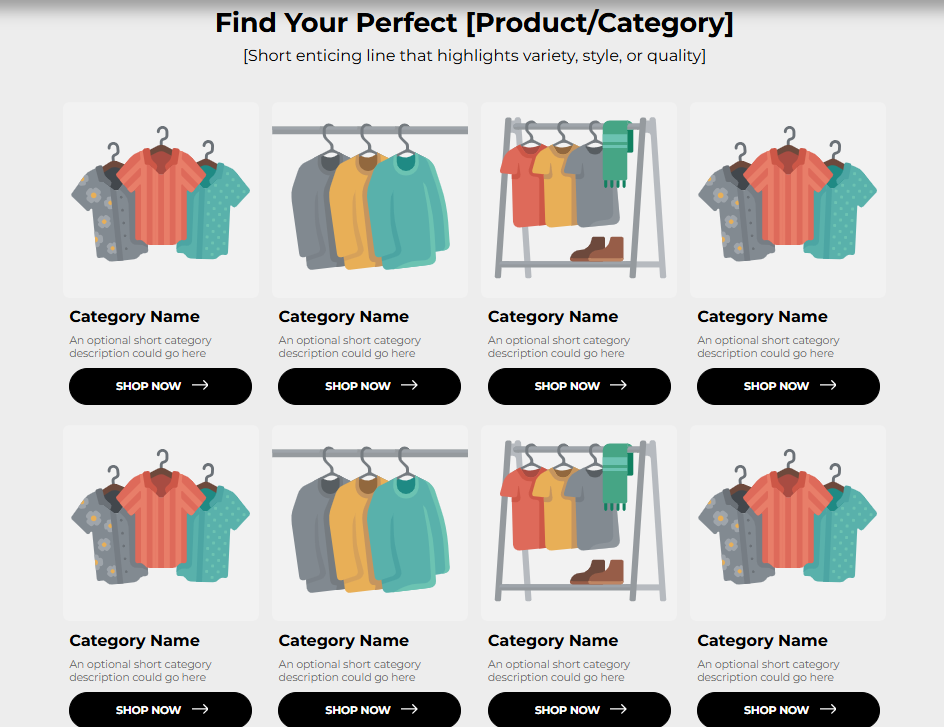
The Featured Collections section allows you to spotlight curated Shopify collections such as Best Sellers, New Arrivals, or Seasonal Picks in an engaging and organized layout.
It’s designed to guide customers toward high-performing or themed product groups, improving product discovery and navigation.
By strategically showcasing collections, you can boost cross-sells, upsells, and overall engagement, hence making it easier for visitors to explore your store and find what they love.
These are the headline texts that introduce your collections.
Title:
Main heading. Example: “All Collections.”Subtitle:
Supporting tagline. Example: “Irresistible Charm with Axe's Exquisite Range of Unbeatable Products!”
? Pro Tip: Keep the Title short and clear (e.g., “Shop by Collection”) and use the Subtitle to add personality or benefits.
Below is a list of all the general settings found on all sections built inside Surge Theme.
Background Color
Set the backdrop of the gallery. Transparent blends with the page background.
Use a subtle solid color if you want images to stand out more.
Heading Size (Small / Medium / Large)
Control the size of your headline choose Small, Medium, or Large depending on how prominent you want your section title to appear.Headline Typography (AA / Aa / aa)
AA = ALL CAPS (bold and strong).
Aa = Title Case (professional).
aa = lowercase (minimal, casual).
Font Family
Default: Use your global theme fonts to style the section.
Custom: Allows you to select an alternative font to style this section
Example: Montserrat is a clean and legible font for modern looking stores.
Title Color
Titles: Sets the colour of the blocks main headline
Subtitles & Body Text: Sets the colour of the subtitle and card copy
Verified Text: sets the colour of the “Verified Customer” tagline.
Heading Alignment
Choose alignment: Sets the position of the headline and supporting copy Left, Center & Right Aligned. The center option is most common for galleries.Section Width
Full Width: Block spans the entire width of the screen.
Contained: Adds side margins for a neat look.
Padding (Desktop & Mobile)
Controls spacing around the gallery elements both horizontal and verticalExample: Desktop Horizontal = 70px (wide margins).
Mobile Horizontal = 15px (compact for small screens).
Display On
Choose where to show the section. Default: All Devices.
Each collection is shown inside a card layout. The settings below help you style the cards.
Secondary Image On Hover.
Shows the product’s second image when customers hover (great for lifestyle/product view).Card Title Two Line.
Allows longer product titles to wrap into two lines.Card Title Typography.
Adjusts the text style for product titles.Card Clickable.
Makes the entire card clickable (not just the button).Container Styling (Card)
Ensures products display in card-style boxes.Box Shadow Settings
Adds subtle depth to cards (offset, blur, spread, and color).Card Background
Sets card background color.Padding Card Info
Space inside each product card.Card Border
Choose the size you want for your card borders.Container Corner Radius.
Rounds card edges for a modern look.One Column or Two in Mobile
Controls mobile layout (one card per row vs. two).
? Pro Tip: Use Two Columns on mobile for better scannability.
The Button Settings feature customizes your button’s text, link, style, and colors—letting you match it to your store’s design or global theme settings.
Customize your Call-to-Action (CTA) button with these settings:
Button Text
Choose the button you want for your text. Example: “BUTTON NAME” → change to “SHOP NOW.”Button Link
Add a link to a collection or landing page.Settings (Global / Custom)
Global uses your theme’s default button style, Custom allows specific tweaks.Button Border Size & Border Color
Outline thickness and color.Show CTA Button / Show Arrow Button
Toggles display of main button and arrow icons.Button Corner Radius
Rounds the edges depending on the radius you selectButton Color
Transparent background works with colored borders.Button Text Color
Makes button text stand out with the color you choose.Text For Card Buttons:
Choose the card you want for your Card Buttons to display. Example: “SHOP NOW.”
Block Name: Collection
Each Block represents a specific Shopify Collection and allows you to link your Collections to this block.
Select Collection
Choose from your Shopify collections (e.g., Best Sellers, Latest Arrivals, Fresh In Stock).Each block auto-pulls products from that collection and displays them in a styled card format.
? Pro Tip: Feature 2–4 collections max per row for balance.
Use popular or high-converting collections (e.g., Best Sellers, New Arrivals).
Keep titles short (1–3 words max).
Use secondary hover images to make browsing more interactive.
Match button colors with your brand style.
On mobile, two columns look cleaner than a single-column scroll.
Q: How many collections can I feature here?
A: We recommend keeping it under 6 collections for clarity & aesthetics.
Q: Can I reorder the collections?
A: Yes, simply drag and drop blocks in the Theme Editor.
Collections not showing? Make sure you’ve selected an active Shopify collection.
Cards look too cramped? Increase padding or reduce collections per row.
Hover image not working? Ensure products in the collection have multiple images.
✔ Do collections load correctly on desktop and mobile?
✔ Are product titles readable in two lines?
✔ Do hover images display properly?
✔ Do CTAs link to the right collection pages?
✔ Does the layout feel balanced (not too crowded)?
Was this article helpful?
That’s Great!
Thank you for your feedback
Sorry! We couldn't be helpful
Thank you for your feedback
Feedback sent
We appreciate your effort and will try to fix the article