Overview
The Auto-Sync Reviews feature in the Surge theme allows your product reviews to automatically display on product cards, without needing manual migration or duplication.
Once enabled, Surge seamlessly pulls review data from supported review platforms directly into your storefront. This means less setup work and a smoother experience managing social proof across your store.
Note: This feature only works with review platforms that are currently integrated within the theme settings. Supported platforms include Judge.me, Trustpilot, and Helpful Product Reviews App. Other review apps are not supported for auto-sync at this time.
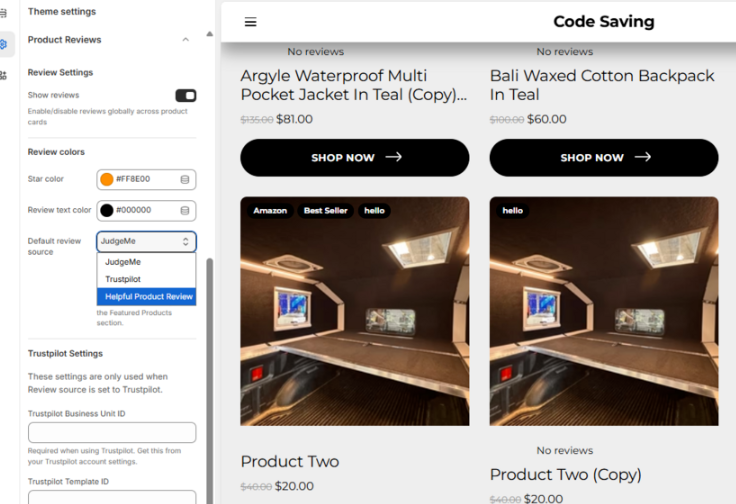
How to Set It Up
1. Go to Theme Settings
In your Shopify admin, navigate to:
Online Store → Edit Theme → Theme Settings → Product Review
2. Enable Reviews
Toggle “Show reviews” ON
→ This enables review display globally across product cards
3. Choose Your Default Review Source
Select one of the supported platforms:
Judge.me
Trustpilot
Helpful Product Reviews
Platform Setup Instructions
Judge.me Setup
Install and configure the Judge.me app in your Shopify store
Ensure your products already have reviews inside the app
In theme settings:
Set Default Review Source = Judge.me
Reviews will automatically sync and display on product cards.
Trustpilot Setup
Create or log in to your Trustpilot account
From your Trustpilot settings, copy the following:
Business Unit ID (required)
Template ID (optional)
Locale (optional, e.g. en-US)
In Theme Settings → Trustpilot:
Paste the Business Unit ID
(Optional) Add Template ID and Locale
Your Trustpilot reviews will auto-sync into your store.
Helpful Product Reviews Setup
Install and set up the Helpful Product Reviews App in your Shopify store
Add reviews (including photo/video reviews if applicable) to your products
In theme settings:
Set Default Review Source = Helpful Product Reviews
Reviews will automatically sync and display on your product cards.
? Need Help?
If you run into any issues or need assistance setting this up, we’re here to help!
? Click “Create a support ticket” inside your dashboard
? Or email us anytime at [email protected]
We’re happy to help you get everything running smoothly
Was this article helpful?
That’s Great!
Thank you for your feedback
Sorry! We couldn't be helpful
Thank you for your feedback
Feedback sent
We appreciate your effort and will try to fix the article