Adding The Section To Your Store
1. Open your theme editor
2. Click on “Add Section”
3. Find and add the “TP Reviews” Section from the block library
Styling The Section
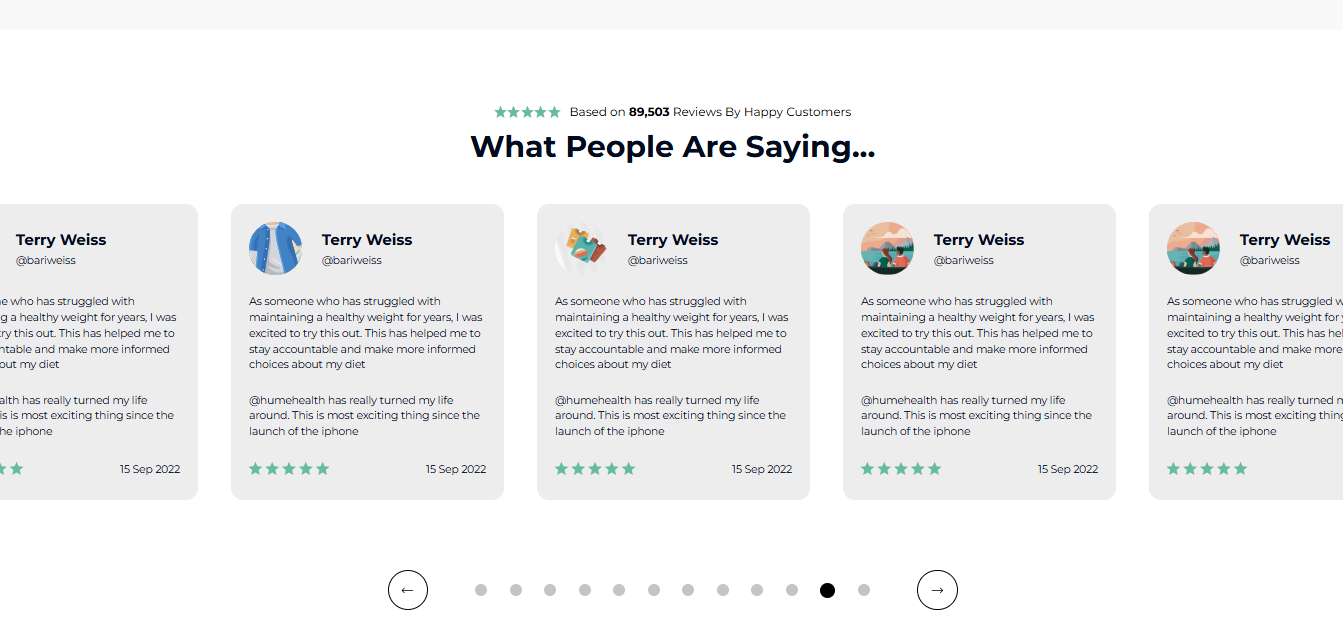
The TrustPilot Reviews section lets you seamlessly display verified customer feedback from TrustPilot directly on your store, reinforcing authenticity and trust.
Featuring real reviews in a clean carousel layout helps highlight customer satisfaction, reduce hesitation, and improve conversion rates.
Use this section to showcase your brand’s reputation, build confidence with new visitors, and let genuine voices speak for your product quality and service.
Below is a list of all the general settings found on all sections built inside Surge Theme.
Background Color
Set the backdrop of the gallery. Transparent blends with the page background.
Use a subtle solid color if you want images to stand out more.
Heading Size (Small / Medium / Large)
Control the size of your headline choose Small, Medium, or Large depending on how prominent you want your section title to appear.Headline Typography (AA / Aa / aa)
AA = ALL CAPS (bold and strong).
Aa = Title Case (professional).
aa = lowercase (minimal, casual).
Font Family
Default: Use your global theme fonts to style the section.
Custom: Allows you to select an alternative font to style this section
Example: Montserrat is a clean and legible font for modern looking stores.
Title Color
Titles: Sets the colour of the blocks main headline
Subtitles & Body Text: Sets the colour of the subtitle and card copy
Verified Text: sets the colour of the “Verified Customer” tagline.
Heading Alignment
Choose alignment: Sets the position of the headline and supporting copy Left, Center & Right Aligned. The center option is most common for galleries.Section Width
Full Width: Block spans the entire width of the screen.
Contained: Adds side margins for a neat look.
Padding (Desktop & Mobile)
Controls spacing around the gallery elements both horizontal and verticalExample: Desktop Horizontal = 70px (wide margins).
Mobile Horizontal = 15px (compact for small screens).
Display On
Choose where to show the section. Default: All Devices.
Step 2 — Carousel Settings
The below settings control the speed and scroll settings of the carousel.
Scroll Speed
Set speed in seconds (default: 45).Enable Auto Scroll
Toggle on for continuous review rotation.
Step 3 — Content Settings
This setting allows you to customize the content of your uppertitle, title and subtitle.
Uppertitle
This is the Title that shows up at the top of the section. Example: “90K Reviews By Happy Customers.”Title
Main heading to highlight benefit/value. Example: “Trusted By Fitness Enthusiasts Worldwide.”Subtitle
Add supporting text for context or social proof.
Step 4 — Product Cards Settings
This setting allows you to control the appearance and behavior of individual product cards.
Card Background
Choose your card background color here. Default: light grey (#EDEDED).Card Border
Adjust border thickness (default: 0 = none).Card Border Color
If border enabled, choose the color here.Corner Radius
Round card edges (default: 16px).
Block Name: Testimonial Slide
This setting allows you to customize the style of your customer reviews. Each TP Reviews Slide is essentially a customer review entry.
Image
Upload customer photo, brand logo, or Trustpilot badge.Rating
Add/Display stars (★★★★★).Name
Reviewer’s name.Status
Optional handle, e.g., “@username” or “Verified Buyer.”Text
Full customer testimonial.Quantity of Comments
Optional field to show how many comments a review received.
? Add multiple slides to showcase a range of authentic customer feedback.
Use real customer reviews for credibility (avoid generic filler text).
Keep review text short and readable, long paragraphs may lose attention.
Highlight reviews that mention specific benefits or outcomes.
Ensure star color contrasts well with background for visibility.
Mix text-only and image-based reviews for variety.
Q: How many reviews can I add?
A: You can add as many testimonial slides as you like, the carousel automatically scrolls through them, ensuring a smooth user experience.
Q: Can I display reviews from different products together?
A: Yes. You can mix reviews from multiple products or services in one carousel to highlight your overall brand trust and satisfaction.
Q: How do I change the order of reviews?
A: Simply drag and drop each testimonial block within the Theme Editor to rearrange their order. This helps you feature your most impactful reviews first.
Q: What if I don’t have customer images?
A: No problem! The section works perfectly without images, reviews will appear in a clean, text-only format that still looks great and professional.
Q: My star ratings don’t look visible and how can I fix that?
A: Go to General Settings → Star Color and select a bright contrasting color (like #FF8E00) so your ratings stand out clearly against the background.
Reviews not showing? Make sure testimonial slides are added and published.
Stars not displaying correctly? Check if star color is visible against the background.
Carousel too fast/slow? Adjust scroll speed under Carousel Settings.
Text cut off? Increase card padding or reduce text length.
✔ Confirm stars, names, and text are readable.
✔ Check reviews on desktop and mobile layouts.
✔ Test carousel scroll speed—ensure it’s smooth, not distracting.
✔ Ensure card background & corner radius match store’s design style.
✔ Verify images/logos load correctly in testimonial slides.
Was this article helpful?
That’s Great!
Thank you for your feedback
Sorry! We couldn't be helpful
Thank you for your feedback
Feedback sent
We appreciate your effort and will try to fix the article