Overview
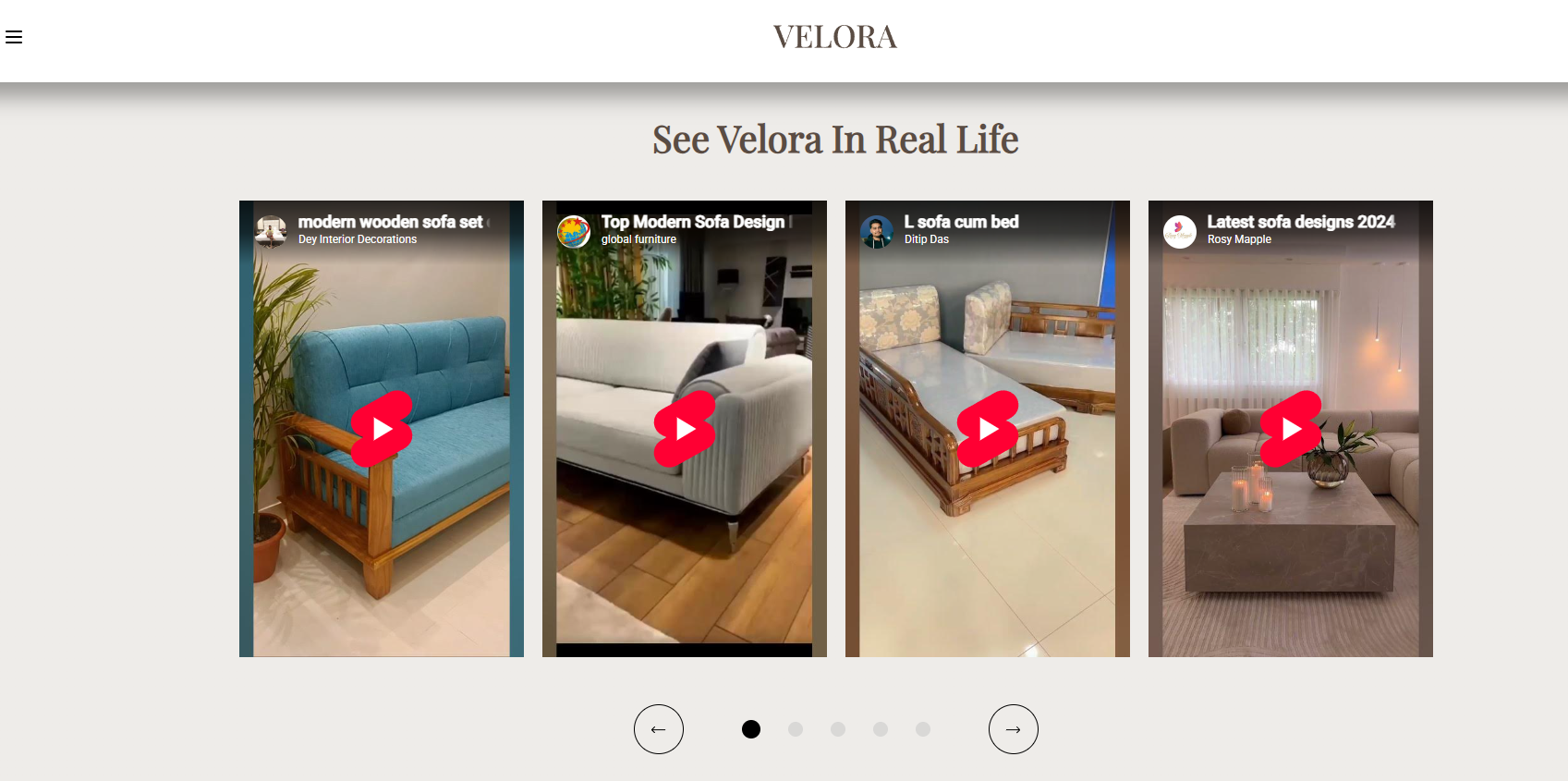
The Testimonial Video section allows you to showcase customer video reviews in an engaging, scrollable carousel. Video testimonials help build trust, demonstrate real customer experiences, and provide powerful social proof that can increase buyer confidence and improve conversion rates.
You can fully customize the section header, button, styling, and add multiple video testimonial cards using either YouTube, Vimeo, or Shopify-hosted videos.
How to Add the Testimonial Video Section
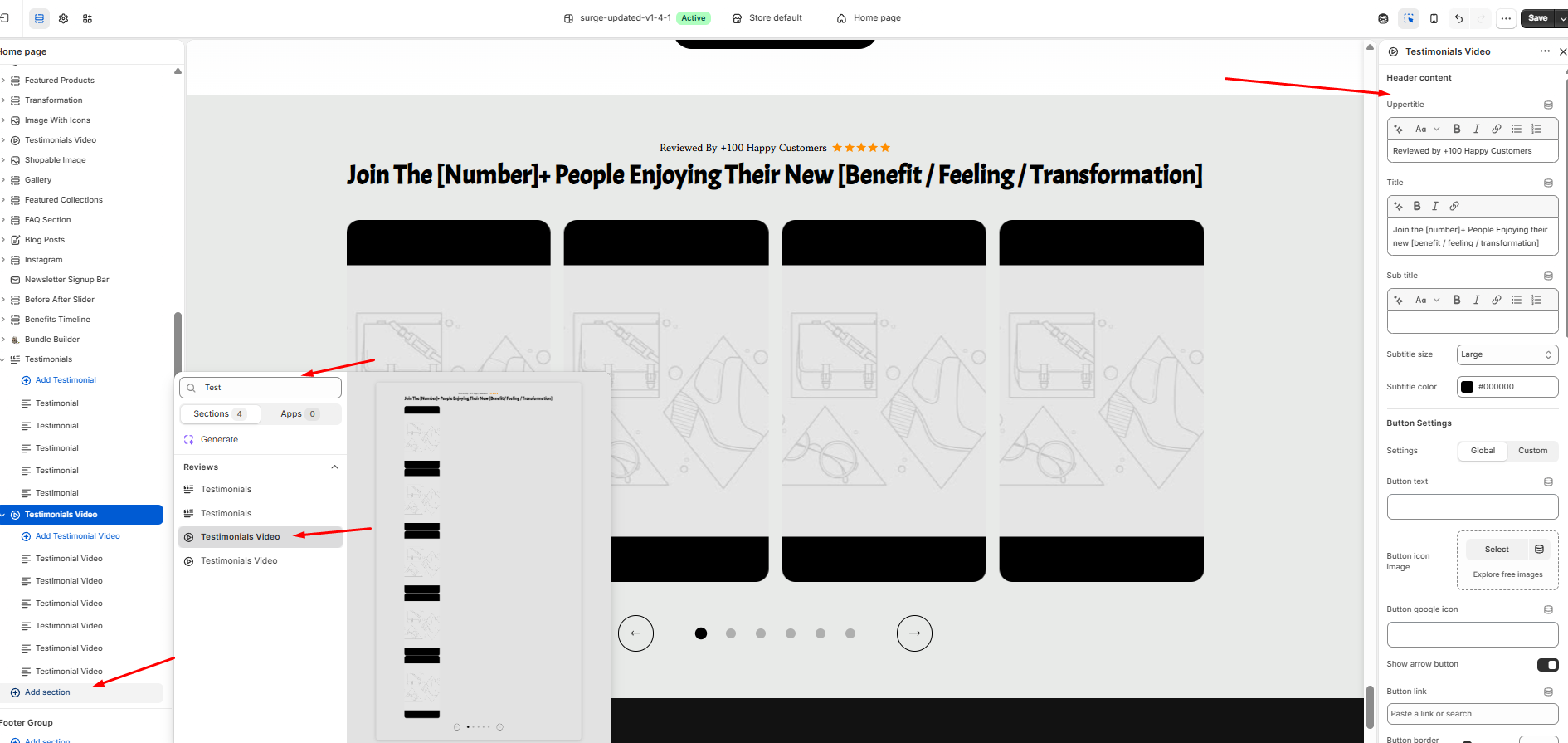
- Navigate to Online Store → Surge Theme.
- Click Edit Theme.
- Under the Template panel, click Add section.
- Search for Testimonial Video.
- Select the Testimonial Video section to add it to your page.
- Customize the section using the Testimonial Video section editor.
Customizing the Testimonial Video Section
Once the section has been added, you can personalize it using the settings available in the theme editor.
Header Content
Customize the introductory content displayed above your video testimonials, including:
- Upper Title
- Title
- Subtitle
- Rich text formatting (bold, italic, links, lists, etc.)
- Subtitle size
- Subtitle color
Button Settings
Add an optional call-to-action button above the testimonial videos to encourage visitors to view additional reviews.
Available options include:
- Button text
- Button icon image
- Google icon
- Show or hide the arrow icon
- Button link
- Button style and appearance
This is perfect for linking customers to a dedicated reviews page or collection of testimonials.
Managing Testimonial Videos
Each video is added as an individual Testimonial Video block.
To add a new video:
- Click Add Testimonial Video.
- Open the newly created video block.
- Add your video using one of the following methods:
- Paste a YouTube or Vimeo URL into the Embed video from URL field.
- Select a Shopify-hosted video from your store files.
- Choose whether to Show or Hide the video controls.
- Repeat the process for additional testimonial videos.
You can also:
- Reorder video blocks by dragging and dropping them.
- Remove videos you no longer wish to display.
- Create a carousel containing multiple customer video testimonials.
Pro Tip
Keep your testimonial videos short and authentic—around 15 to 60 seconds is ideal. Videos that quickly demonstrate a customer's experience, results, or transformation are more likely to capture attention and build trust than longer, heavily edited testimonials.
Closing
The Testimonial Video section is an excellent way to add authentic social proof to your storefront. Featuring real customer experiences in video format helps visitors connect with your brand, increases credibility, and can positively influence purchasing decisions.
Need More Help?
If you have any questions or need assistance setting up the Testimonial Video section, we're happy to help. Please submit a support ticket by emailing [email protected], and our team will be glad to assist you.
Was this article helpful?
That’s Great!
Thank you for your feedback
Sorry! We couldn't be helpful
Thank you for your feedback
Feedback sent
We appreciate your effort and will try to fix the article