Overview
The Header is one of the most important parts of your Shopify store, it’s the first thing visitors see and plays a major role in navigation, branding, and user experience.
In Surge, the Header is designed to give you full control over how your store’s top section looks and functions, including your logo, navigation menu, announcement bar, trust elements, and customer action icons like search, account, and cart.
With Surge’s flexible Header settings, you can easily customize your store’s top navigation to better match your brand, improve customer experience, and increase conversions, all directly inside Shopify’s Theme Editor without touching code.


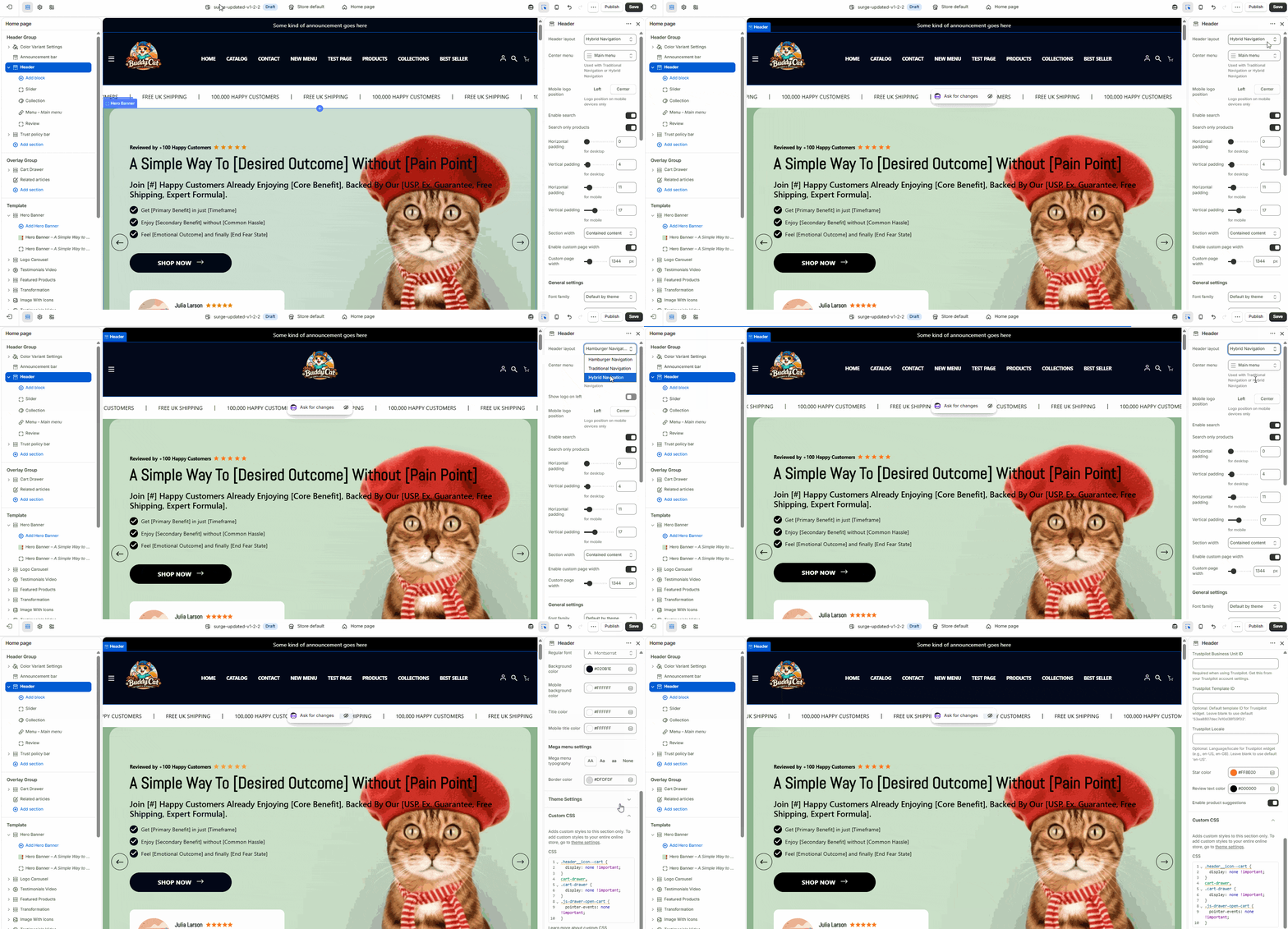
How to Customize the Header in Surge
Step 1: Open the Shopify Theme Editor
- From your Shopify Admin, go to Online Store
- Click Themes
- Find your active Surge Theme
- Click Edit Theme
Step 2: Locate the Header Group
In the left-hand sidebar, look for the Header Group section.
Inside this area, you’ll typically find:
- Color Variant Settings – Controls your header colors and style variants
- Announcement Bar – Add promotional text, shipping offers, or important updates
- Header – Main header customization settings
Step 3: Customize Your Logo
Inside the Header settings:
- Select your Header Navigation Layout from Hamburger,Traditional and Hybrid.
- Upload or replace your logo
- Adjust logo sizing
- Optimize spacing for desktop and mobile
- Ensure your branding is clean and visible
Tip: Use a high-quality transparent PNG logo for the sharpest display.
Step 4: Set Up Your Navigation Menu
Under the Header settings:
- Select your Shopify navigation menu
- Organize menu items like Home, Catalog, Products, Collections, Contact, and more
- Add dropdowns through Shopify’s Navigation settings for advanced menu structures
This controls how customers browse your store.
Step 5: Configure Header Icons
Surge includes built-in icons for:
- Customer Account
- Search
- Cart
Enable or adjust these features based on your store’s needs to improve usability and customer access.
Step 6: Customize the Announcement Bar
Use the Announcement Bar to highlight:
- Free shipping offers
- Promotions
- Discount codes
- Product launches
- Important updates
This section appears above your Header and is a powerful conversion tool.
Step 7: Review Mobile Optimization
Switch between desktop and mobile preview inside Shopify’s Theme Editor to ensure:
- Logo sizing looks balanced
- Menus are accessible
- Icons display correctly
- Navigation remains user-friendly
A well-optimized mobile header is essential for maximizing conversions.
Best Practices for a High-Converting Header
Keep It Clean
Avoid overcrowding your navigation with too many links.
Prioritize Key Pages
Feature your most important pages first, such as:
- Shop
- Best Sellers
- Collections
- Contact
Use the Announcement Bar Strategically
Promote urgency, trust, or incentives.
Focus on Branding
Your logo and color choices should instantly communicate professionalism.
Need Help?
If you need help customizing your Header, click Submit a support ticket through our Help Center or email us anytime at [email protected] — our team is here to help.
Was this article helpful?
That’s Great!
Thank you for your feedback
Sorry! We couldn't be helpful
Thank you for your feedback
Feedback sent
We appreciate your effort and will try to fix the article