Overview
The Transparent Header feature in Surge allows you to display your header as an overlay on top of the first section of your homepage, such as a hero banner. This creates a seamless, modern look by allowing your background image or banner to extend behind the header.
You can customize the header's appearance, including its logo, text colors, and other visual elements, to complement your storefront's design.
Note: The transparent header feature applies to the homepage only. For the best results, we recommend hiding the Trust Policy Bar on the homepage when using this feature. The header will also switch to a solid background when the sticky header activates as visitors scroll down the page.
Step-by-Step Guide
Step 1: Open the Header Settings
- From your Shopify admin, navigate to Online Store → Themes.
- Find your active Surge theme and click Customize.
- In the theme editor, select Header from the left-hand panel.
Step 2: Enable the Transparent Header
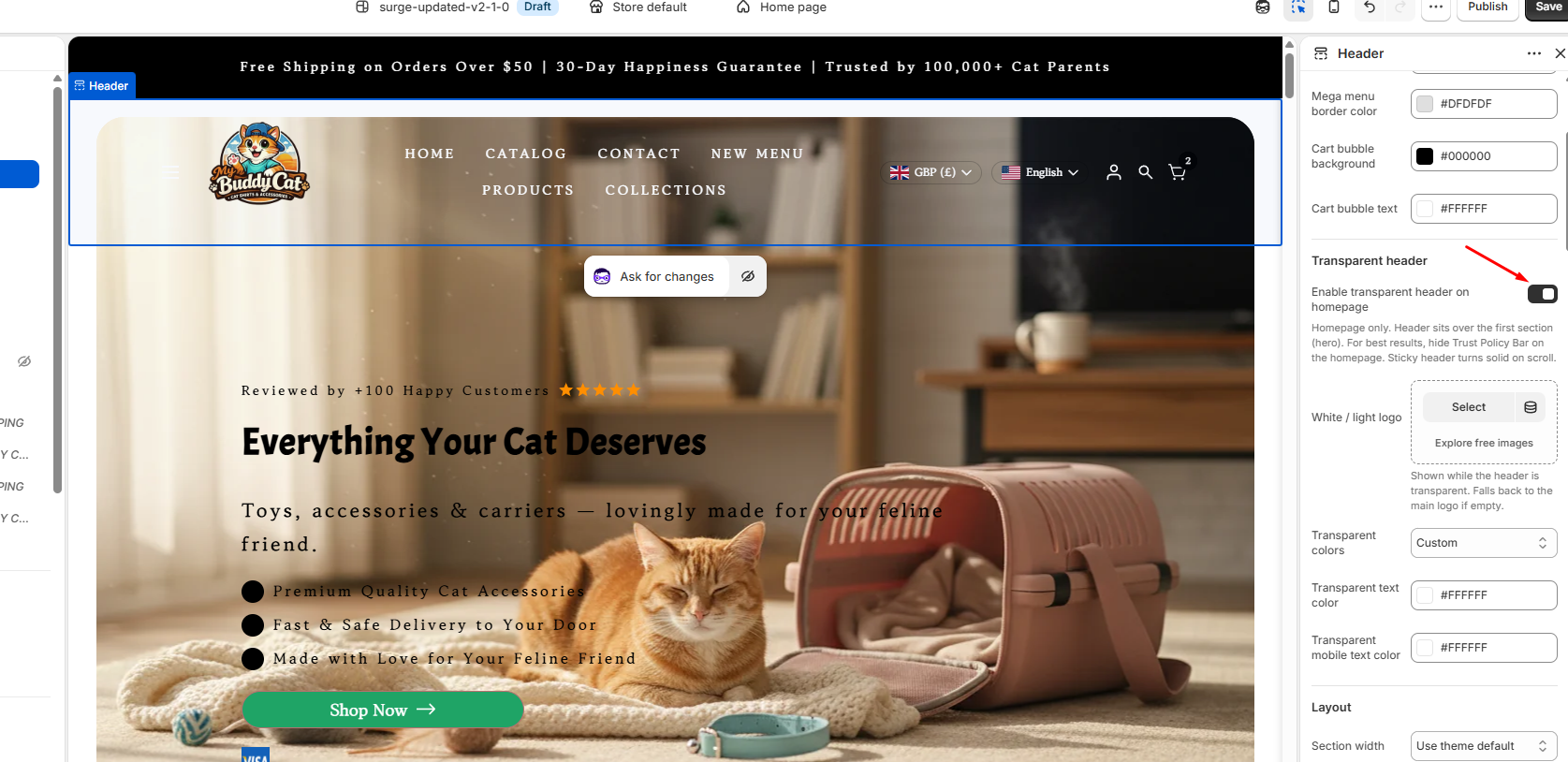
- In the Header settings panel, scroll down to the Transparent header section.
- Enable the Enable transparent header on homepage toggle.
Your header will now overlay the first section of your homepage instead of appearing in a separate solid-colored area.
Step 3: Configure the Logo
When the transparent header is enabled, you can choose a separate logo for this layout.
- Locate the White / light logo setting.
- Click Select to choose the logo you want to display over the transparent background.
- Choose a white or light-colored logo that contrasts well with your homepage's background image.
If you leave this setting empty, Surge will use your main logo instead.
Step 4: Customize the Transparent Header Colors
Under the Transparent colors setting, you can choose how the header appears over your homepage banner.
- Transparent colors: Choose the available color scheme for the transparent header.
- Transparent text color: Set the color of the header text and icons for desktop.
- Transparent mobile text color: Set the text and icon color specifically for mobile devices.
Choose colors that remain clearly visible against your hero image or background. For example, white text and icons often work well over darker images.
Step 5: Save and Preview Your Changes
- Click Save in the theme editor.
- Preview your homepage on both desktop and mobile devices.
- Check that your logo, navigation links, and header icons are visible against the background.
- Scroll down the page to confirm that the sticky header switches to a solid background as expected.
Pro Tip
For the best visual results, use a hero image with enough contrast behind your header. If your background is light, a dark logo and dark text may be more suitable; if it is dark, consider a white or light-colored logo with contrasting text and icons.
Also, keep in mind that the transparent header overlays the first section of your homepage. Make sure your hero content has enough spacing so that headings, buttons, or other important elements aren't obscured by the header.
Closing
The Transparent Header feature is a simple way to create a polished, immersive storefront design while keeping your navigation accessible. With the right logo, colors, and background image, you can create a consistent look that complements your brand.
Need Help?
If you have any questions or need further assistance setting up the Transparent Header in Surge, please contact our support team at [email protected]. We're happy to help!
Was this article helpful?
That’s Great!
Thank you for your feedback
Sorry! We couldn't be helpful
Thank you for your feedback
Feedback sent
We appreciate your effort and will try to fix the article