Overview
The Shop By Category section is a visual navigation tool designed to help customers find exactly what they are looking for at a glance. By showcasing your main collections with high-quality imagery, you can reduce friction in the shopping journey and improve overall site exploration.
This section acts as a visual directory for your store. Instead of relying solely on menu links, you can use "Shop By Category" to:
Improve UX: Allow customers to browse via images, which is often faster and more engaging than text.
Highlight Key Collections: Direct traffic toward your most popular or newest product categories.
Enhance Aesthetics: Add a professional, curated look to your homepage or landing pages.
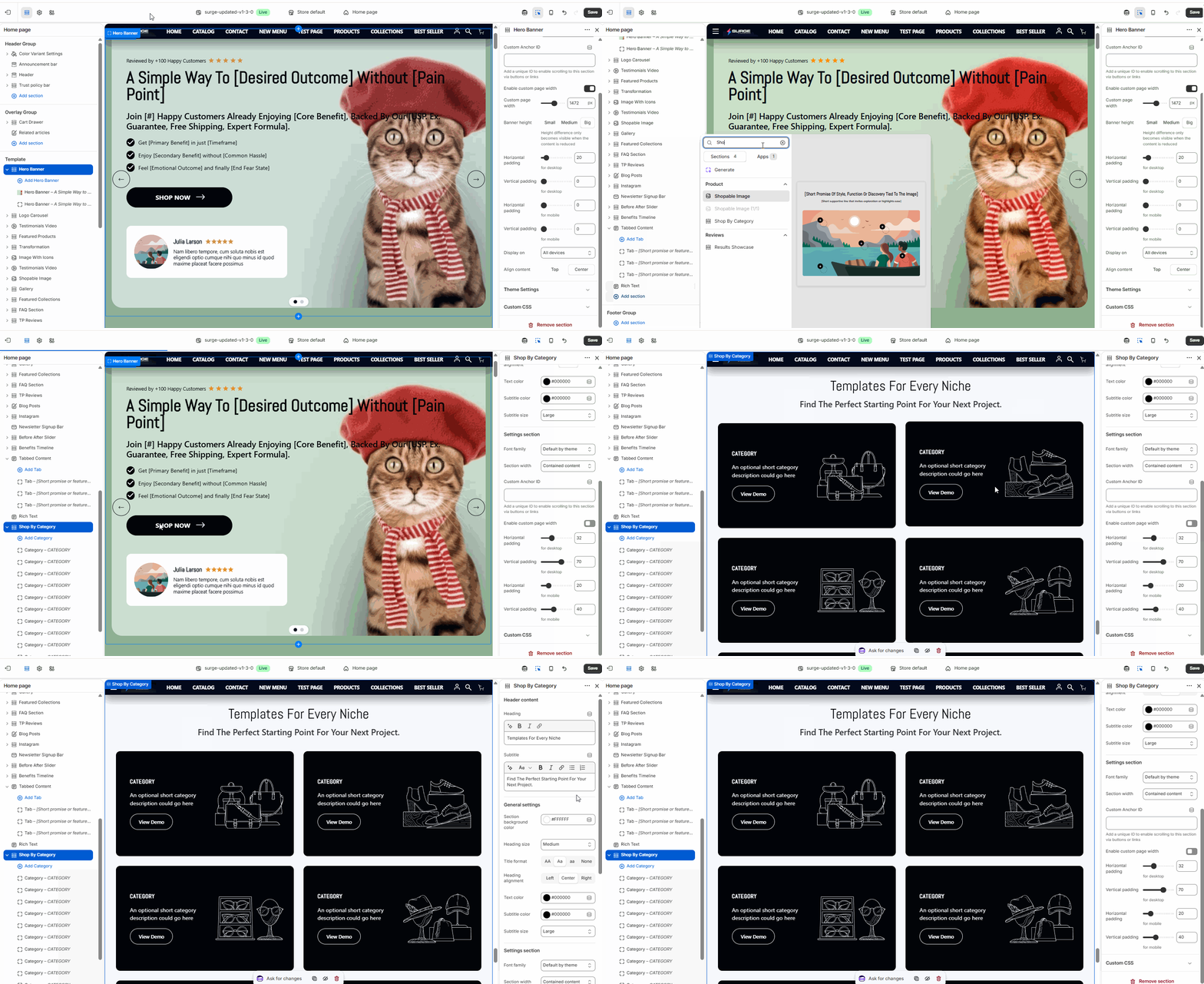
Step-by-Step Setup Guide
Follow these steps to set up and customize the Shop By Category section in your Surge theme:
1. Add the Section
Open your Shopify Theme Editor.
In the Template sidebar, click Add Section.
Search for Shop By Category and click to add it to your page.
2. General Section Settings
Click on the Shop By Category header to adjust the overall layout:
Heading & Subheading: Add a title (e.g., "Shop Our Favorites") and a brief description to guide your visitors.
Layout Style: Choose between a Grid or Slider layout depending on how many categories you want to display.
Image Shape: Customize the look of your category images (e.g., Square, Rounded, or Circular).
Padding: Use the Vertical and Horizontal Padding sliders to adjust the space around the section for both desktop and mobile views.
3. Customize Category Blocks
Each category is represented by an individual block within the section:
Select Collection: Choose the specific collection you want this block to link to.
Custom Image: By default, the section will use the collection's featured image. You can override this by uploading a Custom Image for a more specific look.
Category Label: Edit the text displayed on the category (e.g., "Men's Apparel" or "New Arrivals").
Button/Link Style: Toggle whether the category name appears as simple text or a styled button overlay.
4. Save and Preview
Reorder the blocks in the sidebar to prioritize your top-performing categories.
Click Save in the top right corner to update your live store.
Need Further Assistance?
If you need help optimizing your category images or adjusting the grid layout, our support team is ready to jump in. Please submit a support ticket or email us directly at [email protected].
Was this article helpful?
That’s Great!
Thank you for your feedback
Sorry! We couldn't be helpful
Thank you for your feedback
Feedback sent
We appreciate your effort and will try to fix the article