1. Open your theme editor.
2. Click on “Add Section”
3. Find and add the “Image With Text Section” from the block library.
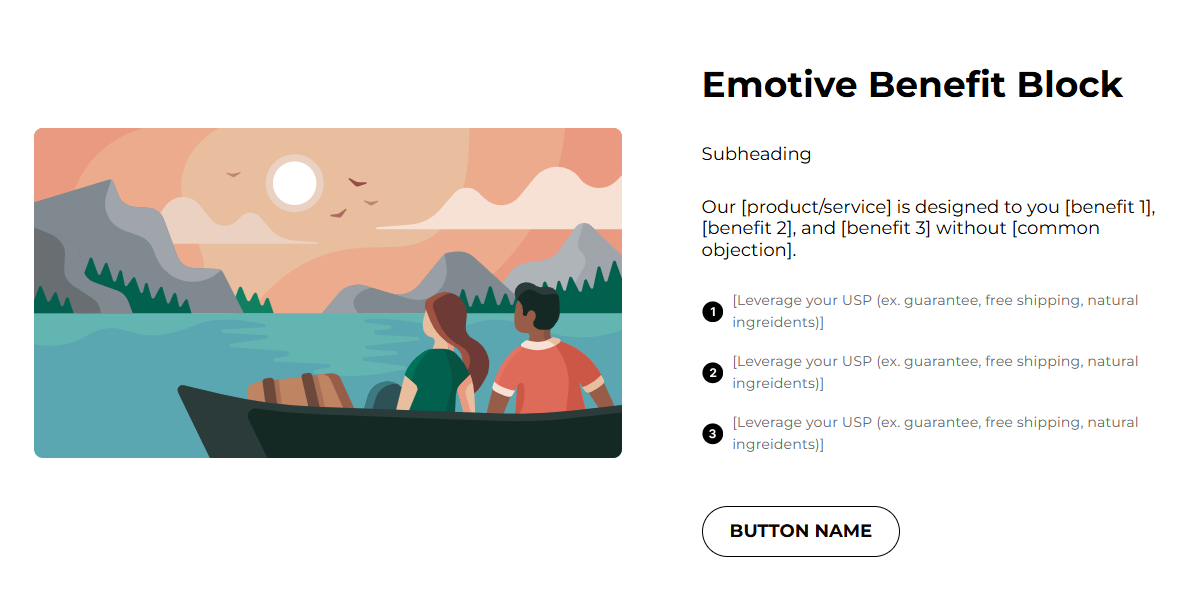
Upload the main image and add Icon Blocks for each benefit.
Styling The Section
The Image With Text section is a perfect way for blending visuals with persuasive copy that drives engagement and sales.
Use it to tell your story, explain your product’s value, or guide users toward a specific action like exploring a collection or learning more about other products they might be interested in.
By balancing striking imagery with concise, benefit-focused text, this section helps create emotional connection and convert browsing into buying.
Below is a list of all the general settings found on all sections built inside Surge Theme.
Header Content (Title / Description)
Primary headline and supporting paragraph. Keep the headline strong, description short, benefit-driven, and trust-building. (1-3 sentences).Background Color
Set the backdrop of the gallery. Transparent blends with the page background.
Use a subtle solid color if you want the section to stand out more.
Title Size / Headline Typography
Control the size of your headline choose Small, Medium, or Large depending on how prominent you want your section title to appear.AA = ALL CAPS (bold and strong).
Aa = Title Case (professional).
aa = lowercase (minimal, casual).
Text Color
Controls the color of all text elements in that block including the title, description, and button text (if applicable).Padding (Desktop & Mobile)
Controls spacing around the gallery elements both horizontal and verticalExample: Desktop Horizontal = 70px (wide margins).
Mobile Horizontal = 15px (compact for small screens)
Display On
Choose the device types where you would like to display this. Choose All for all device types.Image Position (Left / Right)
Choose placement; alternate across sections on page for visual rhythm.Image Upload
Desktop image 1200–1600px; mobile optimized image if possible.
This settings allows you to customize the image and text for your icons.
Icon Image
Small icon (SVG preferred, 24 - 48 px).Text for Point
One sentence benefit. Example: Supports strength and endurance for every training session.
? Pro tip: You can always fetch ready-to-use Icons from Google fonts instead of trying to spend hours finding custom assets.
Recommended: 3 points: Strength, Recovery, Convenience.
This section allows you to control how your call-to-action buttons look and behave.
Button Text
BUY NOW, Shop Now, etc. Keep it short and action-oriented.Button Link
Pick the link of your product or collection.Settings Global / Custom
Global uses global theme settings; while Custom lets you override.Button Border Size, Color, Corner Radius
Example: Border 1px #000000 with Transparent BG or a colored background for emphasis.Button Background & Text Color
Ensure contrast (BG #FC4F00, Text #FFFFFF recommended).
Use an image that ties to the text (product in use, lifestyle).
Keep CTA near the top of the text column so users don’t have to scroll.
Use 3 benefit driven points, concise and specific.
Ensure the image is responsive, supply a mobile-optimized version.
Use “social proof” nearby (reviews/trust badges) to increase conversion.
Q: Should I use transparent buttons or solid ones?
A: Solid colored buttons with high contrast perform better for CTAs. Transparent is fine when the background provides clear contrast (but test!).
Q: Can I use multiple buttons?
A: Prefer one primary CTA and optional secondary link (e.g., Learn more) to avoid choice paralysis.
Button blends into background → change button BG or border and text color.
Icons too small on retina → use larger SVGs so they remain sharp.
Large paragraphs → shorten to 2–3 lines per paragraph for scannability.
Headlines and descriptions are concise and persuasive.
Image appears correctly on desktop & mobile (no important crop loss).
Buttons link to the intended product page.
Points/icons show correctly and are readable on mobile.
Contrast & accessibility checks passed.
Was this article helpful?
That’s Great!
Thank you for your feedback
Sorry! We couldn't be helpful
Thank you for your feedback
Feedback sent
We appreciate your effort and will try to fix the article