The Social Accounts section allows you to link your brand’s social media profiles directly to your store. This creates a seamless connection for your customers to follow your updates and engage with your community.
Summary
By adding your profile URLs here, social media icons will automatically appear in designated areas of the Surge theme, such as the footer or navigation menus. You also have control over the Social icon color to ensure these buttons match your brand palette perfectly.
Pro Tip: Make sure to include the full URL (e.g.,
https://instagram.com/yourstore) to ensure the links work correctly for your visitors.
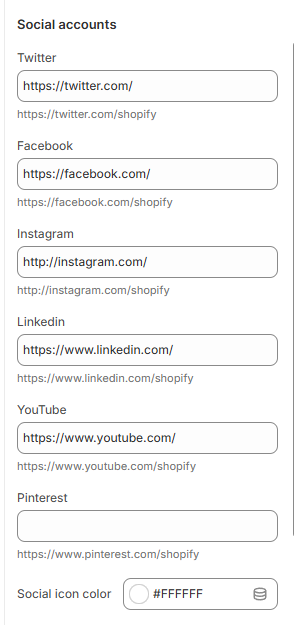
How to Link Your Social Media
Follow these steps to connect your accounts:
Open the Theme Editor: In your Shopify Admin, go to Online Store > Themes > Edit Theme.
Open Theme Settings: Click the Gear icon (⚙️) in the left-hand sidebar.
Select Social Accounts: Locate and click on the Social accounts accordion.
Add Your Links: Copy and paste your specific profile URLs into the corresponding fields:
Twitter, Facebook, Instagram, LinkedIn, YouTube, and Pinterest.
Leave a field empty if you do not want that specific icon to show on your store.
Customize Icon Color: Click the Social icon color picker to choose a color that stands out against your background.
Save: Click Save in the top right corner.
Was this article helpful?
That’s Great!
Thank you for your feedback
Sorry! We couldn't be helpful
Thank you for your feedback
Feedback sent
We appreciate your effort and will try to fix the article