Overview
The Mega Menu block in the Surge theme enhances your storefront navigation by displaying organized link columns alongside featured promo cards. This layout allows customers to easily explore product collections, featured items, and key store pages directly from the main header navigation.
While navigation links and column titles are managed directly within the Shopify
Navigation admin, the Mega Menu block in the Theme Editor gives you total control over the menu's visual layout, typography, panel colors, and promotional cards.
How the Mega Menu Works
Before configuring the block settings, it helps to understand how Shopify navigation connects to the Surge Mega Menu:
Title Matching: The Mega Menu block uses a Menu Item Title field. Enter the exact name of a top-level menu item from your Shopify navigation (e.g., Catalog, Shop, or Bracelets). When a match is found, hovering over or opening that link reveals the mega menu dropdown. If no match exists, the link functions as a standard dropdown or direct link.
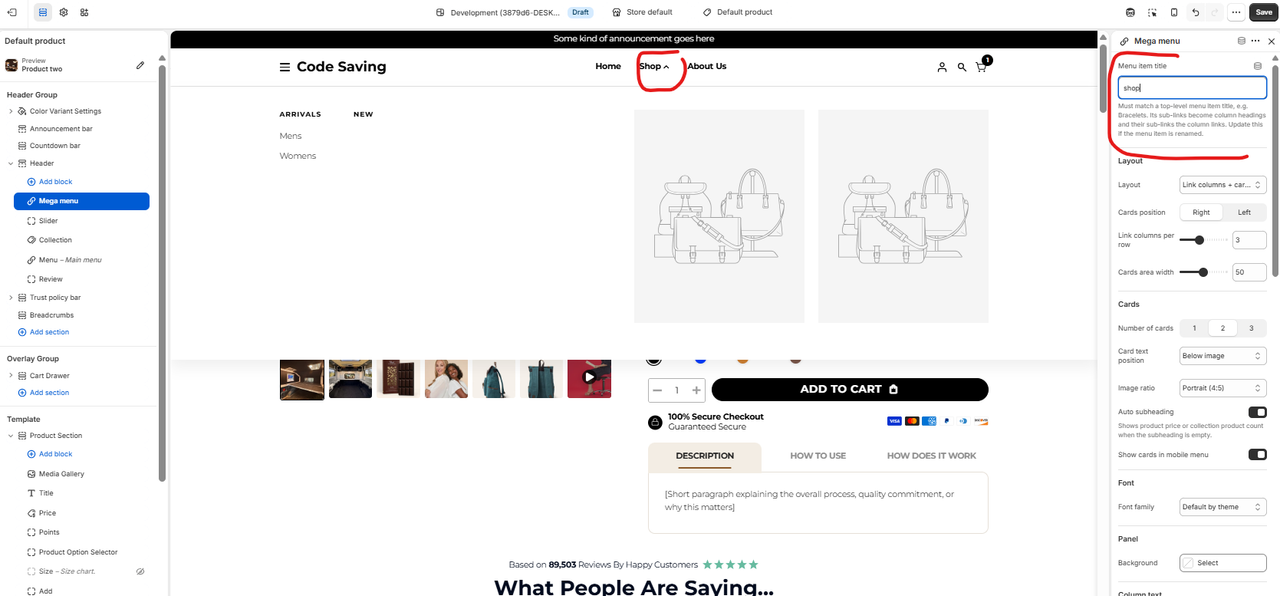
Menu Hierarchy:
Level 1 (Top-Level Item): The primary navigation link specified in the Menu Item Title field.
Level 2 (Nested Items): Functions as individual column headings inside the mega menu.
Level 3 (Sub-items): Functions as direct links listed under each column heading.
Block Controls: Managing link structure occurs under Shopify Admin → Online Store → Navigation, while the Mega Menu block inside the Theme Editor manages layout display, card selection, colors, and typography.
Step-by-Step Setup Guide
Step 1: Set Up Your Navigation Menu Hierarchy
From your Shopify Admin, navigate to Online Store → Navigation.
Select your primary menu (e.g., Main Menu).
Ensure your navigation items follow the 3-level structure:
Level 1: Top-level item (e.g., Catalog).
Level 2: Column headings nested under Level 1.
Level 3: Nested links listed under Level 2 headings.
Click Save menu.
Step 2: Add and Link the Mega Menu Block
From your Shopify Admin, go to Online Store → Themes and click Edit Theme on your Surge theme.
In the left-sidebar section list, hover over Header and click Add block.
Select Mega menu.
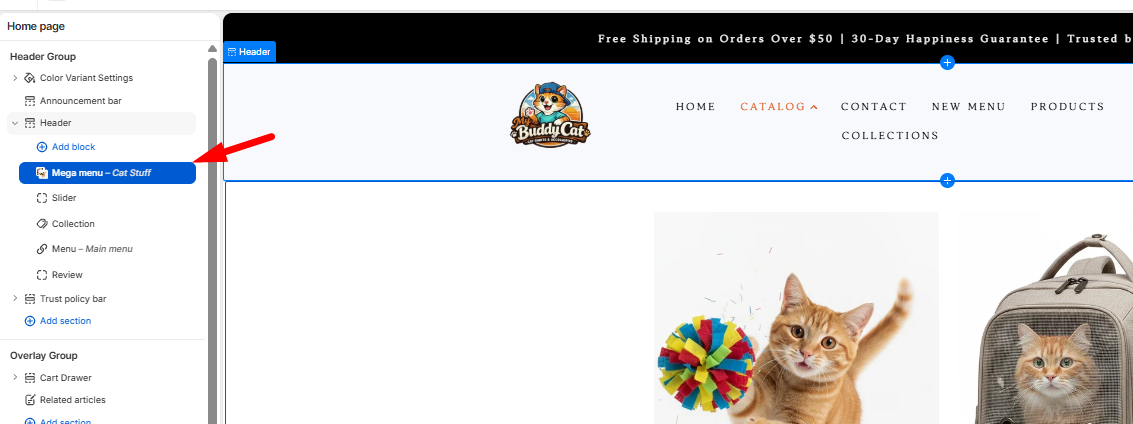
Click the newly added Mega menu block to open its settings panel.
In the Menu item title field, enter the exact title of your Level 1 menu item (e.g.,
Catalog).
Step 3: Configure Layout & Panel Settings
In the Mega Menu block settings, customize how items appear:
Layout: Choose between displaying Link columns + cards, Link columns only, or Cards only.
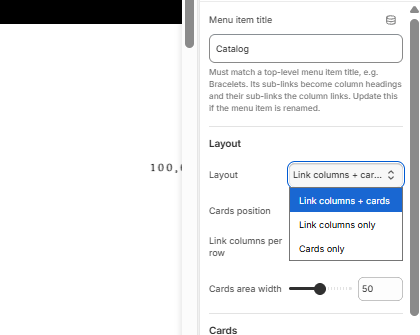
Cards Position: Position promotional cards on the Left or Right side of the panel.
Columns & Width: Adjust sliders for Link columns per row and Cards area width.
Panel Background: Customize the background color of the mega menu dropdown panel under the Panel settings.
Step 4: Customize Fonts & Colors
Tailor column text and card typography to match your brand style:
Column Text: Set heading size, weight, letter spacing, heading case (e.g., Uppercase), link size, heading color, link color, and link hover color.
Card Text: Adjust heading size, weight, style (Regular or Italic), letter spacing, text alignment (Center or Left), heading color, subheading color, and button color.
Image Styling: Set image corner radius and border thickness for promo cards.
Step 5: Add Promotional Cards
You can feature products or collections directly inside the Mega Menu panel:
Under Cards, select the Number of cards (e.g., 1 to 3).
For each card (e.g., Card 1, Card 2):
Select the Source (Product or Collection).
Choose the specific Product or Collection to display.
(Optional) Enable Use custom image and text to override the default product/collection details with custom imagery, headings, subheadings, and button text.
Click Save at the top right of the Theme Editor.
Pro Tip
Tip: Keep your menu title matching precise! If you rename or update a top-level item in Shopify Admin → Navigation (for example, changing Catalog to Shop All), remember to update the Menu Item Title field inside the Mega Menu block settings in the Theme Editor so the mega menu continues to display seamlessly.
Closing
By combining Shopify’s flexible menu navigation with the custom layout controls in the Surge Mega Menu block, you can build clean, conversion-focused navigation menus that help shoppers discover your featured products effortlessly.
If you have any questions or need further assistance setting up your Mega Menu, please feel free to submit a support ticket to [email protected], and our team will be glad to assist you!
Was this article helpful?
That’s Great!
Thank you for your feedback
Sorry! We couldn't be helpful
Thank you for your feedback
Feedback sent
We appreciate your effort and will try to fix the article