Overview
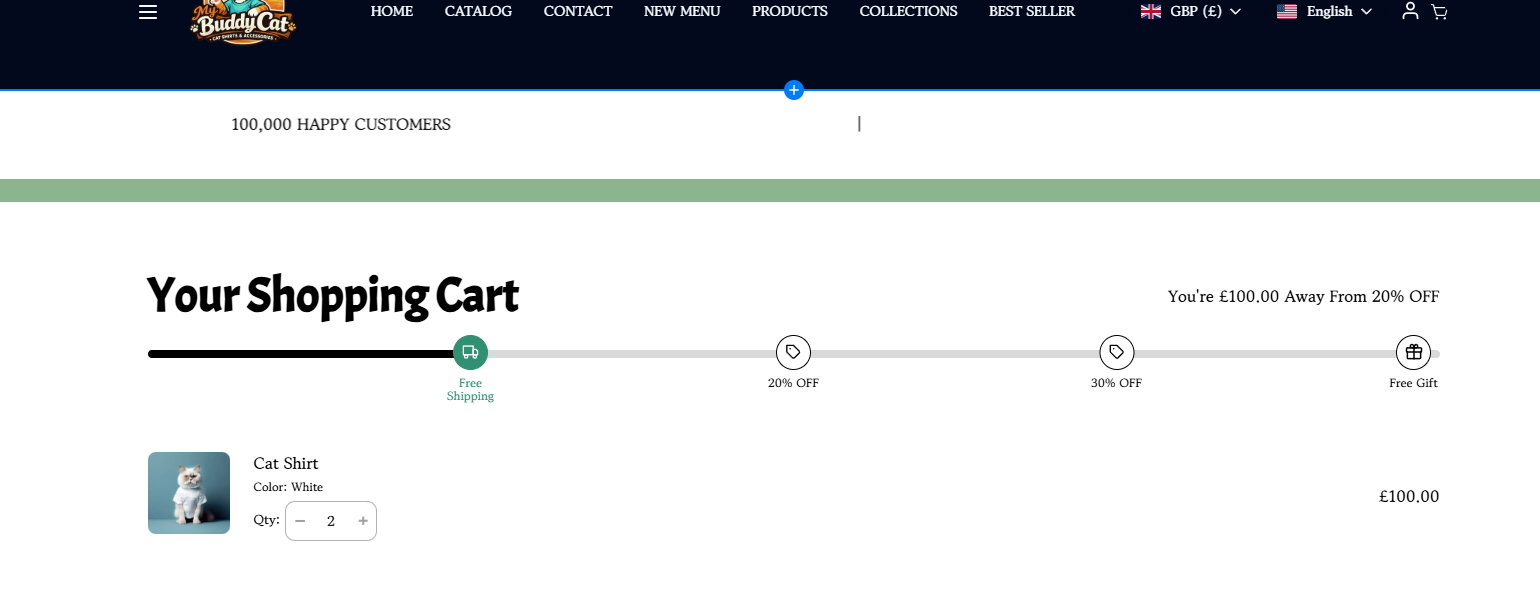
The Shipping Goals feature in the Surge theme helps encourage customers to increase their order value by displaying a tiered rewards progress bar inside the cart. As customers add more items to their cart, they can unlock rewards such as Free Shipping, Discounts, and even a Free Gift once specific spending thresholds are reached.
This feature provides a visual incentive that can help improve average order value (AOV) by motivating customers to reach the next reward milestone.
Example reward tiers:
- Spend $100 → Unlock Free Shipping
- Spend $200 → Unlock 20% OFF
- Spend $300 → Unlock 30% OFF
- Spend $400 → Unlock a Free Gift
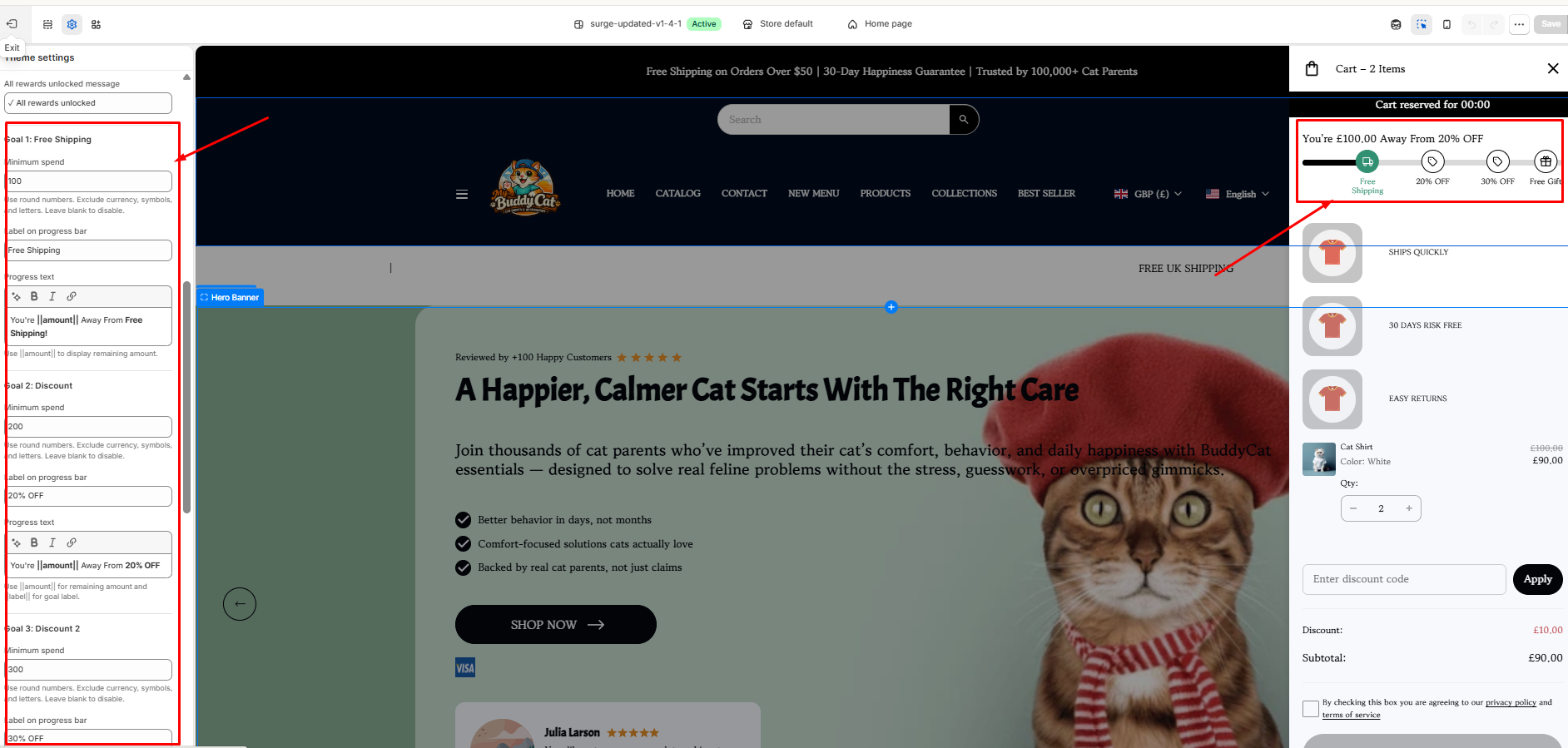
When configured, customers will see their progress directly in the cart drawer, along with messaging showing how much more they need to spend to unlock the next reward.
Cart Drawer
How to Configure Shipping Goals
Step 1: Open the Theme Editor
- In your Shopify Admin, go to Online Store → Themes.
- Locate your Surge theme.
- Click Edit Theme.
Step 2: Navigate to the Goals Settings
- In the Theme Editor, click the Theme Settings icon.
- Open Cart.
- Select Goals.
You will find the settings used to create multiple reward tiers.
Step 3: Configure Goal 1
Goal 1 is typically used for Free Shipping.
Configure the following fields:
Minimum Spend
Enter the cart value required to unlock the reward.
Example: 100
Label on Progress Bar
This text appears beneath the reward icon.
Example: Free Shipping
Progress Text
This message appears while the goal has not yet been reached.
Use:
You're ||amount|| Away From Free Shipping!
The ||amount|| placeholder automatically displays the remaining amount required to reach the goal.
Step 4: Configure Goal 2
Goal 2 can be used for a discount reward.
Minimum Spend
Example: 200
Label on Progress Bar
20% OFF
Progress Text
You're ||amount|| Away From 20% OFF
Step 5: Configure Goal 3
Goal 3 can be used for an additional discount tier.
Minimum Spend
Example: 300
Label on Progress Bar
30% OFF
Progress Text
You're ||amount|| Away From 30% OFF
Step 6: Configure Goal 4
Goal 4 can be used for a free gift offer.
Minimum Spend
Example: 400
Label on Progress Bar
Free Gift
Progress Text
You're ||amount|| Away From a Free Gift
Step 7: Save Your Changes
Once all reward tiers have been configured:
- Click Save in the top-right corner of the Theme Editor.
- Open your storefront and add products to the cart.
- Verify that the progress bar updates correctly as the cart value increases.
As customers move through each spending threshold, the corresponding reward milestone will be highlighted in the cart drawer.
Pro Tip
For best results, space your reward tiers strategically to encourage incremental increases in cart value.
For example:
| Reward | Minimum Spend |
|---|---|
| Free Shipping | $100 |
| 20% OFF | $200 |
| 30% OFF | $300 |
| Free Gift | $400 |
This creates multiple opportunities for customers to continue adding products as they work toward the next reward.
Note: The Shipping Goals feature provides visual motivation and messaging within the cart. Any associated discounts, free shipping rules, or free gift promotions should also be configured within Shopify or your preferred discount app to ensure rewards are applied correctly at checkout.
Need Help?
If you need any assistance with this feature or have questions about your Surge theme setup, please reach out to our support team by submitting a ticket to [email protected]. We're always happy to help.
Was this article helpful?
That’s Great!
Thank you for your feedback
Sorry! We couldn't be helpful
Thank you for your feedback
Feedback sent
We appreciate your effort and will try to fix the article