Overview
Surge includes a built-in setting that allows you to choose what happens after a customer clicks the Add to Cart button.
You can either:
- Open the Cart Drawer for a seamless shopping experience that keeps customers on the current page.
- Redirect customers to the Full Cart Page for a more traditional cart-to-checkout flow.
This flexibility allows you to tailor the purchasing journey to match your store's strategy without requiring any custom code.
Benefits
- Customize the customer purchase flow to suit your store.
- Improve flexibility with a simple theme setting.
- Support both modern cart drawer experiences and traditional cart page workflows.
- No custom coding required.
How to Configure the Add to Cart Behavior
To choose what happens after customers add a product to their cart:
- From your Shopify admin, navigate to Online Store.
- Locate your Surge theme and click Edit Theme.
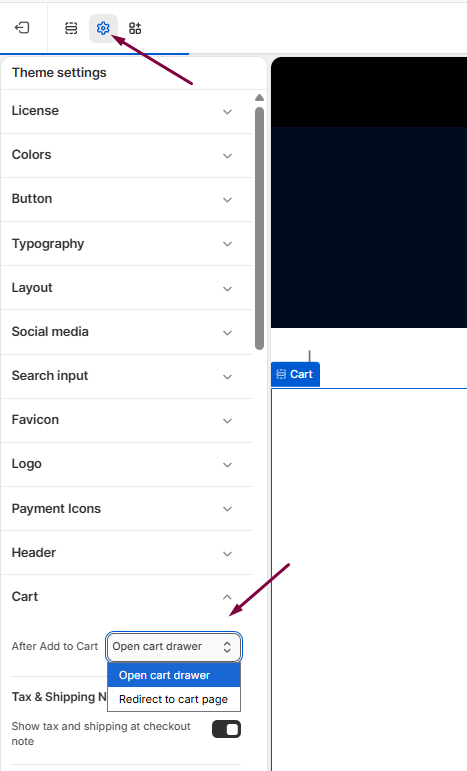
- Click the gear icon in the top-left corner to open the global theme settings.
- Scroll down and select Cart.
- Under After Add to Cart, choose your preferred option:
- Cart Drawer – Opens the cart drawer without leaving the current page.
- Cart Page Redirect – Sends customers directly to the full cart page.
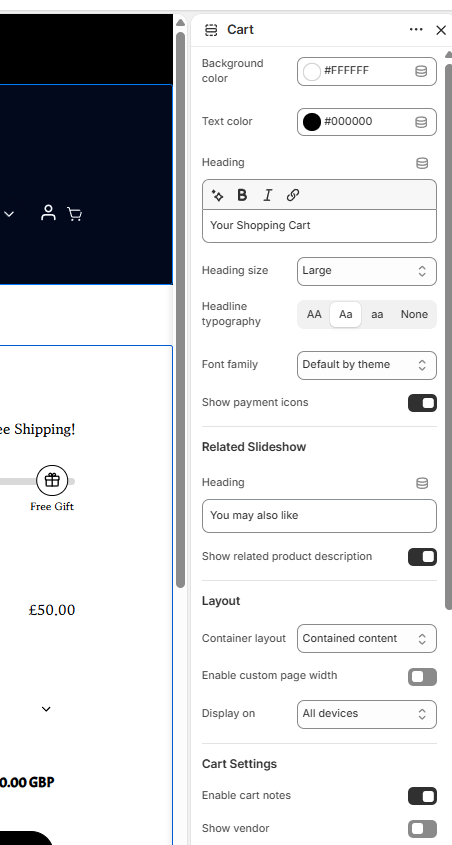
- Use the Cart Editor to further customize your cart experience.
- Click Save to apply your changes.
Which Option Should You Choose?
Cart Drawer
The Cart Drawer keeps customers on the product or collection page, allowing them to continue shopping without interruption. This option is often preferred for stores focused on increasing average order value and encouraging additional purchases.
Cart Page Redirect
The Cart Page Redirect takes customers directly to the cart after adding an item. This option works well for stores that prefer a more traditional checkout flow or want customers to review their cart before proceeding.
Need Help?
If you have any questions or need assistance configuring your cart settings, we're happy to help.
Click Submit a Support Ticket within our Help Center, or email us at [email protected], and our team will get back to you as soon as possible.
Was this article helpful?
That’s Great!
Thank you for your feedback
Sorry! We couldn't be helpful
Thank you for your feedback
Feedback sent
We appreciate your effort and will try to fix the article