Overview
The Sticky Add to Cart feature helps keep your product's Add to Cart button accessible as customers scroll through the product page. This can improve the shopping experience by making it easier for customers to add products to their cart without needing to scroll back to the product form.
In Surge, you can control exactly when the Sticky Add to Cart bar appears by adjusting the Sticky add to cart trigger setting within the Product Section.
How to Configure the Sticky Add to Cart
Step 1: Open the Theme Editor
- From your Shopify admin, go to Online Store → Themes.
- Locate your Surge theme and click Edit Theme.
Step 2: Open a Product Page Template
- In the theme editor, navigate to a product page.
- Select the Product Section from the left-hand sidebar.
Step 3: Locate the Sticky Add to Cart Setting
- In the Product Section settings panel, scroll to the General Settings area.
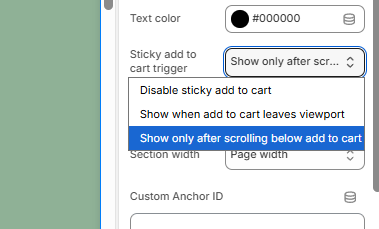
- Find the Sticky add to cart trigger dropdown.
Step 4: Choose Your Preferred Trigger
Click the dropdown and select one of the available options:
- Disable sticky add to cart – Turns the feature off.
- Show when add to cart leaves viewport – Displays the sticky bar once the original Add to Cart button is no longer visible on the screen.
- Show only after scrolling below add to cart – Displays the sticky bar only after the customer has scrolled past the Add to Cart section.
Step 5: Preview the Behavior
After selecting a trigger option:
- Scroll through the product page preview.
- Verify that the Sticky Add to Cart bar appears according to your selected setting.
- Compare the behavior of each trigger option to determine which best fits your store's shopping experience.
Step 6: Save Your Changes
Once you're happy with the configuration, click Save in the top-right corner of the theme editor.
Tips
- Use Show when add to cart leaves viewport if you want the sticky bar to appear as soon as the primary Add to Cart button is no longer visible.
- Use Show only after scrolling below add to cart if you prefer a less aggressive approach and only want the sticky bar to appear after customers have moved beyond the product purchase area.
Need Help?
If you have any questions or need assistance configuring the Sticky Add to Cart feature, please click Submit a Support Ticket in our Help Center or email us at [email protected]. Our team will be happy to help.
Was this article helpful?
That’s Great!
Thank you for your feedback
Sorry! We couldn't be helpful
Thank you for your feedback
Feedback sent
We appreciate your effort and will try to fix the article