Instagram Section

Created by Albert from ConversionWise Support, Modified on Thu, 23 Apr at 5:53 PM by Albert from ConversionWise Support

Overview

The Instagram Section in the Surge Theme allows you to showcase your brand’s social presence directly on your storefront. It’s a great way to build trust, increase engagement, and visually reinforce your brand by displaying Instagram posts or a curated feed.

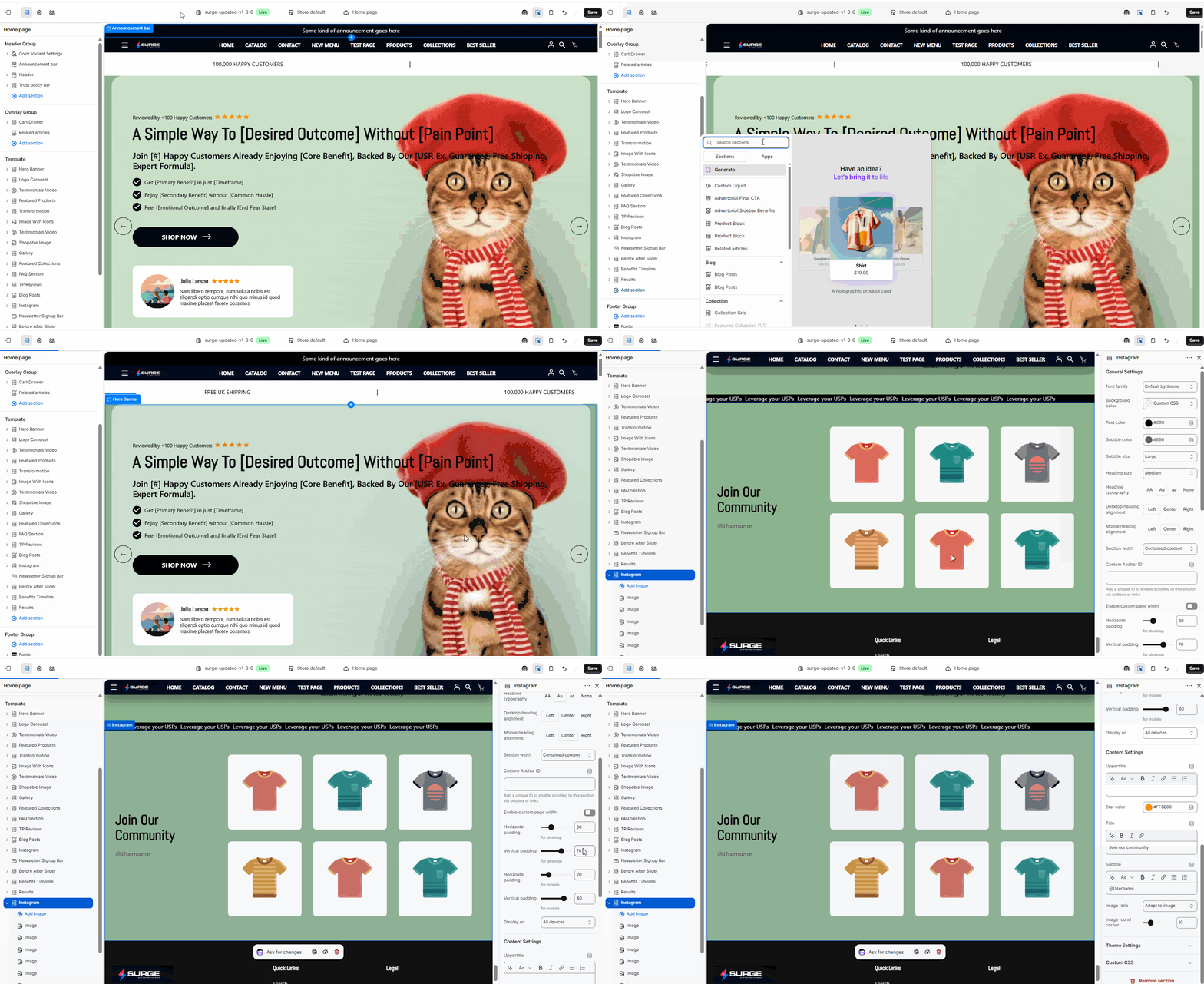
From the editor flow shown, this section can be quickly added via the Theme Editor and customized to match your store’s design.


Step-by-Step Guide

1. Open the Theme Editor

  • In your Shopify admin, go to Online Store → Themes
  • Click Customize on your active Surge theme

2. Select the Page

  • Use the top dropdown (e.g., Home page) to choose where you want the Instagram Section to appear

3. Add the Instagram Section

  • In the left sidebar, scroll to the Template section
  • Click Add section
  • Select Instagram from the list

4. Reposition the Section

  • Drag and drop the Instagram Section to your preferred location
  • Recommended placements:
    • Near the bottom of the homepage
    • Above the footer
    • After testimonials or featured collections

5. Configure Content

Click into the section settings to customize:

  • Heading – Add a title like “Follow Us on Instagram”
  • Instagram Handle – Display your @username
  • Feed Source – Connect or simulate your Instagram content (depending on setup)
  • Images – Upload or select images if manual mode is used
  • Link Settings – Direct users to your Instagram profile or specific posts

6. Adjust Layout & Design

  • Choose the number of images per row
  • Adjust spacing and alignment
  • Ensure responsiveness across mobile and desktop

7. Save Your Changes

  • Click Save in the top-right corner

Tips for Best Results

  • Use high-quality, consistent imagery to match your brand
  • Highlight user-generated content (UGC) to build social proof
  • Keep captions or overlays minimal to maintain a clean layout
  • Regularly update images to keep the section fresh

Need Help?

If you need help setting up or customizing the Instagram Section, feel free to reach out. Click Submit a Support Ticket or email us at [email protected]—we’re happy to assist!

Was this article helpful?

That’s Great!

Thank you for your feedback

Sorry! We couldn't be helpful

Thank you for your feedback

Let us know how can we improve this article!

Select at least one of the reasons
CAPTCHA verification is required.

Feedback sent

We appreciate your effort and will try to fix the article