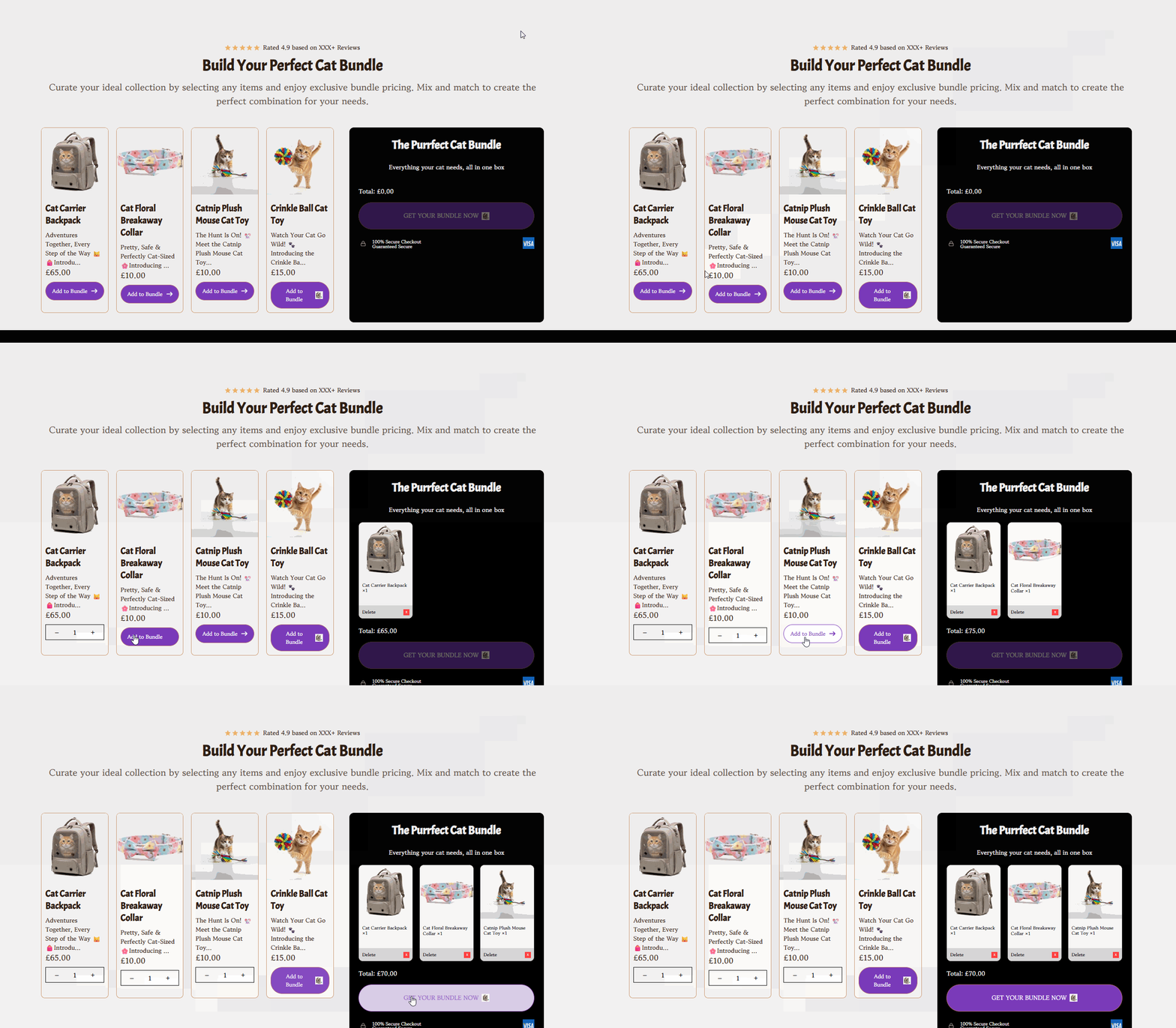
Bundle Builder lets shoppers mix & match products and unlock a bundle discount once they add the minimum number of items. The section is configured via the main Bundle Builder settings (colors, cards, discount rules, buttons, etc.) and by Product blocks (one block per product shown in the bundle grid).

Adding The Section To Your Store
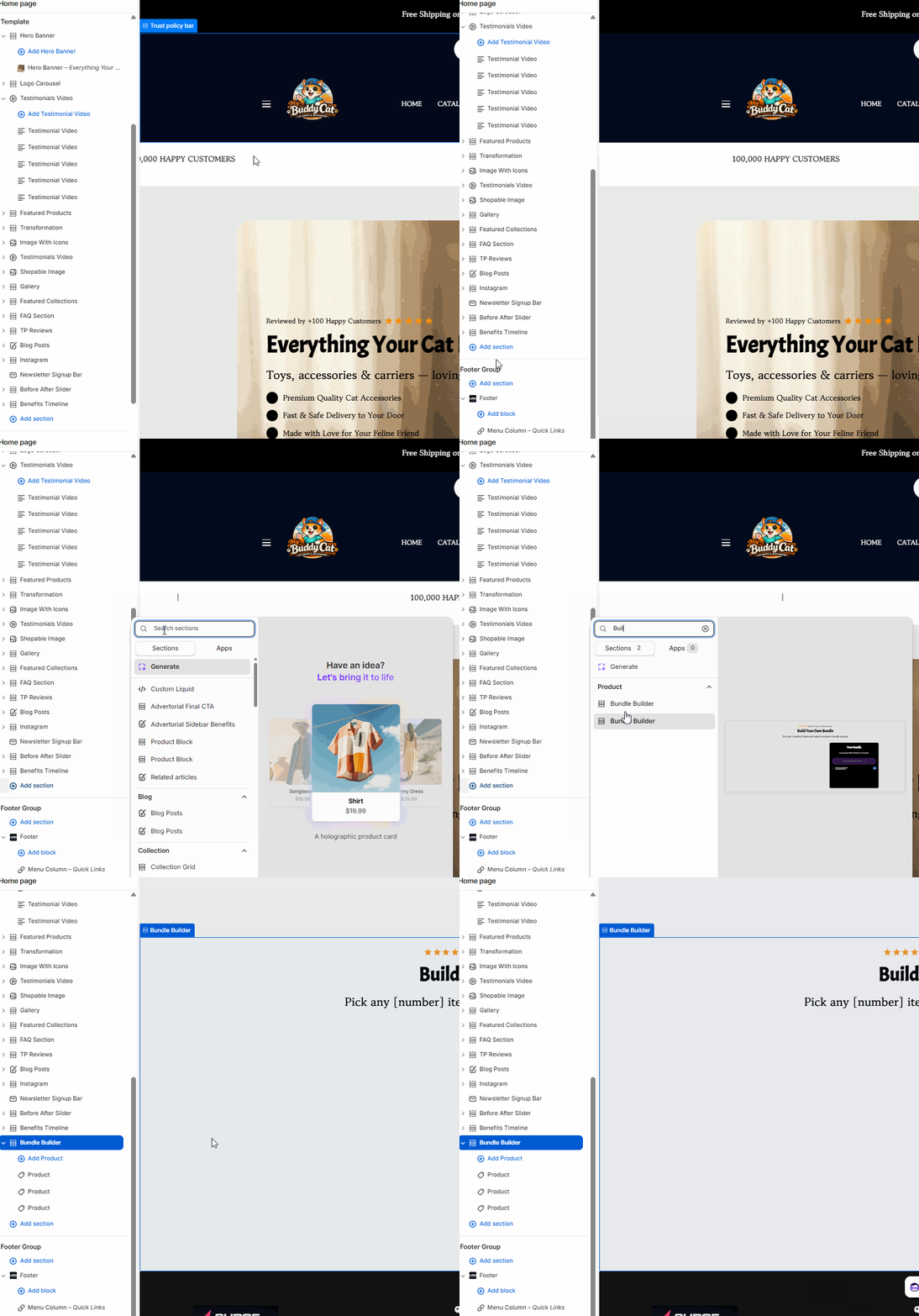
1. Open your theme editor
2. Click on “Add Section”
3. Find and add the “Bundle Builder” Section from the block library
Styling The Section
The Bundle Builder section allows customers to mix and match products to create their own custom bundles, unlocking discounts when they meet your set criteria.
It’s an excellent way to increase average order value, encourage product discovery, and make shopping more interactive.
You can easily configure bundle rules, colors, product cards, and buttons through the main Bundle Builder settings.
Use it to promote complementary products or themed collections (like “Build Your Own Kit”) and boost both engagement and conversions.
This section allows you to customize the content of your headline and subtitle, alignment and most importantly, Discount Codes settings for your bundle.
Open the Content Settings area of the Bundle Builder and set:
Uppertitle
.
Small trust label above heading.
Example: Reviewed by 500+ happy customers
Use for social proof or urgency.Title
Main heading (benefit focused).
Example: Bundle 3 Items & Save 15%Subtitle
Explanatory line under the title.
Example: Mix any 3 items from this collection and get 15% off instantly.Heading Alignment
Choose alignment: Sets the position of the headline and supporting copy Left, Center & Right Aligned. The center option is most common for galleries.Discount code to apply
The code that gets applied when the minimum is reached (optional if discount is automatic).
Example: BUNDLE15
Setting Up the Discounts in Shopify
Open Shopify’s main admin page in a new tab.
Go to “Discounts”.
Click on “Create Discount”.
“Choose the “Discount Type” you want to offer.
Add a name to your Discount.
Ensure the Discount amount and amount in the Bundle Builder match exactly the same.
PS: If you haven't created a code that you enter in this section, you will first need to create one and link to the Bundle Builder on the main admin of your Shopify as shown above, else it will not function.
Minimum products to activate bundle, e.g., 3. This is the rule customers must meet to get the discount.
Best practice: Put the discount value in the title or subtitle (so shoppers immediately see the benefit). If the discount requires a coupon, mention it clearly.
The Card Settings control how product cards are displayed — including layout, typography, hover effects, shadows, borders, and info elements like price or reviews. Under Card Settings configure the following:
Show Review Stars
Toggle to display stars above the title. Great for social proof.Show Price
Toggle to show price under product name.Card clickable
Makes the whole card clickable (better UX).Padding card info
Numeric spacing inside the card (e.g., 10).Card title Typography
AA (uppercase) / Aa (title case) / aa (lowercase).Card title two line
Allow long titles to wrap.Secondary Image On Hover
Show alternate image on hover (adds polish).
Suggested defaults: Show stars & price, enable clickable cards, padding 8–16 for balanced whitespace.
Container Styling
You have three options to choose from: Card, No Card, Shadow.Card: Each image or gallery item is placed inside a boxed card with a defined background. Useful when you want separation between items or to make each image stand out clearly.
No Card: Displays images without any background box or border — they sit directly on the page background. Best for minimalist or lifestyle-style galleries where visuals flow naturally with the page.
Shadow: Adds a soft drop shadow beneath each item, giving the appearance of gentle elevation. Ideal for making images pop off the page while still keeping a sleek layout.
Box Shadow (Offset, Blur, Spread, Color)
Adds depth to cards for a modern, layered effect.
Box shadow offset / blur / spread / color
Use subtle values (e.g., offset 1, blur 3, spread 2, color rgba(0,0,0,0.08)) for a modern lift.Card border & Card border color
Set the thickness and color for your card.Container Corner Radius
Adjust the roundness of the corners of your card. (e.g., 8–12).Card background
Choose the background of your card here. e.g., #FFFFFF.
Design tip: Light shadows + soft corner radius = modern & readable cards.
The following settings allow you to customise typography and set colors that match your brand:
Background Color
Set the backdrop of the gallery. Transparent blends with the page background.
Use a subtle solid color if you want images to stand out more.
Title Color
Titles: Sets the colour of the blocks main headline
Subtitles & Body Text: Sets the colour of the subtitle and card copy
Verified Text: sets the colour of the “Verified Customer” tagline.
Heading Size (Small / Medium / Large)
Control the size of your headline choose Small, Medium, or Large depending on how prominent you want your section title to appear.Headline Typography (AA / Aa / aa)
AA = ALL CAPS (bold and strong).
Aa = Title Case (professional).
aa = lowercase (minimal, casual).
Font Family
Default: Use your global theme fonts to style the section.
Custom: Allows you to select an alternative font to style this section
Example: Montserrat is a clean and legible font for modern looking stores.
Branding tip: Keep heading and body fonts consistent with the rest of your store to avoid visual dissonance.
This allows you to configure the visibility and spacing of the block:
Display On
This allows you to use whether you want to show this on all devices / Desktop / Mobile.Horizontal / Vertical Padding (Desktop & Mobile)
Controls spacing around the gallery elements both horizontal and vertical
Example: Desktop Horizontal = 70px (wide margins).
Mobile Horizontal = 15px (compact for small screens).
Show Arrow Button
Let’s you include an arrow button next to your Card Buttons.Text For Card Buttons
Choose the text that appears on your card buttons. Default Add to Bundle. (Make it action oriented.)
Buttons are the CTA for “Add to Bundle”:
Settings (Global / Custom)
Use theme global button styles or customize just this section.Button Settings:
Choose your Border Size, Color and Corner Radius for your Bundle Buttons.
Toggle trusted payment icons to show under the bundle: Visa, Mastercard, Amex, PayPal, Shopify Pay, Google Pay, Apple Pay, etc. This enhances trust at glance.
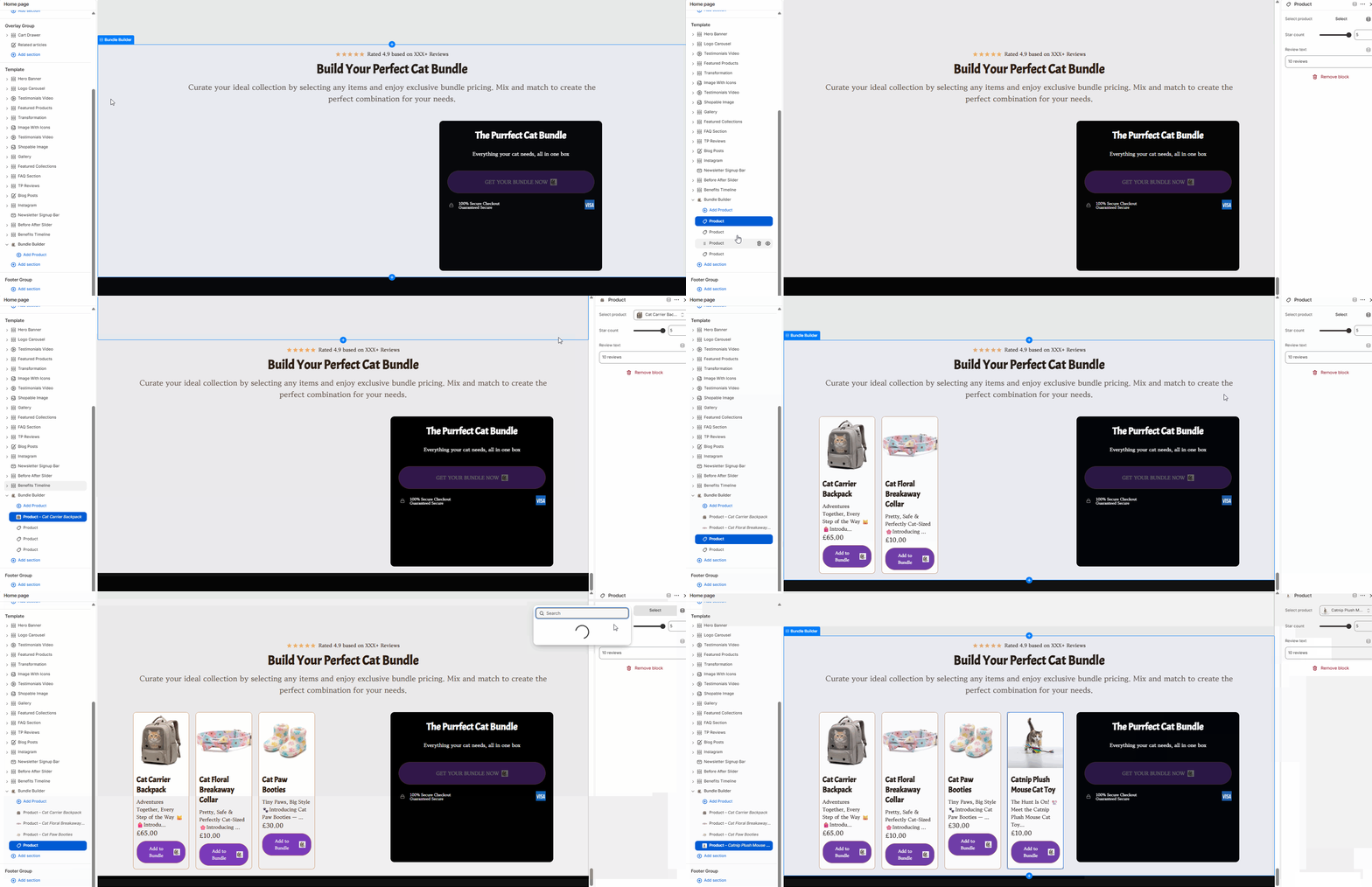
Each product in the bundle is a Product block. Add multiple blocks to create the grid.
For each Product block, configure:
Select Product
Choose from your catalog.
Click the dropdown Options include Replace, Edit, Connect dynamic source, Remove product (as in the editor menu).
Connect dynamic source lets you map a metafield or dynamic listing if using dynamic collections.
Star count
Enter a number of stars/reviews (e.g., 10 reviews). This can be a manual value or reflect your review app.
Review text
Short text displayed next to stars: 10 reviews, Rated 4.9/5, etc.
Remove product
Removes this product block from the bundle. (Does not delete a product from store.)
Pro tip: Keep review counts honest; if using a review app, try to sync or manually match counts for consistency.
Products add to cart from the bundle grid.
Discount applies once minimum quantity is reached.
Buttons are visible & tappable on mobile.
Hover image appears (desktop) if enabled.
Card heights align (or titles are set to two-line).
Payment icons appear & are appropriate for store.
Color contrast passes readability test for CTAs.
Q: Discount doesn’t apply when I add X products
Check that the Discount code to apply is correct and that the discount exists in Shopify admin (automatic vs manual coupon differences). If using automatic discounts, you may not need to specify a code.
Q: Cards are uneven / misaligned
Different title lengths or missing images cause uneven cards. Enable Card title two line and ensure each product has a similar-sized image.
Q: Hover image doesn’t show for some products
Make sure a secondary image is available on the product in Shopify media. If not present, the hover option will have nothing to show.
Q: Star count differs from review app
The Product block star/review text is manual unless connected dynamically. Either connect it to your review app (via metafields) or update numbers to match.
Q: Button text or color not readable
In Button Settings set a contrasting text color and test on both light and dark backgrounds.
Uppertitle: Loved by 300+ happy shoppers
Title: Bundle 3 Items — Save 15%
Subtitle: Mix and match any 3 items from this collection to get an instant 15% discount.
Discount code: BUNDLE15
Button text: Add to Bundle
Review text example: 10 reviews
Was this article helpful?
That’s Great!
Thank you for your feedback
Sorry! We couldn't be helpful
Thank you for your feedback
Feedback sent
We appreciate your effort and will try to fix the article