The Cart settings in Surge are designed to maximize your average order value (AOV) by providing transparency and incentivizing customers to add more items to their bag. This section controls both informational notes and powerful promotional features like the shipping progress bar.
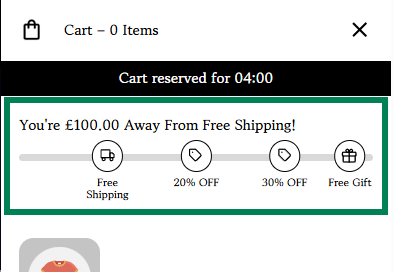
The Cart settings are divided into three main functional areas:
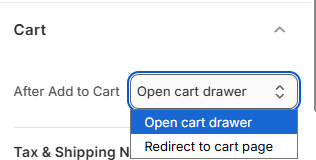
After Add to Cart: Cartws you to select between opening the cart drawer or be redirected to the cart page whenever a customer clicks Add to cart.
Tax & Shipping Note: A simple toggle to show or hide the "taxes and shipping calculated at checkout" message.
Shipping Bar Settings: A visual progress bar that motivates customers to hit a specific spending threshold to unlock rewards like Free Shipping.
Shipping Goal Settings: Advanced logic that allows you to switch between a simple shipping goal or more complex discount goals.
Pro Tip: Use the
||amount||tag in your shipping bar text. This dynamically updates to show the customer exactly how much more they need to spend, creating a psychological "nudge" to keep shopping.
How to Configure Your Cart & Shipping Bar
Follow these steps to optimize your cart experience:
Open the Theme Editor: From your Shopify Admin, go to Online Store > Themes > Edit Theme.
Open Theme Settings: Click the Gear icon (⚙️) in the left-hand sidebar and select Cart.
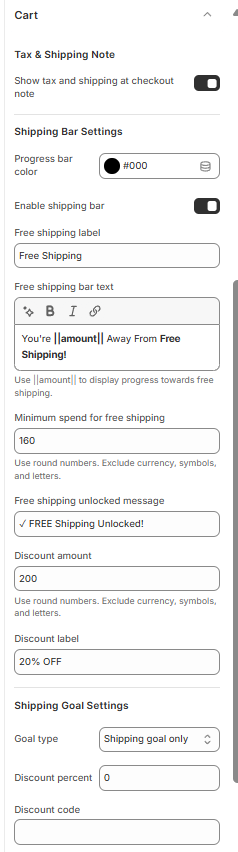
Set Up the Shipping Bar: * Toggle Enable shipping bar to "On."
Set your Minimum spend (e.g.,
160). Use round numbers only, no symbols.Customize the Free shipping bar text. Ensure you include the
||amount||variable.
Customize the Unlocked Message: Enter the text customers see once they hit the goal (e.g., "✓ FREE Shipping Unlocked!").
Configure Discounts (Optional): If you want to offer a discount after a certain spend, fill in the Discount amount and Discount label (e.g., "20% OFF").
Style the Bar: Click the Progress bar color picker to choose a color that pops against your cart background.
Save: Click Save in the top right corner.
Was this article helpful?
That’s Great!
Thank you for your feedback
Sorry! We couldn't be helpful
Thank you for your feedback
Feedback sent
We appreciate your effort and will try to fix the article