The Header section in your Global Theme Settings allows you to control the behavior of your store's navigation as customers move through your pages. A well-configured header ensures your menu and cart are always within reach without obstructing the shopping experience.
The primary focus of this section is the Sticky header behavior. This setting determines if and how the header follows the user as they scroll down the page. By selecting the right behavior, you can keep your brand and navigation visible or prioritize more screen space for your products.
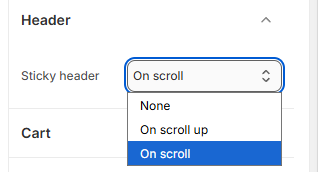
Surge offers three distinct sticky behaviors:
None: The header stays at the top of the page and disappears as the user scrolls down.
On scroll up: The header stays hidden while scrolling down but reappears instantly as soon as the user scrolls back up.
On scroll: The header remains fixed at the top of the screen at all times during scrolling.
How to Configure Your Header Behavior
Follow these steps to adjust your sticky header settings:
Open the Theme Editor: From your Shopify Admin, go to Online Store > Themes> Edit Theme.
Open Theme Settings: Click the Gear icon (⚙️) in the left-hand sidebar.
Select Header: Click the Header accordion to expand the options.
Choose Sticky Behavior: Click the dropdown menu under Sticky header and select your preferred option:
Choose On scroll for maximum accessibility of your menu.
Choose On scroll up for a "smart" header that stays out of the way until needed.
Save: Click Save in the top right corner.
Was this article helpful?
That’s Great!
Thank you for your feedback
Sorry! We couldn't be helpful
Thank you for your feedback
Feedback sent
We appreciate your effort and will try to fix the article