The Payment Icons section allows you to manually showcase the trusted payment methods your store accepts. Displaying these icons helps build immediate trust with your customers and reduces friction during the checkout process.
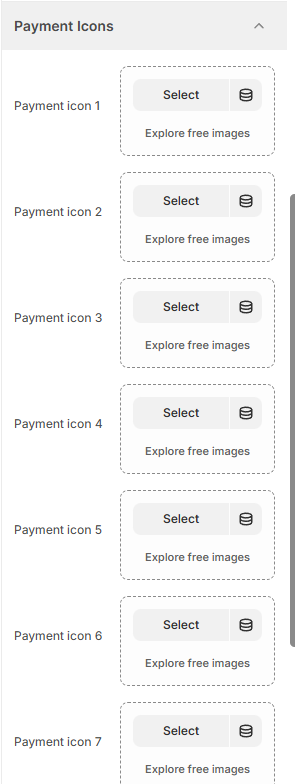
In this section, you can upload specific images for up to seven different payment methods (e.g., Visa, Mastercard, PayPal, Apple Pay). Unlike the automatic icons generated by Shopify based on your gateway, these manual slots give you full control over which logos appear and in what order.
Tip: Use consistent, high-quality icons with transparent backgrounds to ensure they look professional across all sections of your store, such as the footer or product pages.
How to Add Payment Icons
Follow these steps to display your accepted payment methods:
Open the Theme Editor: From your Shopify Admin, go to Online Store > Themes> Edit Theme.
Open Theme Settings: Click the Gear icon (⚙️) in the left-hand sidebar.
Select Payment Icons: Click on the Payment Icons accordion to expand the list.
Upload Your Icons: For each slot (Payment icon 1 through Payment icon 7):
Click Select to upload an icon from your computer or choose one from your library.
Use Explore free images if you need generic payment placeholder icons.
Organize: Icons will appear on your site in the order they are filled (1 through 7). Leave a slot empty if you do not need all seven.
Save: Click Save in the top right corner to update your store.
Was this article helpful?
That’s Great!
Thank you for your feedback
Sorry! We couldn't be helpful
Thank you for your feedback
Feedback sent
We appreciate your effort and will try to fix the article