The Layout section controls the structural footprint of your store. It determines how much horizontal space your content occupies, ensuring your site looks balanced across different screen sizes.
Summary
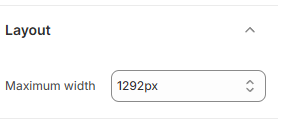
The primary setting in this section is the Maximum width. This value sets the "container" size for your store. By defining a maximum width, you prevent your content from stretching too far to the edges on large desktop monitors, which helps maintain readability and design integrity.
Tip: Most modern e-commerce sites use a maximum width between 1200px and 1400px.
How to Adjust Your Layout
Follow these steps to modify the width of your store:
Open the Theme Editor: Navigate to Online Store > Themes in your Shopify Admin > Click Edit Theme.
Open Theme Settings: Click the Gear icon (⚙️) in the left-hand sidebar.
Select Layout: Click the Layout accordion to expand it.
Adjust Maximum Width: Use the number selector or arrow keys to change the pixel (px) value.
Higher values allow content to spread wider on large screens.
Lower values create a more centered, compact look.
Save: Click Save in the top right corner to apply the new dimensions.
Was this article helpful?
That’s Great!
Thank you for your feedback
Sorry! We couldn't be helpful
Thank you for your feedback
Feedback sent
We appreciate your effort and will try to fix the article