Overview
The Results Section in the Surge Theme is designed to highlight the outcomes your customers can expect from your product or service. It’s perfect for showcasing transformations, benefits, or before-and-after comparisons to build trust and drive conversions.
Based on the editor flow shown, this section can be easily added and customized directly within the Shopify Theme Editor, no coding required.
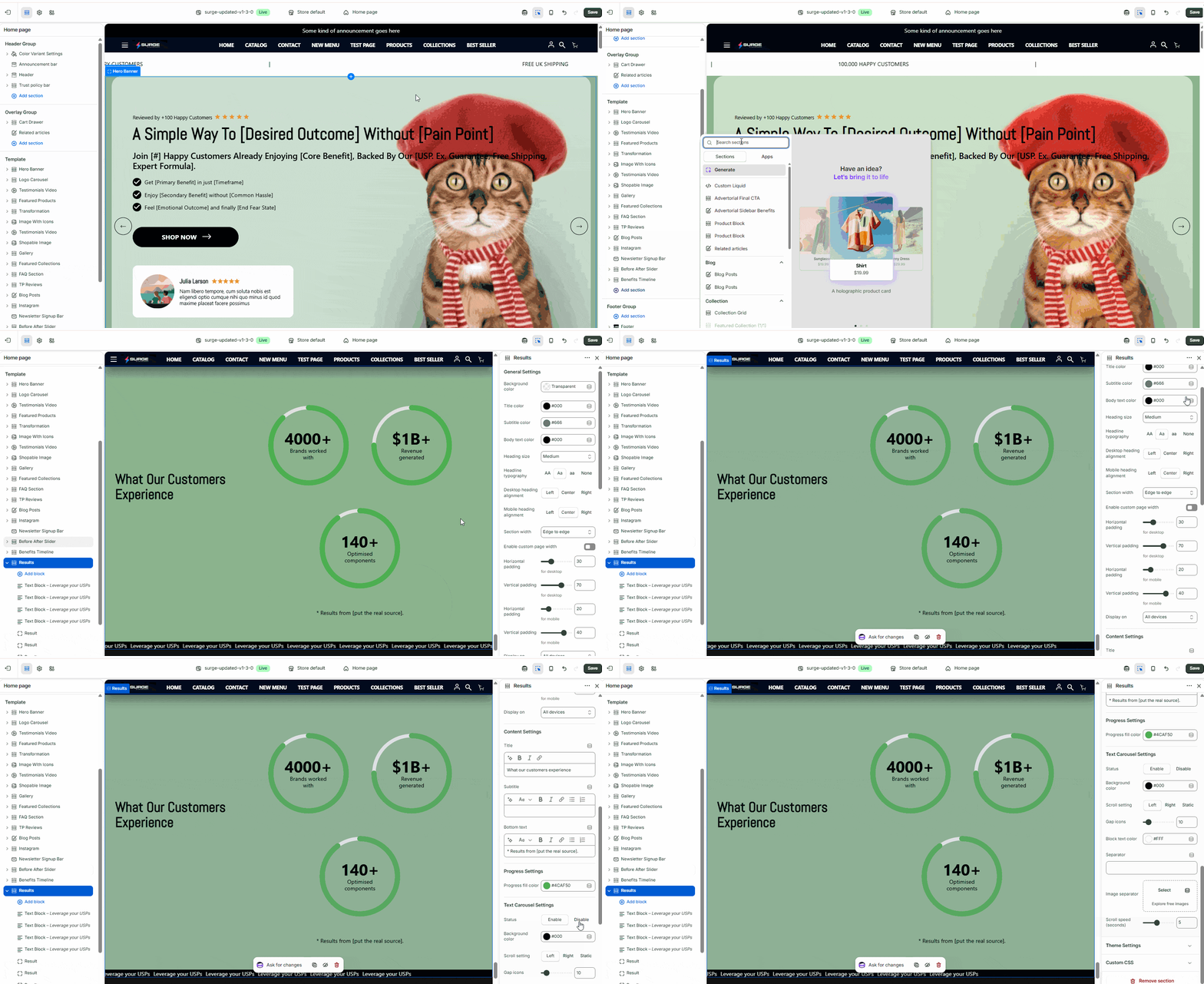
Step-by-Step Guide
1. Open the Theme Editor
- From your Shopify admin, go to Online Store → Themes
- Click Edit theme on your active Surge theme
2. Navigate to the Desired Page
- Use the top dropdown (e.g., Home page) to select where you want to add the Results Section
3. Add the Results Section
- In the left sidebar, scroll to the appropriate group (usually Template)
- Click Add section
- Look for and select Results Section
4. Position the Section
- Drag and drop the Results Section to your preferred placement on the page
- Common placements:
- Below the Hero Banner
- After Featured Products
- Before Testimonials
5. Customize Content
Once added, click the section to edit its settings:
- Heading & Subheading – Clearly state the transformation or outcome
- Before/After Content (if available) – Highlight contrast or improvements
- Images or Visuals – Use compelling visuals to support the results
- Text Blocks – Add supporting descriptions or bullet points
- Call-to-Action (CTA) – Encourage users to take the next step
6. Adjust Design Settings
- Modify spacing, alignment, and layout options
- Ensure the section looks great across desktop and mobile
7. Save Your Changes
- Click Save in the top-right corner to publish your updates
Tips for Best Results
- Focus on clear, measurable outcomes (e.g., “Increase conversions by 30%”)
- Use real customer data or testimonials when possible
- Keep the layout clean and easy to scan
- Pair visuals with short, benefit-driven text
Need Help?
If you run into any issues or need assistance customizing the Results Section, feel free to reach out. You can click Submit a Support Ticket or email us directly at [email protected]—we’re happy to help!
Was this article helpful?
That’s Great!
Thank you for your feedback
Sorry! We couldn't be helpful
Thank you for your feedback
Feedback sent
We appreciate your effort and will try to fix the article