Gemini said
Search Input Settings
The Search Input section enhances the shopping experience by controlling how customers interact with your store's search bar. By enabling predictive features, you can help customers find what they are looking for faster and increase conversion rates.
Summary
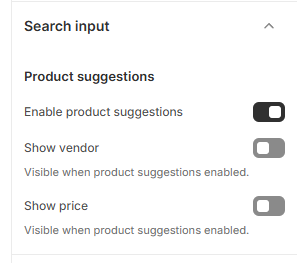
This section focuses on Product Suggestions. When enabled, the search bar will display a dropdown of relevant products as the user types. You can further customize this view by choosing whether to display the Vendor (brand name) or the Price directly within these search suggestions.
Why use this? Predictive search reduces the friction of browsing and helps "warm up" a sale before the customer even hits the search results page.
How to Configure Search Suggestions
Follow these steps to customize your search bar behavior:
Open the Theme Editor: From your Shopify Admin, go to Online Store > Themes > Edit Theme.
Open Theme Settings: Click the Gear icon (⚙️) in the left-hand sidebar.
Select Search Input: Click the Search input accordion to expand the settings.
Configure Product Suggestions: * Enable product suggestions: Toggle this on to show live product results while customers type.
Show vendor: Toggle this on to display the brand/manufacturer name in the suggestions.
Show price: Toggle this on to show the product's price in the suggestion dropdown.
Save: Click Save in the top right corner.
Was this article helpful?
That’s Great!
Thank you for your feedback
Sorry! We couldn't be helpful
Thank you for your feedback
Feedback sent
We appreciate your effort and will try to fix the article