The Logo section is where you establish your brand identity. It allows you to upload your primary store logo and fine-tune its appearance across different devices to ensure your brand is always represented clearly.
In this section, you can upload your Logo site image and independently control its size for both desktop and mobile views. Having separate width controls ensures that your logo remains legible on smaller smartphone screens without being oversized on desktop monitors.
Tip: For the best results, use a transparent .png or .svg file. This allows your logo to sit cleanly on any background color you've chosen for your header.
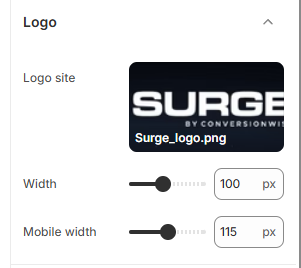
How to Upload and Scale Your Logo
Follow these steps to set up your brand logo:
Open the Theme Editor: From your Shopify Admin, go to Online Store > Themes
Open Theme Settings: Click the Gear icon (⚙️) in the left-hand sidebar.
Select Logo: Click on the Logo accordion to expand the settings.
Upload Your Logo: Click the Logo site area to upload your image file or select one from your media library.
Adjust Scaling:
Width: Use the slider or enter a pixel value to change the size of the logo on desktop.
Mobile width: Use the slider or enter a pixel value to change the size of the logo on mobile devices.
Save: Click Save in the top right corner to apply your branding.
Was this article helpful?
That’s Great!
Thank you for your feedback
Sorry! We couldn't be helpful
Thank you for your feedback
Feedback sent
We appreciate your effort and will try to fix the article