Adding The Section To Your Store
1. Open your theme editor
2. Click on “Add Section”
3. Find and add the “Blog Posts” Section from the block library
Styling The Section
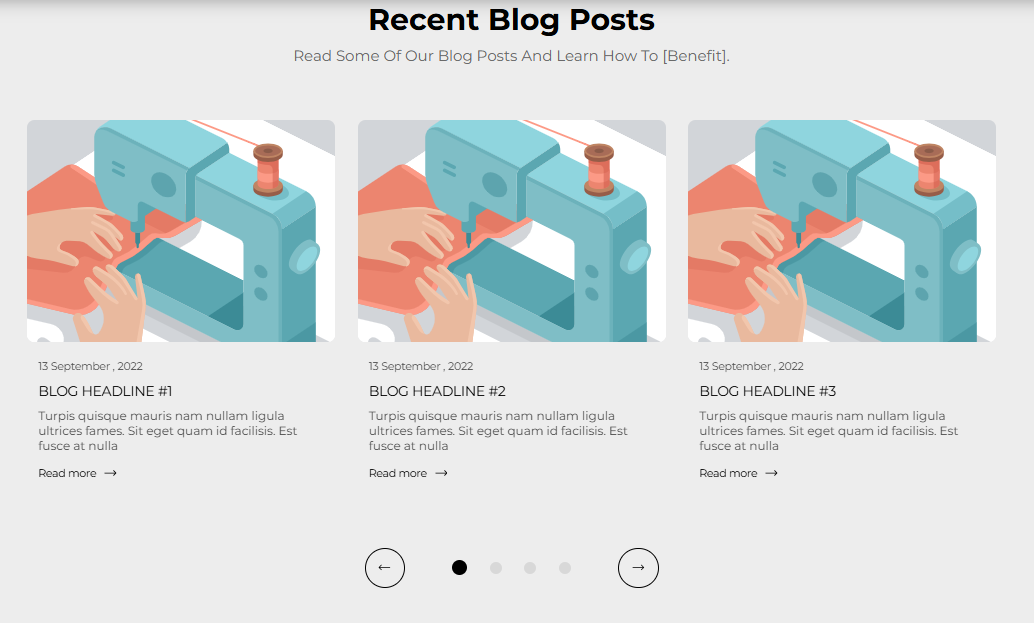
It’s perfect for sharing product tips, brand stories, or news updates that build credibility and keep your store looking active.
Use it to position your brand as an authority in your niche, increase time on site, and guide readers toward products through helpful, value-driven content.
Step 1 — Header Content Settings
This section allows you to customize the content and alignment of your title and subtitle.
Title
Add a clear heading, e.g., “Recent Blog Posts” or “From Our Journal.”Subtitle
Write a short description that explains what your blog is about, e.g., “Tips, guides, and stories to inspire your fitness journey.”Heading Alignment
Choose alignment: Sets the position of the headline and supporting copy Left, Center & Right Aligned. The center option is most common for galleries.
Step 2 — General Settings
Below is a list of all the general settings found on all sections built inside Surge Theme
Background Color
Set the backdrop of the gallery. Transparent blends with the page background.
Use a subtle solid color if you want images to stand out more.
Heading Size (Small / Medium / Large)
Control the size of your headline choose Small, Medium, or Large depending on how prominent you want your section title to appear.Headline Typography (AA / Aa / aa)
AA = ALL CAPS (bold and strong).
Aa = Title Case (professional).
aa = lowercase (minimal, casual).
Font Family
Default: Use your global theme fonts to style the section.
Custom: Allows you to select an alternative font to style this section
Example: Montserrat is a clean and legible font for modern looking stores.
Title Color
Titles: Sets the colour of the blocks main headline
Subtitles & Body Text: Sets the colour of the subtitle and card copy
Verified Text: sets the colour of the “Verified Customer” tagline.
Section Width
Full Width: Block spans the entire width of the screen.
Contained: Adds side margins for a neat look.
Padding (Desktop & Mobile)
Controls spacing around the gallery elements both horizontal and verticalExample: Desktop Horizontal = 70px (wide margins).
Mobile Horizontal = 15px (compact for small screens).
Display On
Choose where to show the section. Default: All Devices.
Step 3 — Blog Cards Settings
The Blog Cards setting customizes how your blog previews appear, letting you style titles, text, colors, borders, shadows, and container layouts for a polished, cohesive look.
Title Color
Sets blog post title color.Text Color
Controls description/preview text color.Read More Color
Styles the "Read More" link.Card Title Two Line
Limits long titles to two lines for consistency.Card Description
Show or hide blog excerpts.Card Clickable
Makes the whole card a link (improves UX).Container Styling
Add shadows, borders, or rounded corners:Box Shadow → Adds depth with offset, blur, and spread settings.
Card Background → Set to transparent or add a solid fill.
Corner Radius → Round card corners (e.g., 10px for a soft look).
Step 4 — Block Settings
This setting allows you to link your existing blog posts to your block. Each block represents a single blog post.
Select Blog Post → Choose an article from your existing Shopify blog posts.
The block will automatically pull the title, image, and excerpt from your blog post or create a new one to add.
? You can add multiple blocks to feature several blog posts in this section.
Best Practices
Keep titles short & engaging to grab attention.
Use high-quality featured images for each post (consistent size).
Maintain a consistent publishing schedule to build trust.
Choose blog posts that educate, inspire, or solve problems for your audience.
FAQs
Q: Can I feature posts from multiple blogs?
A: No, each block pulls from one blog at a time. Choose the blog source when adding the post.
Q: Can I hide the “Read More” link?
A: Yes, by disabling the card description/read more options in Blog Card Settings.
Q: How many blog posts can I show?
A: Depends on your theme, but generally you can add as many blocks as you like.
Troubleshooting
Blog Post Not Showing? Ensure you’ve selected a published blog post, not a draft.
Images Missing? Add a featured image to the blog post in Shopify admin.
Text Cut Off? Check if the “Two Line Title” setting is limiting your titles.
Testing Checklist
✔ Verify blog post titles, subtitles, and links display correctly.
✔ Test on desktop and mobile to check readability and layout.
✔ Ensure “Read More” links open the correct blog post.
✔ Review spacing and padding so cards look balanced.
✔ Confirm all featured images load and are consistent in style.
Was this article helpful?
That’s Great!
Thank you for your feedback
Sorry! We couldn't be helpful
Thank you for your feedback
Feedback sent
We appreciate your effort and will try to fix the article