The Favicon section allows you to upload a small, iconic image that represents your brand in web browser tabs, bookmarks, and history bars. It is a subtle but essential detail for providing a professional and polished user experience.
In this section, you can upload your Favicon image. This image serves as the "face" of your website on a browser's tab. Because favicons are displayed at a very small size, the Surge theme will automatically scale your uploaded image down to 32 x 32px.
Best Practice: Use a simple version of your logo or a recognizable brand mark. Avoid using text, as it will become unreadable once scaled down to size.
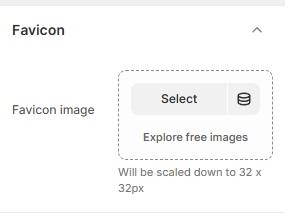
How to Upload Your Favicon
Follow these steps to add a favicon to your store:
Open the Theme Editor: From your Shopify Admin, go to Online Store > Themes > Edit Theme.
Open Theme Settings: Click the Gear icon (⚙️) in the left-hand sidebar.
Select Favicon: Click on the Favicon accordion to open the image uploader.
Upload Image: Click Select to choose an image from your library or upload a new file from your computer.
Alternatively, click Explore free images if you don't have a logo ready yet.
Save: Click Save in the top right corner. It may take a few moments for the new icon to appear in your browser tab.
Was this article helpful?
That’s Great!
Thank you for your feedback
Sorry! We couldn't be helpful
Thank you for your feedback
Feedback sent
We appreciate your effort and will try to fix the article