Adding The Section To Your Store
1. Open your theme editor
2. Click on “Add Section”
3. Find and add the “Comparison Table” Section from the block library
Styling The Section
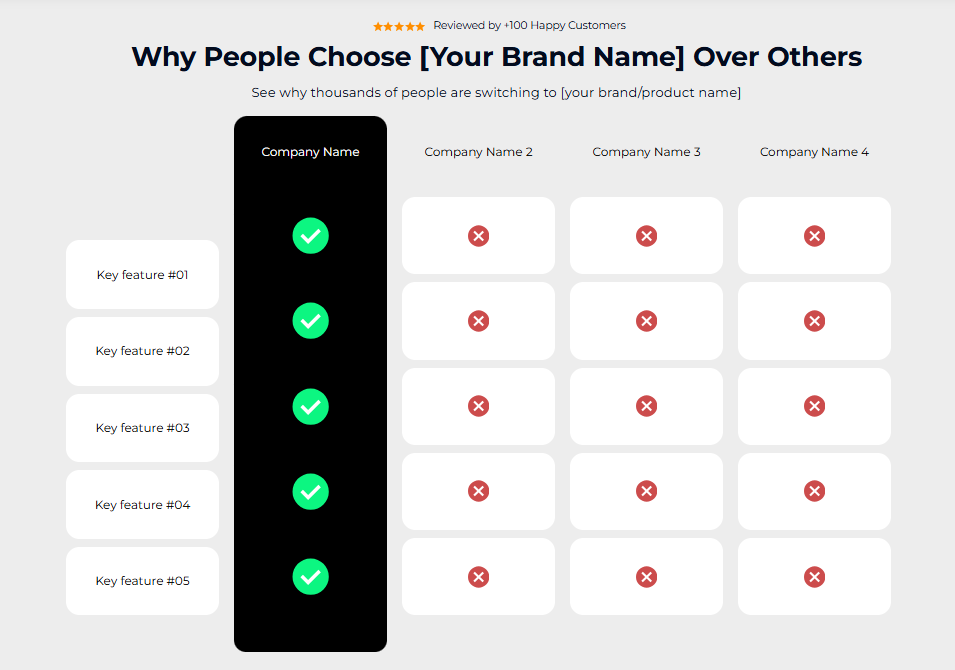
The Comparison Table section helps you clearly highlight how your product stands out from competitors by presenting features, benefits, or pricing side by side.
It’s a powerful way to simplify decision-making and build trust by showing transparency and value. Use it to emphasize your key advantages. Such as better quality, performance, or price and help customers instantly understand why your product is the smarter choice.
Placing it near product or pricing sections can maximize its impact on conversions.
Below is a list of all the general settings found on all sections built inside Surge Theme.
Background Color
Set the backdrop of the gallery. Transparent blends with the page background.
Use a subtle solid color if you want images to stand out more.
Heading Size (Small / Medium / Large)
Control the size of your headline choose Small, Medium, or Large depending on how prominent you want your section title to appear.Headline Typography (AA / Aa / aa)
AA = ALL CAPS (bold and strong).
Aa = Title Case (professional).
aa = lowercase (minimal, casual).
Font Family
Default: Use your global theme fonts to style the section.
Custom: Allows you to select an alternative font to style this section
Example: Montserrat is a clean and legible font for modern looking stores.
Title Color
Titles: Sets the colour of the blocks main headline
Subtitles & Body Text: Sets the colour of the subtitle and card copy
Verified Text: sets the colour of the “Verified Customer” tagline.
Star Color
If stars are used in your comparison table, this sets their color (default: #FF8E00).Heading Alignment
Choose alignment: Sets the position of the headline and supporting copy Left, Center & Right Aligned. The center option is most common for galleries.Section Width
Full Width: Block spans the entire width of the screen.
Contained: Adds side margins for a neat look.
Padding (Desktop & Mobile)
Controls spacing around the gallery elements both horizontal and verticalExample: Desktop Horizontal = 70px (wide margins).
Mobile Horizontal = 15px (compact for small screens).
Display On
Choose where to show the section. Default: All Devices.
These settings allow you to define the intro text and structure of your comparison.
Uppertitle
A small headline above the title. Example: “Over 1,000 customers compared us.”Title
The main heading. Example: “How We Stack Up.”Subtitle
A supporting line of text. Example: “Compare features, performance, and trust.”
Step 3 — Company Name & Logo Settings
This setting allows you to list the competitor names and logo which you would like to compare with your brand.
Add up to 6 companies for comparison.
For each company, enter its name and upload a logo image.
Example: Shopify, BigCommerce, WooCommerce, Squarespace, etc.
? Logos make it easier for customers to quickly recognize competitors and understand the comparison.
This setting allows you to upload your own custom icons for checkmarks and crosses for a visually clear comparison.
Icon Cross
Upload or select an image/icon to represent "Not available" or "Does not apply."Icon Check
Upload or select an image/icon to represent "Available" or "Yes."
Each Company Column block represents one feature row in your table. You can add as many blocks as you need to compare key product features.
Key Feature Title
Write the feature being compared (e.g., “Ease of Use”).Company Settings
For each company, assign either a Check (✅) or Cross (❌) depending on whether that company supports this feature.
? Tip: Start with 4–6 key features that matter most to your customers (ease of use, pricing, integrations, customer support, etc.) so the table doesn’t look overcrowded.
Best Practices
Keep it short & simple → Focus on 4–6 key features that matter most to your target audience.
Highlight your strengths → Subtly emphasize your product (e.g., bold text, branded color backgrounds) without appearing biased.
Use recognizable competitor logos → Helps users quickly scan and build trust in your comparisons.
Mobile readability is key → Ensure columns don’t feel cramped; use scrolling if necessary.
Maintain honesty → Avoid exaggeration. Being transparent about where you don’t have a feature can actually build trust.
Q1: Can I compare more than 6 companies?
Not by default. The section supports up to 6 companies for a clear layout. More than that can overwhelm visitors.
Q2: Can I add custom icons instead of check/cross?
Yes, you can upload any icon (e.g., stars, ticks, custom badges) for check/cross placeholders.
Q3: What if I don’t have competitor logos?
You can still use text names only. But logos increase clarity and recognition.
Q4: Can I reorder companies or features?
Yes, drag and drop in the Shopify editor to reorder columns (companies) or rows (features).
Logos look blurry. Make sure you’re uploading high-resolution PNG or SVG logos.
Table doesn’t fit on mobile. Try switching to “Contained” width and reduce the number of features per block.
Icons not showing. Double-check you uploaded both a check and a cross icon in the settings.
Section background not showing. Ensure the main and secondary container background colors are applied correctly (not transparent).
Before publishing your Comparison Table:
Are all company names and logos uploaded clearly?
Does the table look balanced on desktop and mobile?
Have you used check/cross icons consistently across rows?
Is your product/company highlighted subtly without appearing unfair?
Did you test for readability of text colors (no clashing with backgrounds)?
Are the features listed relevant to your target customer’s buying decision?
Was this article helpful?
That’s Great!
Thank you for your feedback
Sorry! We couldn't be helpful
Thank you for your feedback
Feedback sent
We appreciate your effort and will try to fix the article